---
title: "Customize the appearance of your embeds"
description: "Style modular embeds with a theme. Pick light or dark mode, save reusable themes in Metabase, and set colors, fonts, and component options for web components or the React SDK."
url: "https://www.metabase.com/docs/latest/embedding/appearance"
version: "65"
---
> For the complete documentation index, see [llms.txt](https://www.metabase.com/docs/llms.txt).
# Customize the appearance of your embeds
A theme is an object that sets colors, fonts, and component options. Every [embed configuration](https://www.metabase.com/docs/latest/embedding/config.md) has one theme, and the theme applies to every embed that uses that configuration. The theme object is the same for web components and the React SDK, so every example on this page works with both.
There are three ways to set a theme:
- **Use a preset:** Set `preset` to `"light"` or `"dark"`. Available on all plans.
- **Save a theme:** Save a theme in **Embedding hub** > **Appearance**, then select it in the embed wizard. The wizard copies your theme into the embed's code. Available on Pro and Enterprise plans only.
- **Set options in code:** Add options directly to your embed configuration. These values override the preset or saved theme. Available on Pro and Enterprise plans only.
For every option in the theme object, see [Appearance reference](https://www.metabase.com/docs/latest/embedding/appearance-reference.md).
## Add a theme to your embeds
Set the theme in your [shared embed configuration](https://www.metabase.com/docs/latest/embedding/config.md):
- **Web components:** Add `theme` to `defineMetabaseConfig()`.
- **React SDK:** Create the theme with `defineMetabaseTheme()` and pass it to `MetabaseProvider`.
### Web component theme
```html
```
### React SDK theme
```tsx
const theme = defineMetabaseTheme({
colors: {
brand: "#509EE3",
},
});
return (
{children}
);
```
The examples below show only the theme object.
## Pick a light or dark theme
Embeds use the light theme by default. To switch to dark, set `preset` to `"dark"`:
```js
{
preset: "dark", // or "light"
}
```
Presets are available on all plans. Any colors you set alongside a preset override that preset's colors.
## Save a theme in Metabase
_Embedding hub > Appearance_
> Saved embedding themes are only available on [Pro](https://www.metabase.com/product/pro) and [Enterprise](https://www.metabase.com/product/enterprise) plans (both self-hosted and on Metabase Cloud).
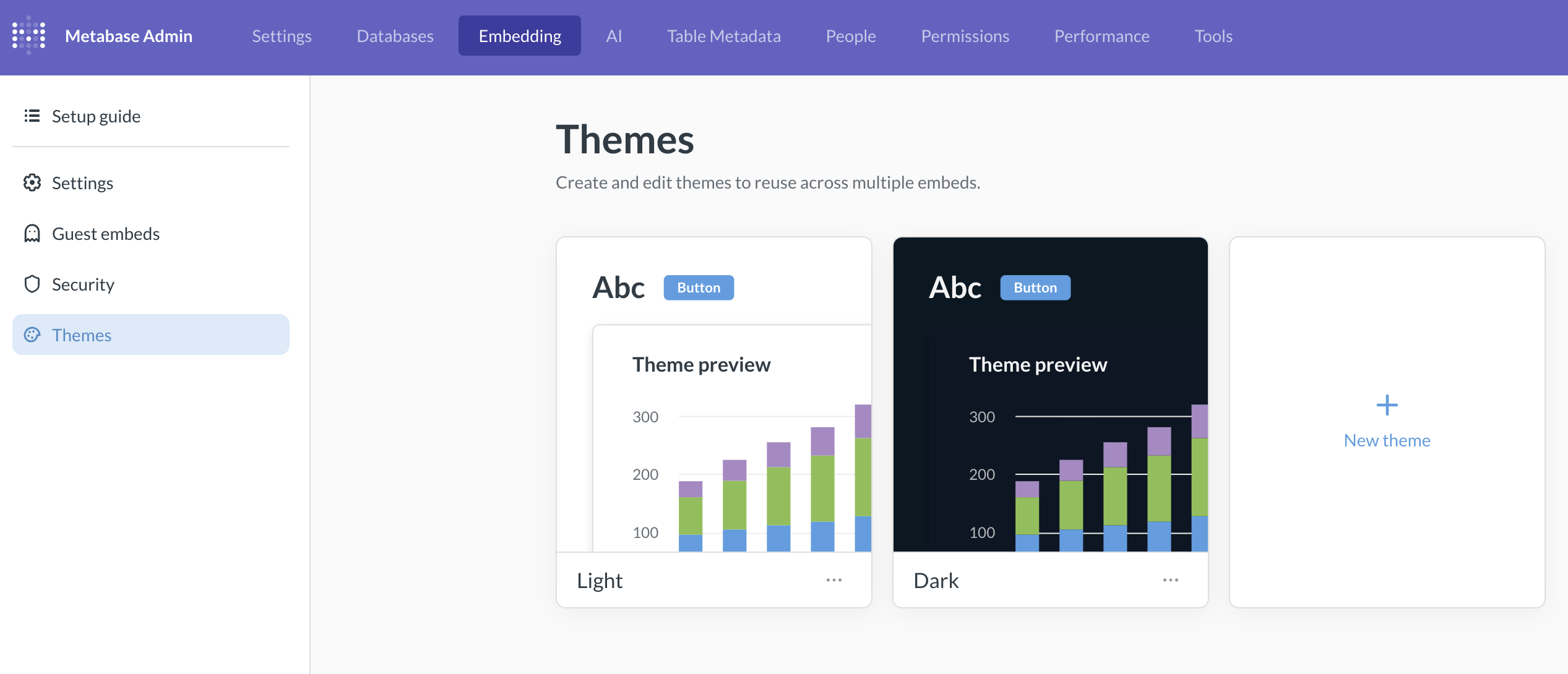
A saved theme is a named set of colors and fonts that you set in **Embedding hub** > **Appearance**. When you select a saved theme in the embed wizard, the wizard copies it into the embed's code.
Metabase includes a light and a dark theme that use the [appearance settings](https://www.metabase.com/docs/latest/configuring-metabase/appearance.md) of your Metabase. In the **Themes** section, you can:
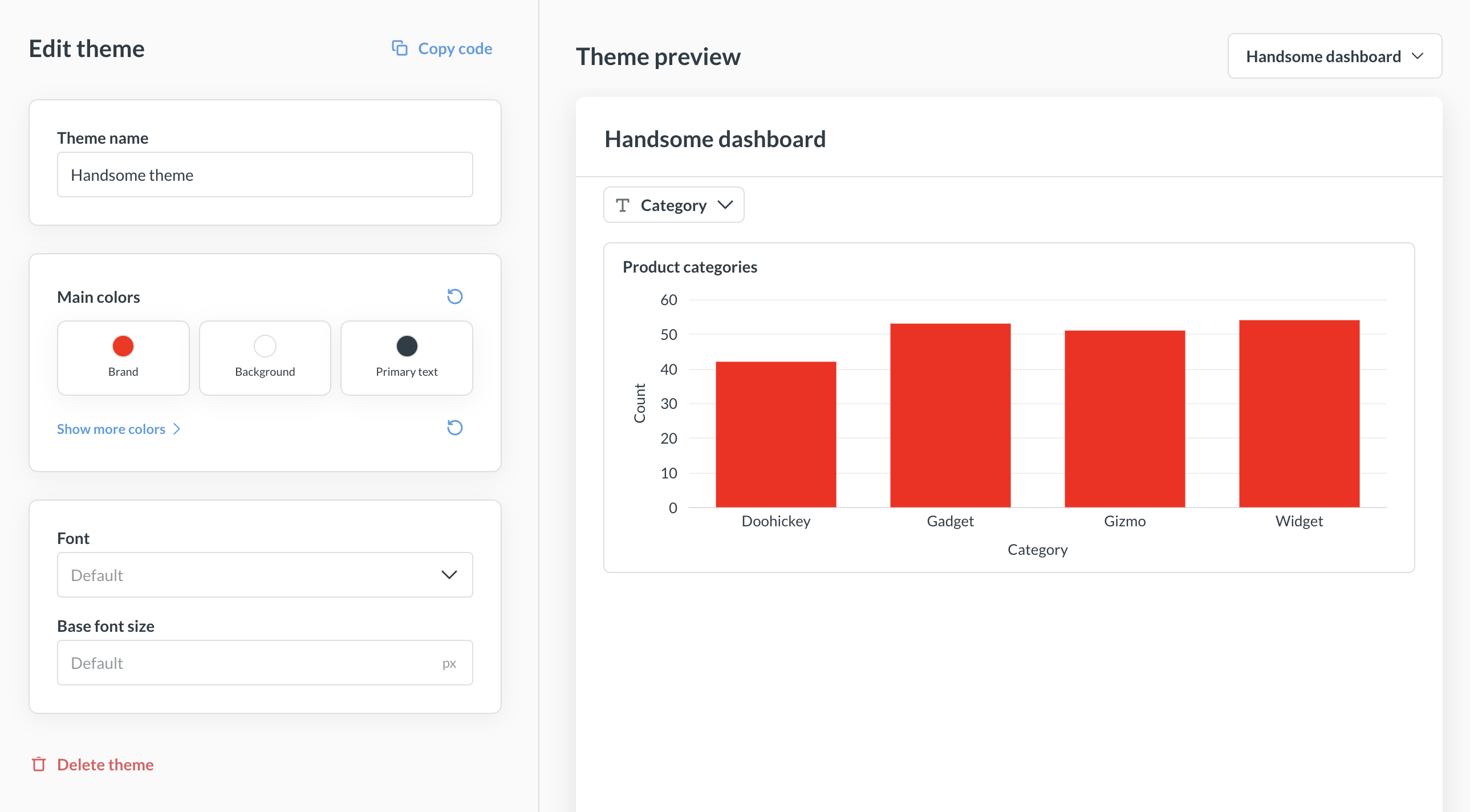
- **Create a theme:** Click **New theme**, then set a name, colors, and font.
- **Edit a theme:** Click a theme card to open the editor. View your changes in the live preview.
- **Choose what the preview renders:** Pick the dashboard or question the preview shows.
- **Duplicate a theme:** Useful for varying an existing theme.
- **Delete a theme:** Deleting is permanent.
Use **Branding elements** to set the [loading message](https://www.metabase.com/docs/latest/configuring-metabase/appearance.md#loading-message) and the [illustrations](https://www.metabase.com/docs/latest/configuring-metabase/appearance.md#metabase-illustrations) for empty results. These settings apply to your whole Metabase, not just embeds. Change them in the Embedding hub or in **Admin** > **Settings** > **Appearance**.
### Apply a saved theme to a new embed
In the last step of the [embed wizard](https://www.metabase.com/docs/latest/embedding/modular-embedding.md#3-customize-your-embed), you can pick:
- **A saved theme** from your list.
- **Instance theme** to use your Metabase's defaults.
- **Custom** to set colors on this embed only, without saving a theme.
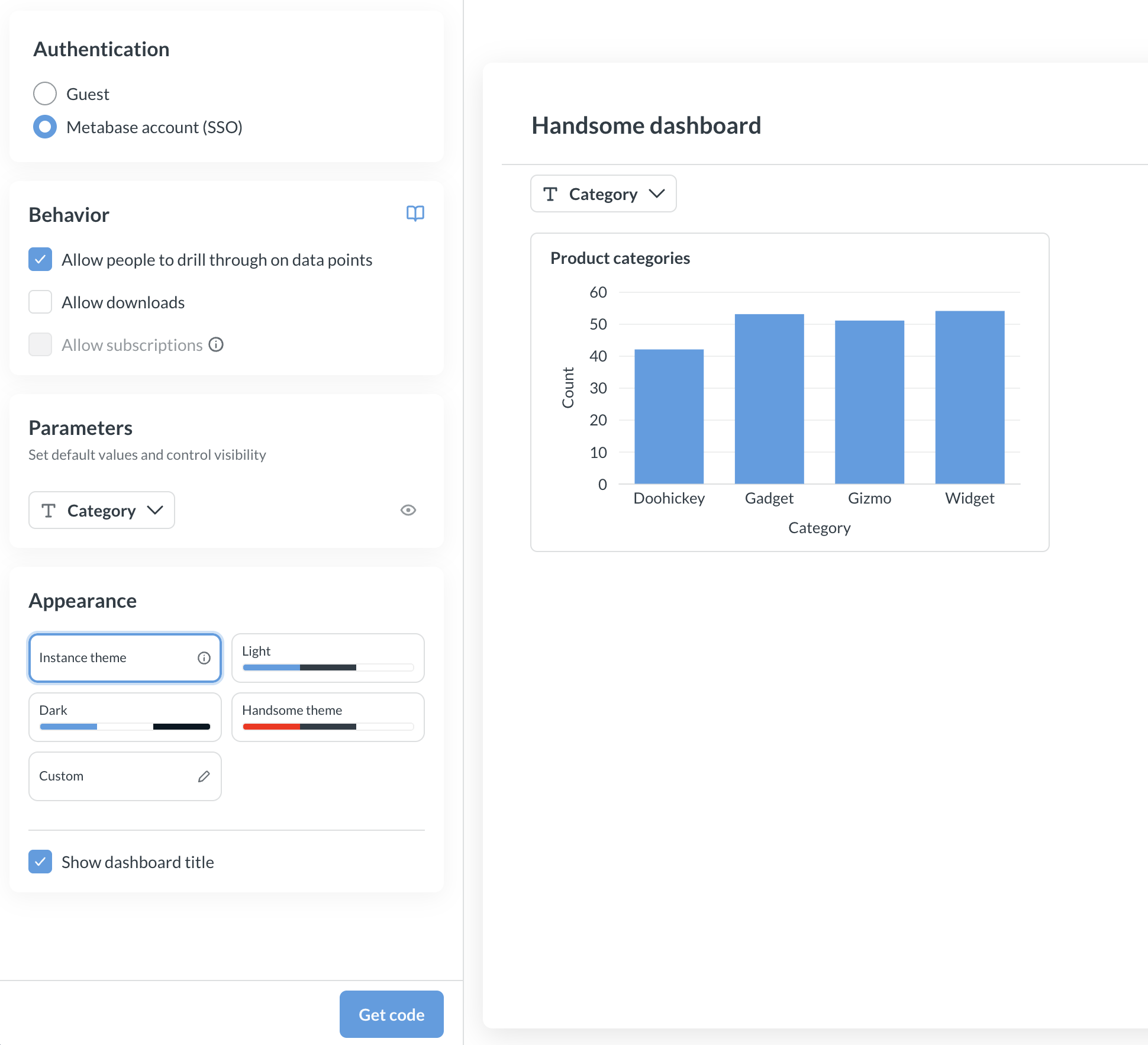
The wizard copies the theme's values into the generated `theme` object. The generated code is a copy, not a reference to the saved theme. Editing or deleting the saved theme doesn't change embeds you already generated. To apply changes, create a new embed in the wizard or edit the `theme` object in your code.
### Apply a saved theme to an existing embed
To apply a saved theme to an embed you already generated, copy the theme's values into your theme object. A saved theme has the same structure as the theme object:
```js
{
fontFamily: "Lato",
colors: {
brand: "#50E397",
background: "#11123D",
"text-primary": "#F9F9FC",
},
}
```
## Set colors and fonts
> Custom themes are only available on [Pro](https://www.metabase.com/product/pro) and [Enterprise](https://www.metabase.com/product/enterprise) plans (both self-hosted and on Metabase Cloud).
The theme editor sets colors and fonts. This section and the ones that follow describe the full theme object you set in code. The theme object includes more options than the editor, like chart colors, styles for individual components, and the z-index of overlays. It works without the wizard.
To change the colors and font of your embeds, set `colors` and `fontFamily`:
```js
{
fontFamily: "Inter",
colors: {
brand: "#9B5966",
"text-primary": "#4C5773",
background: "#FFFFFF",
"background-hover": "#F9FBFC",
border: "#EEECEC",
},
}
```
Each color in `colors` accepts any CSS color string, but not a CSS variable. For `fontFamily`, use any [font that Metabase supports](https://www.metabase.com/docs/latest/configuring-metabase/fonts.md), or `"Custom"` to use your instance's custom font.
For the full list of colors, see [Colors](https://www.metabase.com/docs/latest/embedding/appearance-reference.md#colors).
## Set chart colors
> Custom themes are only available on [Pro](https://www.metabase.com/product/pro) and [Enterprise](https://www.metabase.com/product/enterprise) plans (both self-hosted and on Metabase Cloud).
To change the series colors in charts, set `colors.charts`. You can set up to eight colors. Each one is either a color string or an object with a `base` color, where `tint` and `shade` are optional lighter and darker variations:
```js
{
colors: {
charts: [
"#9B59B6",
{ base: "#E74C3C", tint: "#EE6B56", shade: "#CB4436" },
],
},
}
```
If you set a custom series color in a chart's [visualization settings](https://www.metabase.com/docs/latest/questions/visualizations/visualizing-results.md), that color overrides the theme.
## Style individual components
> Custom themes are only available on [Pro](https://www.metabase.com/product/pro) and [Enterprise](https://www.metabase.com/product/enterprise) plans (both self-hosted and on Metabase Cloud).
To style specific components, like dashboard cards or data tables, set options under `components`:
```js
{
components: {
dashboard: {
backgroundColor: "#2F3640",
card: {
backgroundColor: "#2D2D30",
border: "1px solid #EEECEC",
},
},
table: {
cell: {
fontSize: "12.5px",
},
},
},
}
```
For the full list of component options, see [Component options](https://www.metabase.com/docs/latest/embedding/appearance-reference.md#component-options).
## Fix overlays hidden behind your app's modals
> Custom themes are only available on [Pro](https://www.metabase.com/product/pro) and [Enterprise](https://www.metabase.com/product/enterprise) plans (both self-hosted and on Metabase Cloud).
Metabase overlays, like click-action menus and save dialogs, have a z-index of `200`. If your app renders its own modal, drawer, or backdrop with a higher z-index, it hides the Metabase overlay.
To raise the Metabase overlay above your app's overlay, set `components.popover.zIndex`:
```js
{
components: {
popover: {
zIndex: 1001, // one above your app's modal
},
},
}
```
## Other appearance settings
The theme controls colors, fonts, and component styling. Other parts of an embed's appearance are set elsewhere.
- **Titles, download buttons, and card menus:** Set these on each component. See [Customize dashboard appearance](https://www.metabase.com/docs/latest/embedding/dashboard.md#customize-dashboard-appearance) and [Customize chart appearance](https://www.metabase.com/docs/latest/embedding/chart.md#customize-chart-appearance).
- **Query builder layout (React SDK):** Build your own layout from the `InteractiveQuestion` namespaced components. See [Customize the query builder's layout](https://www.metabase.com/docs/latest/embedding/query-builder.md#customize-the-query-builders-layout).
- **Loading and error screens (React SDK):** Replace them with your own components. See [Customize loading and error states](https://www.metabase.com/docs/latest/embedding/config.md#customize-loading-and-error-states-react-sdk-only).
- **Custom visualizations:** Render your own chart types in embeds. See [Custom visualizations in embeds](https://www.metabase.com/docs/latest/embedding/custom-visualizations.md).
- **Logo, favicon, and custom font:** Set these for your whole Metabase in **Admin** > **Settings** > **Appearance**. See [Appearance settings](https://www.metabase.com/docs/latest/configuring-metabase/appearance.md).
## Further reading
- [Appearance reference](https://www.metabase.com/docs/latest/embedding/appearance-reference.md)
- [Configure your embeds](https://www.metabase.com/docs/latest/embedding/config.md)
- [Modular embedding components](https://www.metabase.com/docs/latest/embedding/components.md)
- [Translate embeds](https://www.metabase.com/docs/latest/embedding/translations.md)