




Ask a business question
Start exploring your data and finding answers to your business questions using Metabase.
If you’re eager to get started looking for data and answering your business questions, you’ve come to the right place. This guide will walk you through how to answer questions using existing materials in Metabase.
Metabase gives you access to your company’s data, ready for you to use. Someone on your data team has connected your databases to Metabase and built metrics, questions, and dashboards.
Knowing how to ask questions about data means knowing where to look and how to phrase your question. This article covers both the general question-asking and the specific places where to look in Metabase. It consists of the following sections:
- how to make your questions into a data question by thinking about the components needed to find your answer in the data;
- searching for the answer using the right search terms;
- asking AI assistants to find the answer for you;
- checking the answer by doing a quick sanity check to make sure that what you’ve found is what you were looking for;
- bookmarking and sharing your answer to keep it for yourself, or make it available to others.
Turn your question into a data question
For Metabase to answer a question, you need to be more specific than in a normal conversation. You might have this perfectly valid question:
How are sales doing lately?
For Metabase, that’s not enough context. “Sales” could mean revenue or units sold, and “lately” could mean last week or last year. Ultimately, Metabase needs to find the right data to query. It also needs to know what to even compute for you: are you looking for numbers of units sold, revenue, or something else entirely?
To help Metabase, be more specific:
How many gizmos and gadgets have we sold per week over the last four quarters?
The second version contains four specific pieces of information:
- What the question is about. Sales? Marketing? Web traffic? Inventory? Here, we’re looking for product sales, specifically gizmos and gadgets.
- What you’re measuring. A count, a total, or an average? “How many did we sell” (a count of units) is a different question from “how much did we make” (a sum of revenue) or “what’s our typical order size” (an average). In our example, we’re looking to count the items sold.
- The time frame. How far back should the data go? In our case, the last four quarters.
- The granularity. Do you want the numbers grouped by day, week, month, or quarter? We’re looking to get the by week in our example.
Not all questions will have a time component, but business questions are usually about data within a time window. It’s easy to overlook because it might seem obvious; but when it is relevant, it needs to be spelled out to get the right answer.
Search first: your answer probably already exists
There are two ways to find questions and dashboards that have already been created:
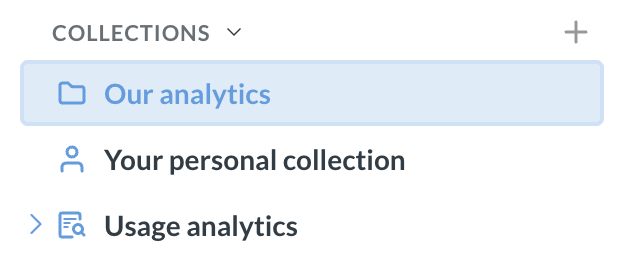
Browse collections. In the left sidebar, open Collections and click through them like folders. Teams usually keep their important dashboards in a collection named after the team or the subject area, with the most important items pinned to the top. If you’re looking for sales or revenue numbers, a collection called “Sales” is a good starting point.
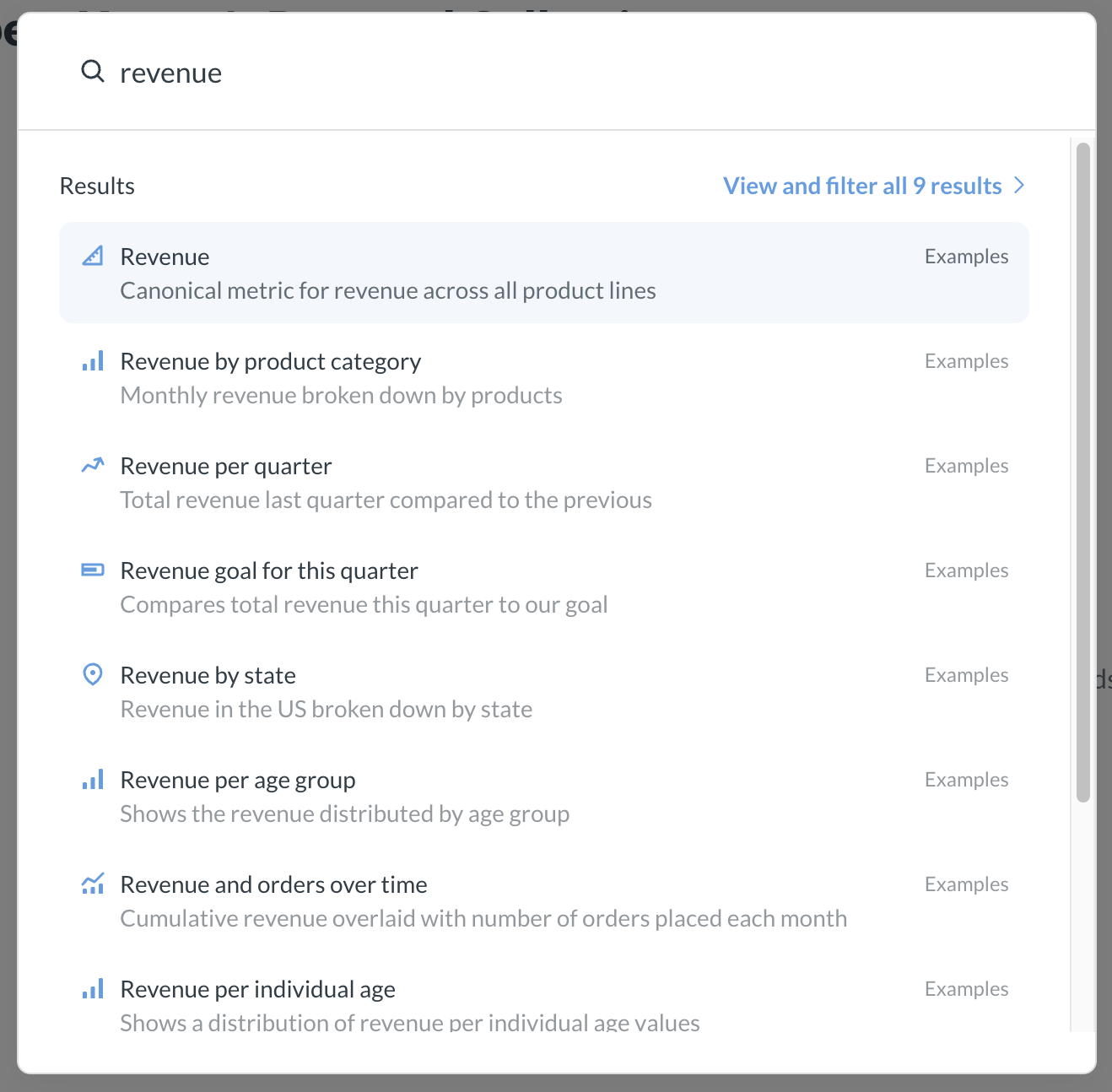
Search. Click the search bar at the top of the screen (or press Cmd+K on a Mac, Ctrl+K on Windows) and type the keywords from your question. Search looks across questions, dashboards, models, and even the descriptions people have written for them. You can also filter the results by type, creator, and date.
Your question might be answered by a standalone Metabase question or a dashboard, so look for both. Dashboards include related context, which is often helpful in answering your question (and verifying you found the right data, more on this below). It might also lead you to explore more related data.
Ask your AI assistant
If your Metabase instance has AI features enabled, you can ask Metabot or an external agent to search for the information you want.
Metabot is Metabase’s built-in AI assistant. Click the Metabot icon in the top right (or press Cmd+E on a Mac, Ctrl+E on Windows) to open the chat sidebar, then ask it to search for dashboards and questions. Note that you need to still specify the key pieces of information (subject, measure, time frame, granularity), just as in search.
Metabot first looks for existing questions that might already answer what you asked, and points you to them before building anything new. This is similar to search, and is a good starting point since existing questions carry your data team’s vetted definitions. Only build new questions if you can’t find what you are looking for. Ask Metabot to search: “Find me an existing chart of weekly gizmo sales.”
If your company uses an AI assistant like Claude, it may be able to talk to Metabase directly, using the Metabase MCP server. Ask your assistant whether it’s connected to your Metabase instance. If it is, ask it to find existing questions and dashboards rather than build new ones, just like Metabot (if it isn’t, your admin can set it up).
For more on what Metabot can do, see the Metabot documentation.
Give the answer a quick sanity check
Before you rely on a number to report or use in a presentation, take some time to verify it’s answering your question. Check it against the same four pieces you started with:
- Right subject? Is this chart actually about product sales, or is it counting orders or website visits?
- Right measure? Does the axis say units sold, or revenue? A count and a sum can look similar on a chart and mean very different things.
- Right time frame? Look at the date axis or the filters on the question. If you’re looking for current data, where does the chart cut off? Does it match the monthly, weekly, etc. cadence you were looking for?
- Right filters? Look through the other filters on the question or dashboard to see if the subset of the data you’re looking at is what you wanted to see.
If a number looks off and you can’t tell why, ask the person who made the question. Click on the i icon to see who made the question or dashboard. This is also a good check to see if you know the person and trust them to be knowledgeable about your data.
Bookmark the answer, or share it
Found what you were looking for? If you want to share it or make it easier to find again, there are a few things you can do:
- Bookmark it. Click the bookmark icon on the question or dashboard. Bookmarks show up at the top of your left sidebar, and they’re only visible to you. Use them as your personal shortcuts.
- Share a link. Copy the URL from your browser and send it to a colleague. They’ll see the live, up-to-date version (as long as they have access to it in Metabase).
- Download the chart as an image. Click the Download button on a question and choose PNG to get the chart as an image you can paste into a slide or a chat.
- Export a dashboard as a PDF. On a dashboard, click the Sharing button and choose Export as PDF to get the whole page as a document.
You also have a personal collection, where you can save anything you create later on. For answers that already exist, though, a bookmark is usually all you need: it points to the live version, so the numbers stay current.
Next steps
You can now find an answer that someone else has already built. The next step is working with a dashboard or question you’ve found: narrowing a time range, region, or product with filters, and clicking into a chart to see the data behind it. That’s covered in the next article in this series, Interacting with questions and dashboards.