





These are the docs for the Metabase master branch. Some features documented here may not yet be available in the current release. Check out the docs for the current stable version, Metabase v0.63.
AI settings
Admin > AI
This page covers admin settings for AI features in Metabase, including Metabot. To limit who can use Metabot, see AI controls.
Enable AI features
AI features are available on both Metabase Cloud and self-hosted Metabase. To turn them on:
- Go to Admin settings > AI.
- In Connect to an AI provider, choose a Provider:
- Metabase: The Metabase AI service. Metabase picks a benchmarked, cost-effective model for you, and charges you on token usage. See Choose AI provider
- Another supported provider. See bring your own API key.
- Once connected, configure Metabot and other AI features below.
Choose AI provider
Admin > AI
You can choose which AI provider and model is used to power Metabase’s built-in agent.
- If you’re self-hosting Metabase and want to use Metabot, you need to bring your own AI API key.
- On Metabase Cloud, you can either bring your own AI API key or use the Metabase AI Service.
The AI provider that you specify in AI settings powers Metabase’s built-in AI functionality, not the MCP server. With the MCP server, your client provides the AI.
Metabase AI Service
On Metabase Cloud, you can have us manage the AI for you with our AI Service.
Metabase’s AI Service is a good option if you don’t have a preferred AI provider, or if you want to manage all your Metabase AI costs through Metabase. We (Metabase the company) select the models for you. We use internal benchmarks to determine which AI models work best for different tasks, and we’re constantly iterating to improve performance.
If you use Metabase’s AI Service, you’ll get charge based on token usage (in addition to your regular Metabase Cloud subscription fee). See Pricing.
To use Metabase AI provider for your Metabot:
- Go to Admin > AI > AI settings.
- In Connect to an AI provider, choose Metabase as the provider.
- Agree to the terms of service.
- Click Connect.
To disable Metabase AI provider and stop charges:
- Go to Admin > AI > AI settings.
- Under Connected to Metabase, click Disconnect.
Bring your own API key
You can specify your own API key and model for Metabot from one of the supported providers. Currently, Metabase only supports models from Anthropic.
If you’re interested in Metabase supporting more AI providers, let us know by submitting a feature request.
To enable AI features with your own API key:
- Go to Admin > AI.
- Select your Provider.
- Enter your API key. The Get or manage keys in [provider] link opens your provider’s key management page in a new tab.
- Click Connect.
- Select a Model from the dropdown. Available models are fetched from the provider using your API key.
When your connection is active, the provider card header shows Connected to [provider] (for example, “Connected to Anthropic”) next to a green status dot. With your key connected, you get access to Metabot, and inline SQL generation.
To clear your provider connection, click Disconnect. Disconnecting removes the stored API key and turns off any AI features that depend on the provider.
Configure Metabot
Admin > AI > AI settings
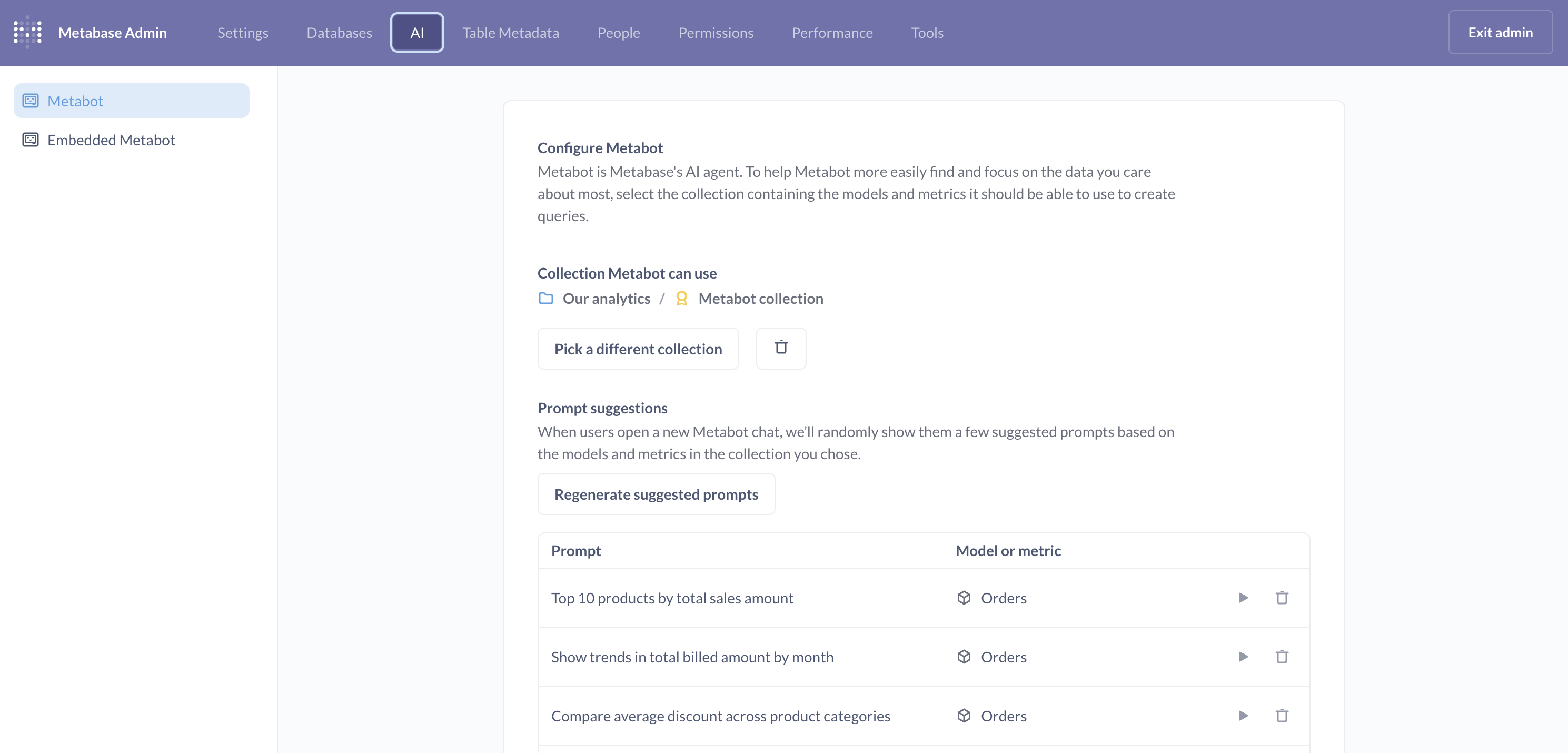
The Metabot settings card has two tabs — Internal and Embedded — so you can configure Metabot for your internal Metabase separately from embedded Metabase contexts. That way you can, for example, use Metabot in your Metabase while not granting access to Metabot in your embedded Metabase. Each tab has its own enable toggle, verified-content setting, allowed collection, and prompt suggestions, all configured independently.
Enable Metabot
Internal tab.
Toggle Metabot on or off for your Metabase. Metabot is enabled by default.
When enabled, Metabot is available to help people create questions, analyze data, and answer questions about your data. When disabled, the Metabot icon and keyboard shortcuts are hidden. To scope Metabot to specific user or tenant groups, or to cap token usage, see AI controls.
Toggling off Metabot only turns off in-app Metabot features. People can still use the MCP server and Agent API if those are enabled.
Enable Embedded Metabot
Embedded tab.
The Embedded Metabot is enabled toggle turns embedded Metabot on or off. The toggle affects both full-app embeds and modular embeds.
- Full-app embedding: The Metabot icon and keyboard shortcuts are only available when Metabot is enabled. Turning off Embedded Metabot will hide these icons and disable the keyboard shortcuts.
- Modular embedding: The toggle doesn’t add Metabot anywhere; you have to explicitly include a chat component (like the SDK’s
MetabotQuestion) in your application. If, however, you’ve added a component, and you turn off the Embedded Metabot toggle, your chat component will stop working, so you should also remove or hide the component in your application.
Verified content
Available on both the Internal and Embedded tabs, configured independently.
Admins on Pro and Enterprise plans can tell Metabot to only work with models and metrics that have been verified.
Restricting Metabot to verified models and metrics (and only models and metrics) helps Metabot produce more reliable answers, since you know someone has at least vetted the data Metabot can use.
Collection for natural language querying
Internal tab.
Select a collection (including its subcollections) to limit which collections Metabot searches during AI exploration. Click Pick a different collection to change the selection.
This setting only affects conversations started from + New > AI exploration.
People can still @-mention items outside of this collection when prompting in AI exploration. Metabot can also see the person’s current context (for example, Metabot will know about the dashboard they’re currently viewing, even if the dashboard is outside the selected collection).
Collection Embedded Metabot can use
Embedded tab.
If you’re embedding the Metabot component in an app, you can specify a different collection that embedded Metabot is allowed to use for creating queries. Click Pick a different collection to choose the collection (and its subcollections) that embedded Metabot can query.
Prompt suggestions
Available on both the Internal and Embedded tabs, configured independently.
When people open a new Metabot chat, Metabase shows a few suggested prompts based on popular models and metrics in your instance.
Click Regenerate suggested prompts to generate a fresh set of prompts. You can also run individual prompts to test Metabot’s answers, or delete prompts that aren’t useful. The Internal and Embedded tabs each maintain their own set of suggestions, so regenerating on one tab doesn’t affect the other.
Disable all AI features
The Disable all AI features toggle at the bottom of the AI features page is a master kill switch. When turned on, it hides all AI features across your instance — Metabot, inline SQL generation, the MCP server, the Agent API, and any embedded chat components — regardless of the individual toggles above.
Use this toggle for an instance-wide shut-off without having to disconnect your provider or change each feature’s own toggle. Turn it off again to restore your previous configuration.
For more granular options, check out AI usage controls.
Tips for making the most of Metabot
The best thing you can do to improve Metabot’s performance is to prep your data like you would for onboarding a new (human) hire to your data. In practice, this means you should:
- Add descriptions for your data and content
- Make sure the semantic types for each field are correct
- Define domain-specific terms in the glossary
Add descriptions for your data and content
Add descriptions to your models, metrics, dashboards, and questions. Write descriptions to provide context, define terms, and explain business logic.
Admins can also curate table metadata by adding descriptions for tables and their fields.
For example, here’s a decent description for an ID field that provides additional context for the data:
This is a unique ID for the product. It is also called the "Invoice number" or "Confirmation number" in customer facing emails and screens.
You can even ask Metabot to write descriptions for you. But Metabot will only have access to the data in the database. It can’t know things like “this ID is called the ‘Invoice number’ in the web app”, which is the kind of contextual information worth documenting.
Make sure the semantic types for each field are correct
Make sure the semantic types for each field accurately describe the field’s “meaning”. For example, if you have a field like created_at, you’d want the column type to be Creation date.
Metabase will try to set semantic types automatically, but you should confirm that each field has the relevant semantic type. See Data types and semantic types. You can also set semantic types for models.
Define domain-specific terms in the glossary
Add your organization’s terminology, acronyms, and business-specific terms to the glossary. When you submit a prompt, Metabot can look up terms in the glossary to better understand your request.
For example, if you define “MRR” as “Monthly Recurring Revenue” in your glossary, Metabot will know what you mean when you ask “What’s our MRR for Q4?” This is especially helpful for industry-specific jargon, internal product names, or abbreviations unique to your organization.
Metabot permissions are Metabase permissions
Metabot inherits the permissions of the person it’s chatting with, so you don’t need to set permissions specifically for Metabot. Whenever someone uses Metabot, Metabot can only see what that person has permissions to see and do.
In other words, to restrict what data Metabot can see for each person, simply apply data and collection permissions to their groups as you would normally, and those permissions will apply to their use of Metabot as well.
Viewing Metabot usage
If you’re using the Metabase AI service, you can see how many Metabot requests people have made this month by going to Admin > AI.
If you aren’t logged into the Metabase Store, you’ll need to log in to the store before you can view the usage. Once logged in to the store, go back to your Metabase and view the license page.
If you’re using your own API key, you can track usage and costs through your AI provider’s dashboard.
On Metabase Pro/Enterprise, you also get access to detailed AI usage auditing with detailed breakdown of AI usage by user, tool, feature etc.
Privacy
When using the Metabase AI service, your questions and conversations remain private to your Metabase – we don’t send your data to external services. We do collect some metadata to gauge and improve usage.
If you’re using your own API key, your prompts and data are sent to your selected AI provider. Review your provider’s data handling and privacy policies. When using the MCP server, query results are sent to the connected MCP client.
In both cases, Metabot can’t create assets or write data. If you submit feedback, the form you send may contain sensitive data from your conversation.
What Metabot can see
Metabot has access to your Metabase metadata and some data values to help answer your questions:
- Table, Question, Model, Dashboard, and Metric metadata: Metabot can see the structure and configuration of your content.
- Sample field values: When you ask questions like “Filter everyone from Wisconsin,” Metabot might check the values in the state field to understand how the data is stored (like “WI” vs “Wisconsin”). See syncs.
- Timeseries data: For chart analysis, Metabot might see the timeseries data used to draw certain visualizations, depending on the chart type.
When you submit feedback, the context for the conversation - including this metadata and conversation prompts - might be sent to Metabase.
Further reading
- Using Metabot
- MCP server
- AI access and usage controls
- AI usage auditing
- Metabot customization
- Metabot system prompts
Read docs for other versions of Metabase.