
RDE lets a coding agent build your Metabase dashboards, metrics, and transforms in a development Metabase on your machine, and ship them to production through Git. For the full picture, see Get started with RDE.
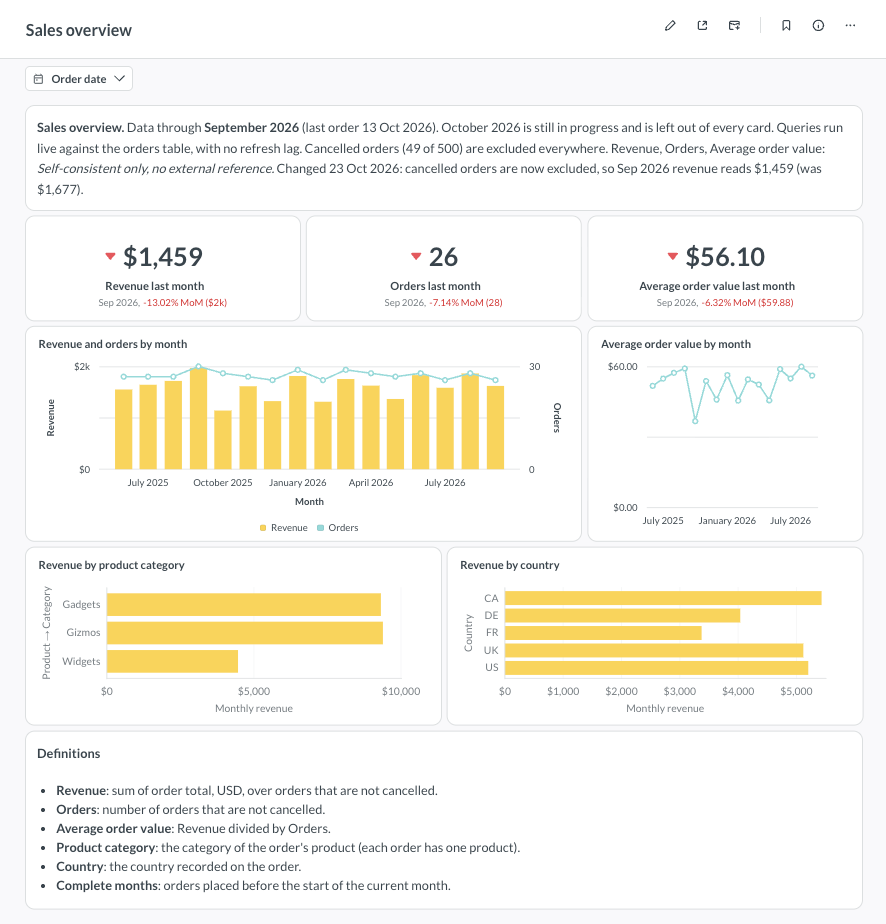
Use this guide if your Metabase already syncs with Git through Remote sync. Nothing about how it syncs changes. By the end, you’ll have a development Metabase on your machine that mirrors your repository, and the agent will have built or changed a dashboard that reached production through a pull request.
Before you start
You need:
- A Metabase Pro or Enterprise plan, which includes Git sync.
- The repository your Metabase syncs with, and a personal access token that can read and write to it. On GitHub, create a fine-grained token for the repository with the Contents: Read and write permission.
- A data warehouse your machine can reach, and a database user that can read the tables you build on.
- A Mac or Linux machine with Node.js 20.19 or later and Git.
- Docker or Java 21 or later. On a Mac, Docker Desktop, OrbStack, and colima all work.
- A coding agent such as OpenCode, Claude Code, Codex, Cursor, Gemini CLI, or Windsurf. This guide uses OpenCode.
This guide calls your sync branch main. If yours has another name, use it wherever the guide says main.
Part 1: Install RDE and create a development Metabase
Run the wizard
npm install -g @metabase/rde
rde init
rde init installs mb, starts a development Metabase at http://localhost:23000, and creates an admin user for it. The wizard prompts you for the following:
- Which coding agents should get the rde and data-app skills? Keep OpenCode, or select the agent you use.
- Paste your Metabase license token. Use the same token as production.
- Where should Metabase push the content? Choose Hosted remote (GitHub, GitLab, Bitbucket…), not the default local remote.
- Repository URL and Access token. Enter the repository that production syncs with, and your own token.
- Where should the Metabase content repository live? Choose Clone into another directory and enter a path such as
~/analytics. This directory is where you work with your agent. - Your database. RDE lists the databases that the files in your repository refer to. Select one and paste a connection string for it.
RDE imports everything on main into the development Metabase. If your repository has no Library yet, RDE creates one and asks whether to push it to main. Answer No. The Library then reaches production through your first pull request. If production already has a Library with content that isn’t synced, sync it from production first, or production’s next pull conflicts.
When the wizard finishes, it prints the URL of your development Metabase and the command that starts your agent. It may also say Export pending and suggest an mb git-sync export -b main command. Don’t run it. The agent exports the pending Library with your first branch. To log in, run rde credentials for the password and rde open to open Metabase in your browser.
Start your agent
Start your coding agent in the repository directory:
cd ~/analytics
opencode
If you use another agent, run its command instead. The rde init summary lists the command for each agent you select.
The first time you start the agent, it asks for permission to run mb and other commands on your machine. Approve them. It then asks a few setup questions. It saves your answers to .scratch/STATE.md and reads them at the start of each session, so you don’t have to answer again. RDE excludes the .scratch/ directory from Git, so you can also use it for your working files.
- Is this instance production or staging? Answer staging. It’s your development Metabase, and your changes reach production through pull requests.
- Which Metabase? If
mbknows more than one, pick the development Metabase. Use the URL thatrde statusshows.
Part 2: Build or change dashboards and metrics
Describe what you want in plain language. For example, you can ask for a new dashboard, a change to an existing one, or a metric. The agent plans the work, builds it in your development Metabase, and verifies the results. Whenever it reaches a business decision, it stops and asks you to decide. To review what it built, run rde open. Only the Library and transforms sync to Git, so the agent builds there. Dashboards and questions in other collections stay in the development Metabase.
To move the agent’s work into Git and on to production, follow the same four steps every time:
- Export. The agent asks for permission before it writes anything to Git. It shows you the changes and the name of the branch, which starts with
agent/. When you approve, it exports to that branch. The agent never pushes tomainwithout your confirmation. - Review and merge. Open a pull request and review the YAML files. When you’re ready, merge the pull request and delete the branch. The first pull request or two may include changes you didn’t ask for in files you already sync, such as refreshed result metadata on questions the agent ran, dropped
created_atandupdated_atlines, and a deleted emptycommon.pytransforms library. All are expected and safe to merge. - Wait for production to import. If production pulls automatically, it imports the change within five minutes. To import right away, click Pull changes now in production’s Admin > Settings > Remote sync.
- Return to main. Tell the agent that the pull request is merged. It switches your development Metabase back to
main, and you rungit checkout main && git pull.
Commands
| Command | What it does |
|---|---|
rde status | Shows your development Metabase, its databases, and its sync state |
rde start / rde stop | Starts or stops your development Metabase |
rde open | Opens your development Metabase in the browser |
rde credentials | Prints the login for your development Metabase |
rde doctor | Checks the setup and says how to fix what’s broken. rde doctor --fix repairs what it can |
mb git-sync status | Shows the branch and whether there are unexported changes |
Troubleshooting
Start with rde doctor. It checks everything from Docker to the license and suggests a fix for each failure.
- “There are unsaved changes in the Remote Sync collection.” Your development Metabase has work that isn’t exported. Ask the agent to export it to a branch first.
- A database in production shows the status Stubbed. The files in Git use a database name that production doesn’t have. In Admin > Databases, open the database and enter the production connection details.
- New dashboards or metrics don’t appear in production. Production hasn’t imported the changes yet. Click Pull changes now in Admin > Settings > Remote sync, or wait for the next automatic pull.
- “Remote sync syncs only the Library, transforms, snippets and data apps unless remote-sync-custom-collections-enabled is on.” Your repository syncs collections outside the Library, and the development Metabase refuses to import them. Start it with
MB_REMOTE_SYNC_CUSTOM_COLLECTIONS_ENABLED=true.