





These are the docs for the Metabase master branch. Some features documented here may not yet be available in the current release. Check out the docs for the current stable version, Metabase v0.62.
Library
Library is only available on Pro and Enterprise plans (both self-hosted and on Metabase Cloud).
“I have always imagined that Paradise will be a kind of library.”
― Jorge Luis Borges
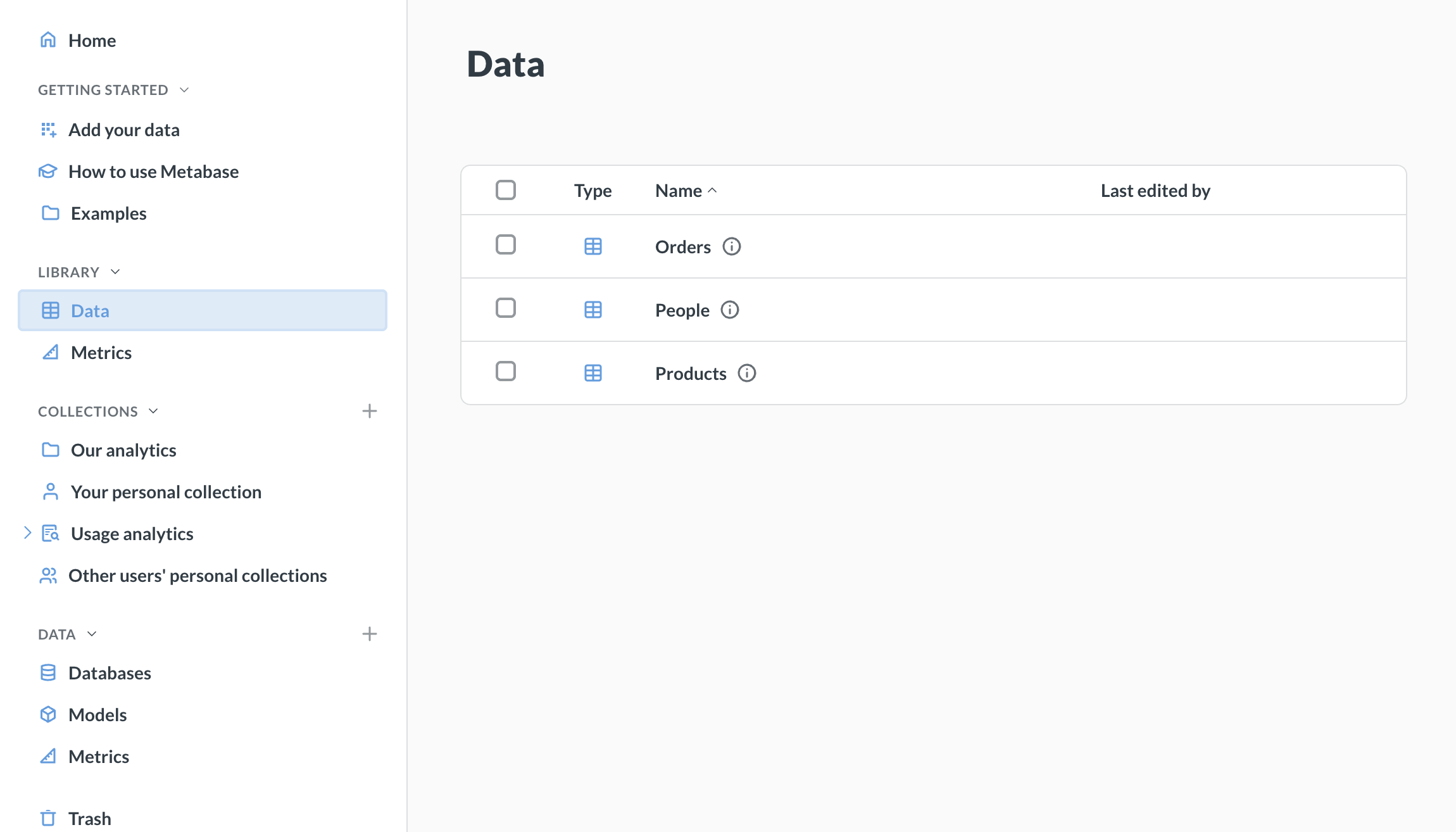
The Library helps you create a source of truth for analytics by providing a centrally managed set of curated content. Use the Library to separate authoritative, reusable components from ad-hoc analyses.
How the Library works
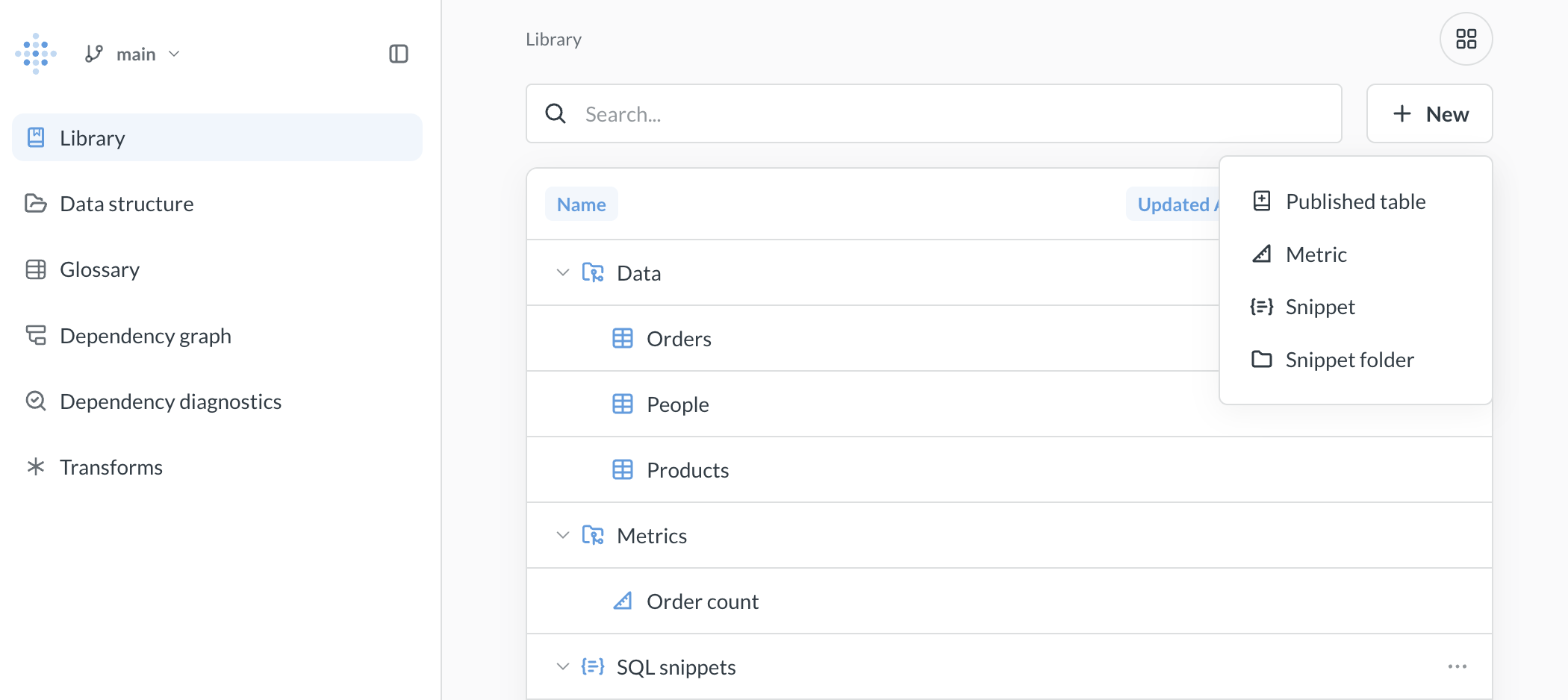
The Library is a special section in the navigation sidebar of the main Metabase app that you curate in Data Studio (and only in Data Studio). Unlike regular collections, each folder in the Library restricts which type of content it contains (which helps keep the Library tidy).
Adding items to the Library
- Click the grid icon in the upper right.
- Select Data Studio.
- In the Library tab, click + New.
You can:
Publishing tables
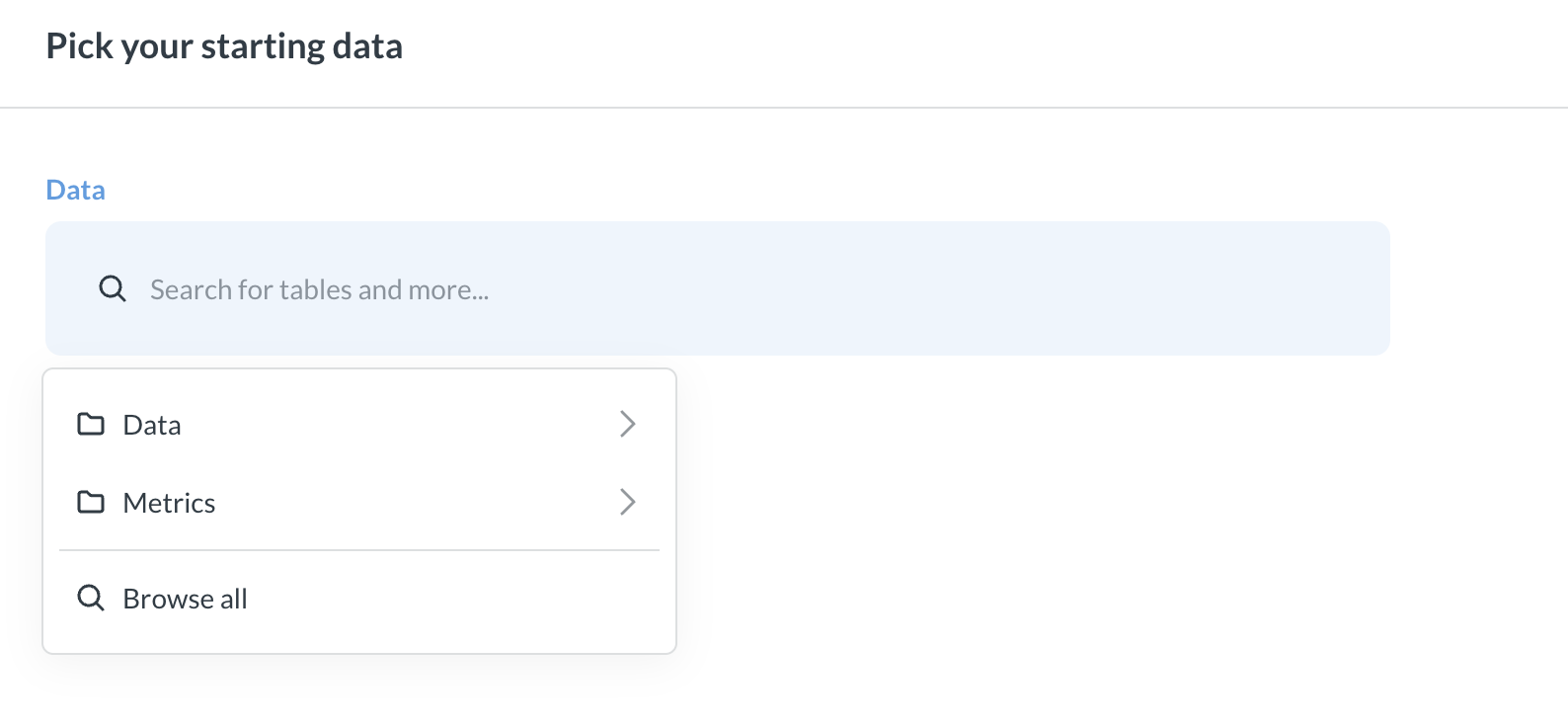
Tables published to the Library appear first in the Data section when people choose data sources, nudging them toward trusted data.
You must explicitly publish tables to the Library. We use the word “publish” to suggest that the tables you include in your Library are meant to be finished, polished tables. If your tables need to be cleaned or combined before they’re ready for analytical queries, check out transforms.
Tables published to the Library remain available via the data browser as well.
Managing tables
Once a table is published, you can view and manage its metadata, and more.
- Overview
- Fields
- Segments
- Measures
- Dependencies
To query a table from the Library in Data Studio:
- Click the table.
- Click the three-dot menu.
- Select View.
Published tables can’t have dependencies outside of the Library
Tables published to the Library can’t depend on any tables outside of the Library. If, for example, you want to publish a table that includes data from another table, such as a foreign-key remapping, Metabase will publish those tables as well.
Unpublishing tables
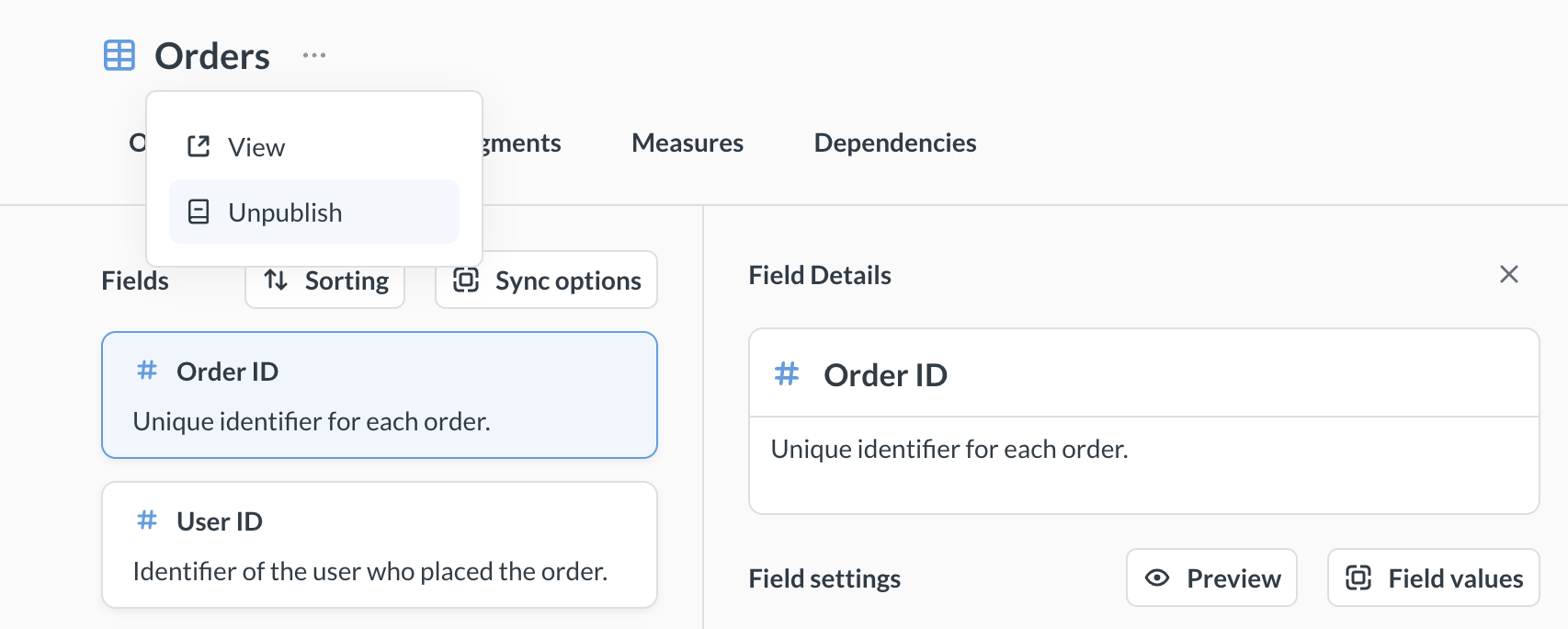
To unpublish a table from the Library:
- Visit the table in Data Studio in the Library tab.
- Click on the three-dot menu next to the table’s name.
- Click Unpublish.
If other tables depend on the table you want to unpublish, Metabase will unpublish those tables as well. You’ll get a confirmation message explaining which tables Metabase would unpublish.
Unpublishing a table just removes the table from the Library. That table will still be available via the data browser and data pickers.
Metrics
Metrics are standardized calculations that people can trust. Only the metrics you save directly to the Library are included.
SQL snippets
SQL snippets are reusable bits of code. All snippets in your Metabase are available to the library, including snippets created elsewhere in your Metabase. You can also create snippet folders in the Library.
Versioning the Library
You can sync Library content to version control, giving you change history and the ability to publish content across environments.
Library permissions
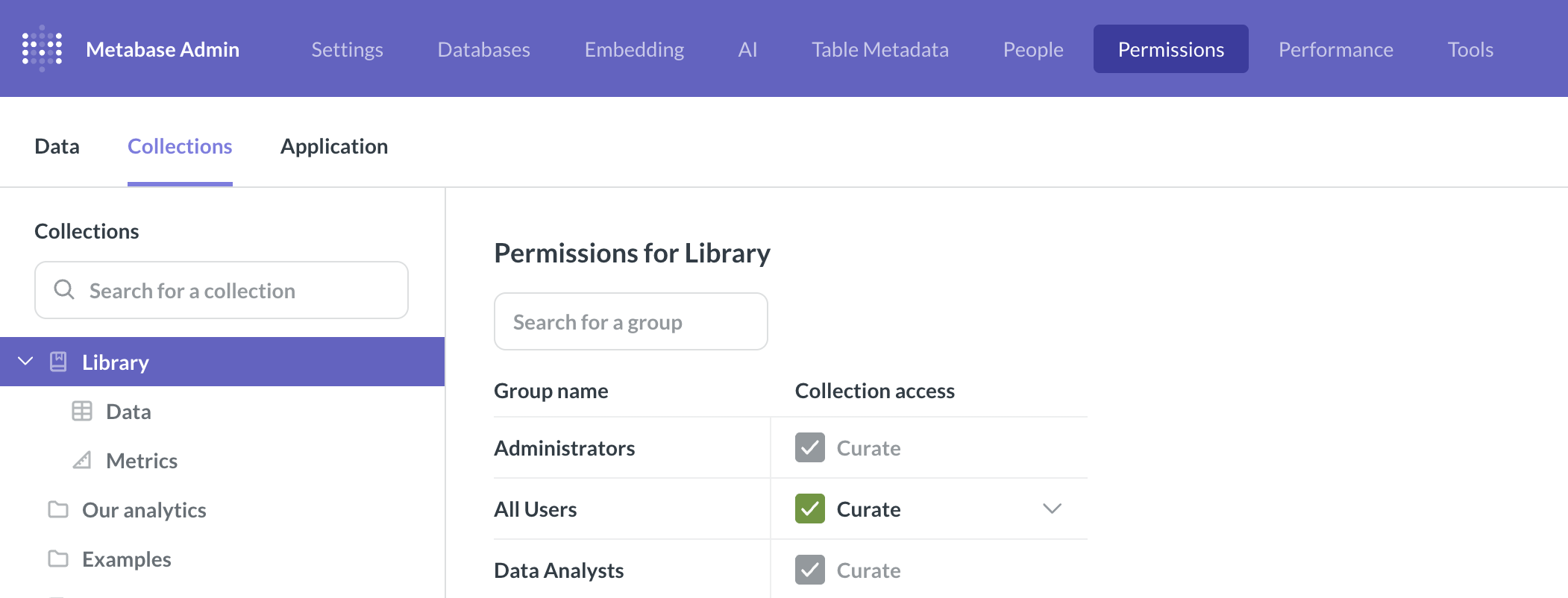
Metabase uses the standard collection permissions to determine who can view and edit items in the Library. One difference to note is that people in the Data Analyst group always have Curate access to the Library. Like with the Admin group, you can’t change the Data Analyst’s Curate access to the Library.
Data permissions work the same way in the Library as everywhere else in Metabase. One thing to call out: like with models, if you publish a table to the Library, it will grant query access to a group with view access to the database, even if their group has Create Queries set to No in data permissions for that particular table.
Further reading
Read docs for other versions of Metabase.