





These are the docs for the Metabase master branch. Some features documented here may not yet be available in the current release. Check out the docs for the current stable version, Metabase v0.62.
Transforms
Data Studio > Transforms
Transforms can be used to, well, transform your data - do stuff like preprocessing, cleaning, joining tables, pre-computing metrics. Transforms give you the ability to do the “T” of “ETL” within Metabase.
You’ll write a query or a Python script in Metabase, a transform will run this query or script, create a table in your target database containing the results, and sync that table to Metabase, so it can be used as a data source for questions or other transforms.
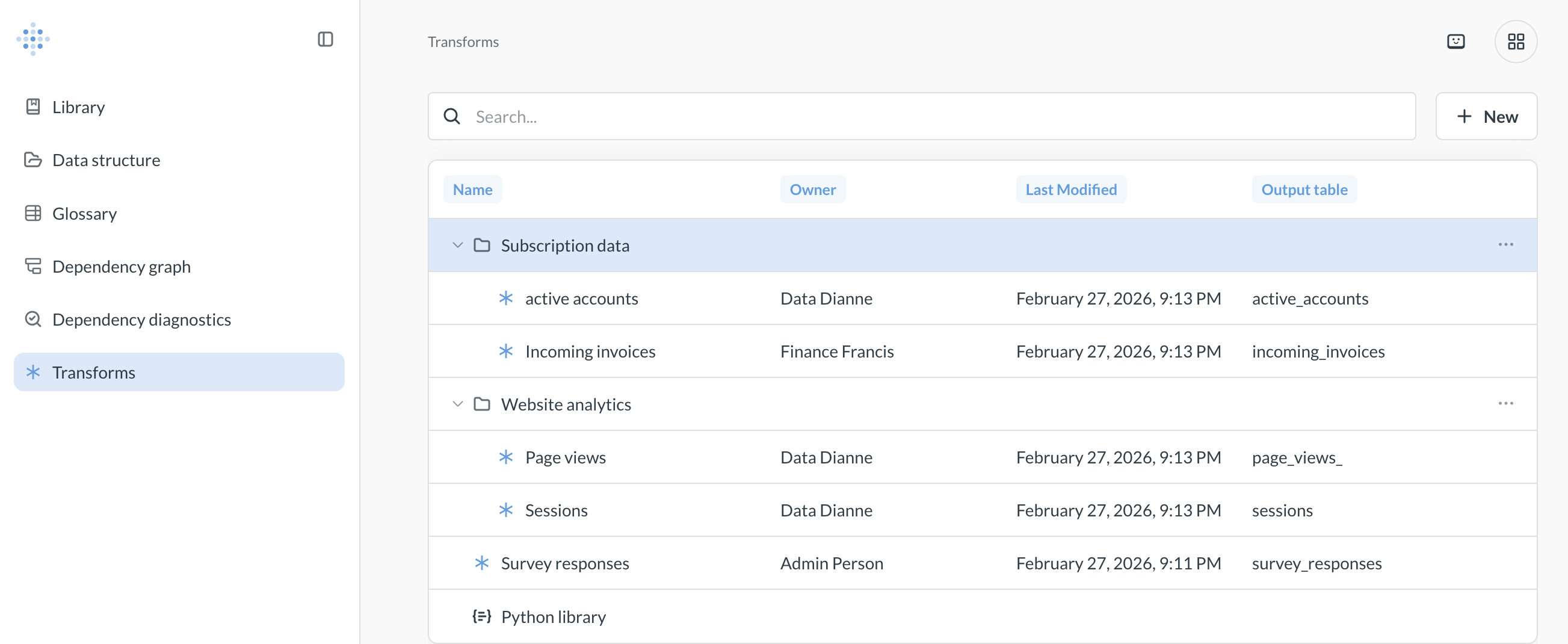
Transforms overview
- Transforms are queries (created either with SQL or the query builder) or Python scripts that write back to your database and create a new, persistent table. Use transforms to clean, join, or pre-aggregate data.
- Transforms are scheduled and organized using tags and jobs.
- You assign tags (e.g., daily, hourly) to group your transforms.
- A job runs on a schedule (e.g., every day at midnight) and executes all transforms that have been assigned a specific tag.
- Each execution of a transform is a run. A run replaces the target table with fresh results. You can review the history of runs to monitor their success or failure.
- You can inspect a transform to analyze its data flow, join behavior, and column distributions. See Transform inspector.
Databases that support transforms
Currently, Metabase can create transforms on the following databases:
- BigQuery
- ClickHouse (only ClickHouse Cloud)
- MySQL/MariaDB
- PostgreSQL
- Redshift
- Snowflake
- SQL Server
You can’t create transforms on databases that have Database routing enabled, or on Metabase’s Sample Database.
Transforms will create tables in your database, so the database user you use for your connection must have appropriate privileges. See Database users, roles, and privileges. We suggest using a Writable connection for your database.
Types of transforms
Metabase supports two types of transforms: query-based transforms and Python transforms. You can write query-based transforms in SQL or Metabase Query builder, and they will run in your database. Python transforms are written in (unsurprisingly) Python and will run in a dedicated execution environment. For more details:
Permissions for transforms
Permission configuration for transform depends on your plan.
-
Metabase Open Source/Starter: Admins (and only Admins) can see and run transforms.
-
Metabase Pro/Enterprise comes with additional permission controls for transforms: a special Data Analysts group for non-Admins with potential transform access, and granular transform permissions for each database:
- To see the list of transforms on your instance, people need to be able to access Data Studio, so they need to be either an Admin or a member of the special Data Analyst group.
- To execute transforms on a database, people need to be either Admins on belong to the special Data Analyst group. Additionally people need to have the Transform permissions for that database.
Enable transforms
Before you can start writing transforms, you’ll need to enable transforms in your Metabase instance.
If you are on a Metabase Cloud plan, only people logged in with an email of a Metabase Store admins (not just Metabase instance admins) can enable basic transforms, because transforms incur a cost per run on Metabase Cloud.
To enable transforms:
- Navigate to Data Studio by click the grid icon in top right corner of your Metabase and selecing Data Studio.
- In Data Studio, click Transforms in the right sidebar.
- If the transforms have not been enabled on your instance yet, you’ll see a prompt to enable them. You can do just that.
Once you’ve enabled transforms, you can configure permissions and start creating transforms.
See all transforms
Data Studio > Transforms
See permissions needed to see transforms.
You can see all your Metabase’s transforms:
- Click the grid icon on top right and go to Data Studio.
- In the left sidebar, select Transforms.
Create a transform
Data Studio > Transforms
If you’re using remote sync, you won’t be able to create transforms if your instance is in “read-only” sync mode.
See permissions needed to create transforms.
To create a transform:
- Enable transforms.
- Click the grid icon on top right and go to Data Studio.
- In the left sidebar, select Transforms.
-
Click + New and select a source for your transform.
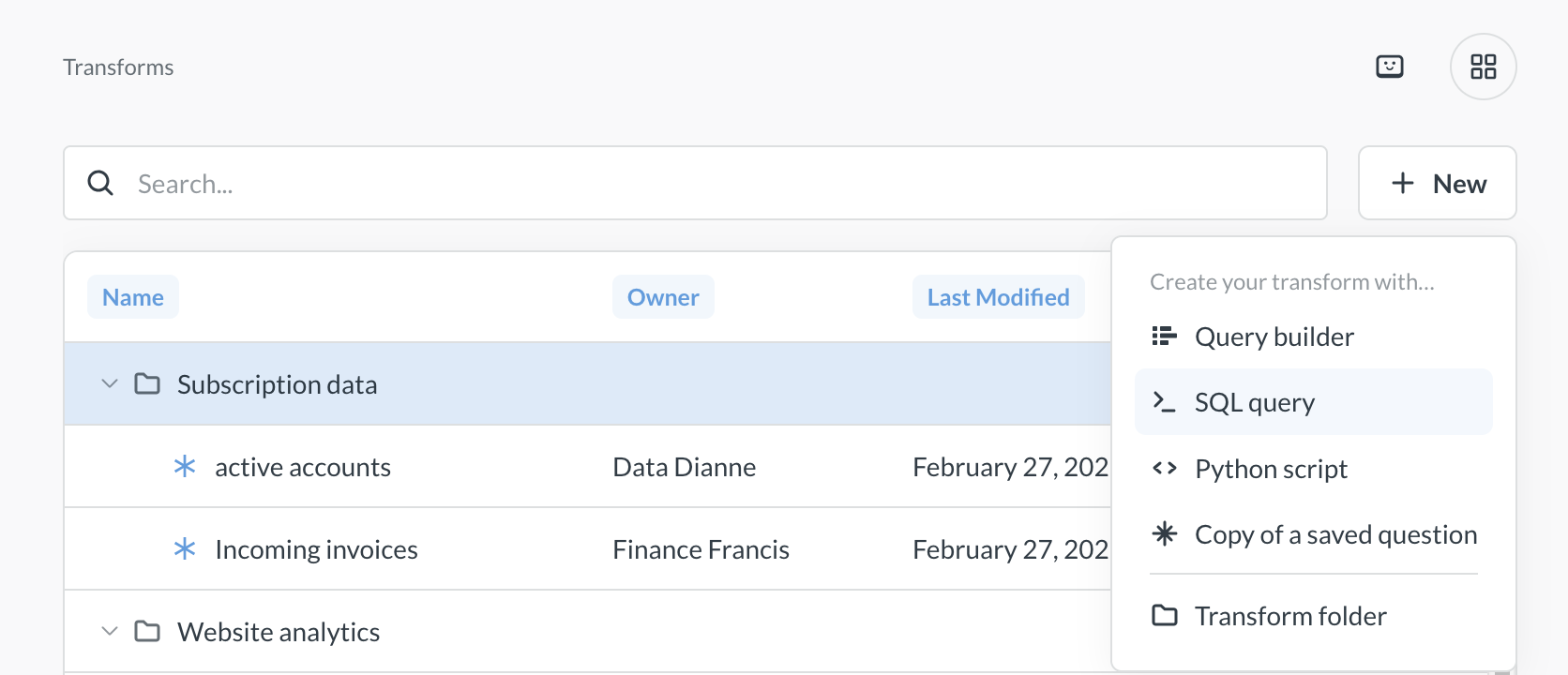
You can create your transform using Metabase’s graphical query builder, SQL, or Python.
For more information on transforms built with the query builder or SQL, see query-based transforms. For more information on Python transforms, see Python transforms.
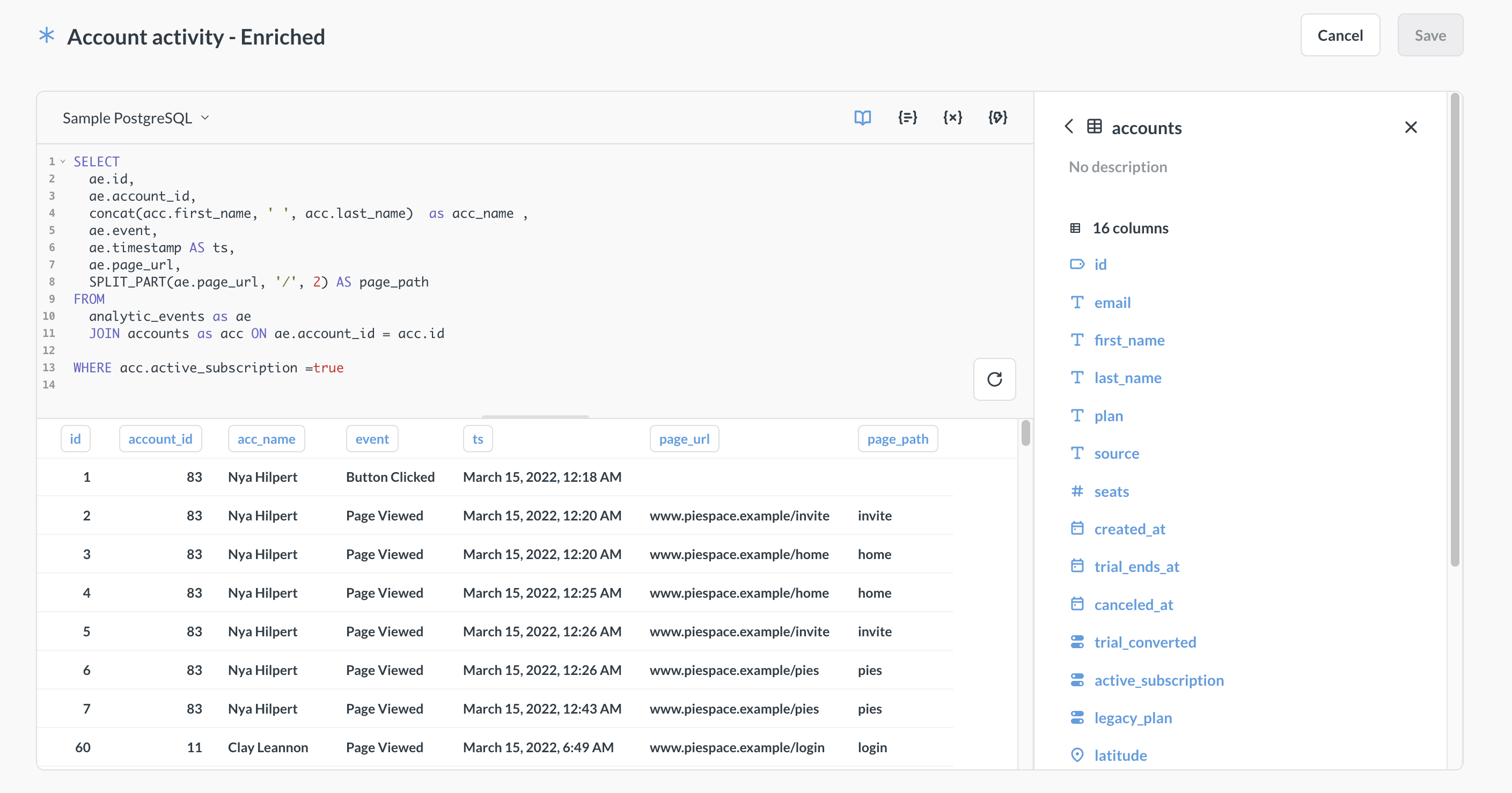
If you select Copy of a saved question for the transform’s source, you can copy the query of an existing Metabase question (either a SQL question or a query builder question) into your transform query. Metabase will only copy the question’s query. Later edits to that original question won’t affect the transform’s query.
-
Create the query or script for your transform.
See query-based transforms and Python transforms for more information. You can reference target tables of other transforms when writing your transform.
If you’re writing a SQL transform, variables must be wrapped in optional blocks (
[[ ]]), or given a default value. See variables in SQL transforms for more details.If Metabot is enabled, you can use Metabot to generate code for your transform.
-
Click Save in the top right corner and fill out the transform information:
- Name (required): The name of the transform.
- Schema (required): Target schema for your transform. This schema can be different from the schema of the source table(s). You create a new schema by typing its name in this field. You can only transform data within a database; you can’t write from one database to another.
- Table name (required): Name of the target table. Metabase will write the results of the transform into this table, and then sync the table in Metabase.
- Folder (optional): The folder where the transform should live. Click on the field to pick a different folder or create a new one.
-
Incremental transformation (optional): see Incremental query-based transforms or Incremental Python transforms
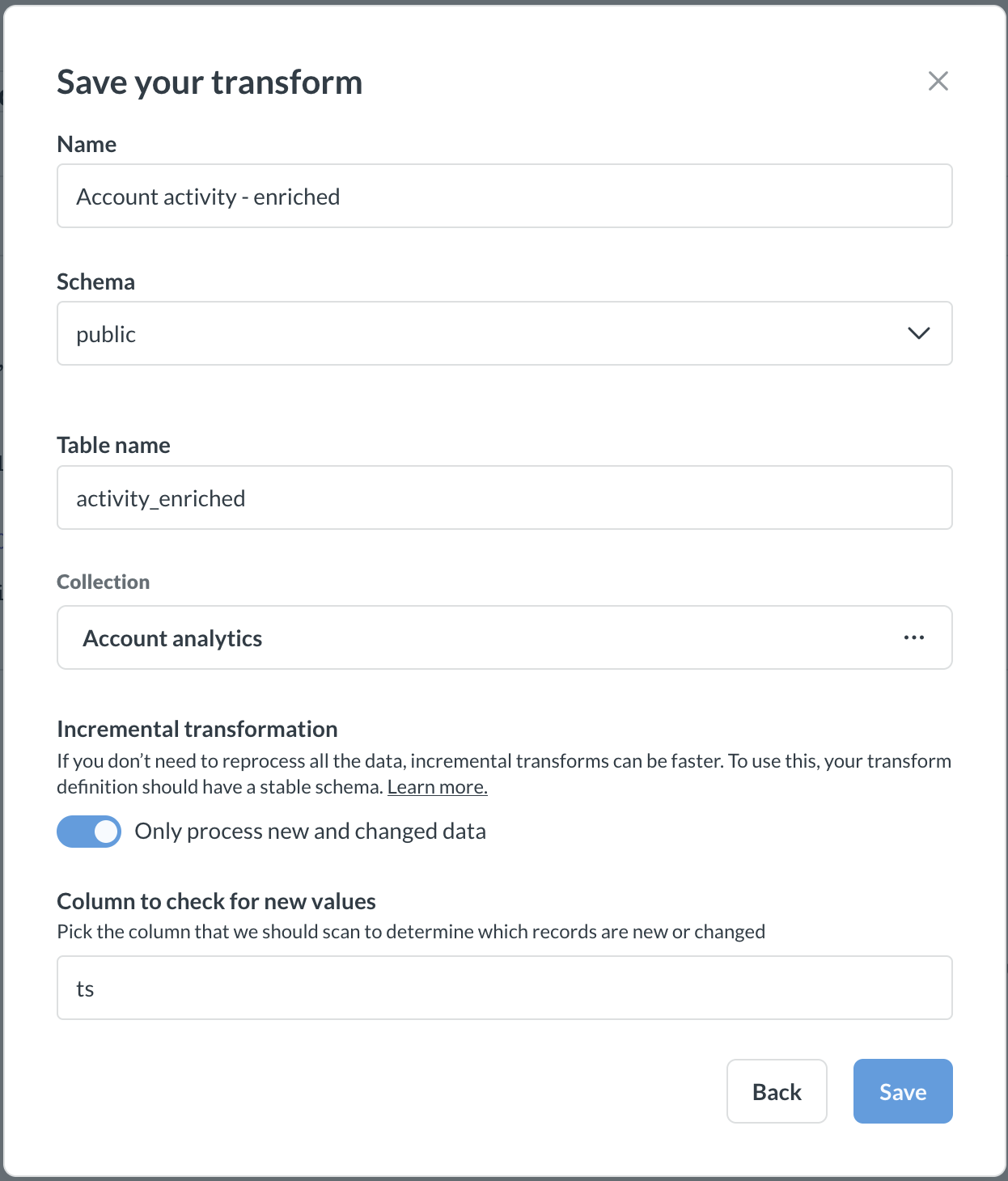
- Optionally, once the transform is saved, assign tags to your transform. Tags are used by jobs to run transforms on schedule.
Use Metabot to generate code for transforms
Code generation for transforms requires AI features.
You can ask Metabot to generate a new SQL or Python-based transform, or edit an existing transform.
- Go to Data studio > Transforms. If you want Metabot to edit an existing transform, navigate to the transform.
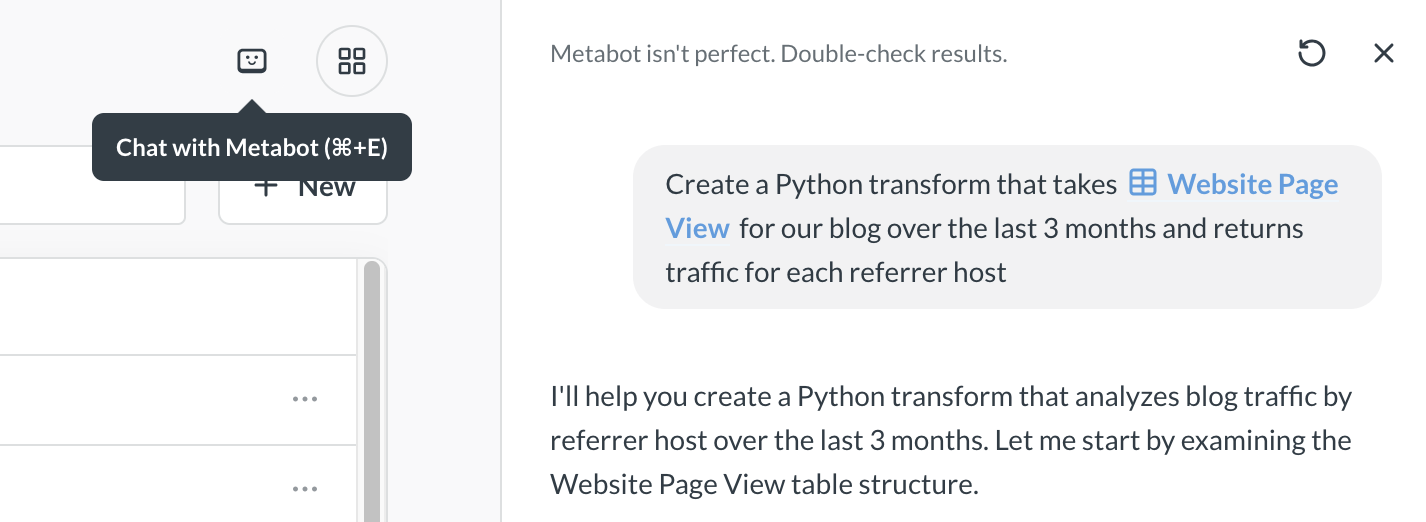
- While in Transforms view, click on the Metabot icon in top right.
-
Describe the transform that you’d like Metabot to write.
You can specify which kind of transform you want (Python or SQL) and @-mention specific data sources to help Metabot understand your request.
-
Metabot will create a to-do list for itself that will show its thinking process, and then work through the list.
-
If you asked Metabot to create a new transform, review the code that Metabot offers in the chat window and click on “Create” under the code snippet.
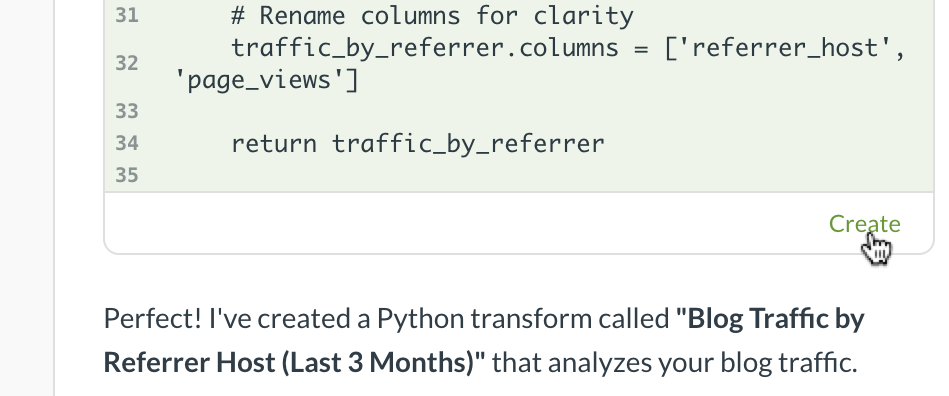
You can continue working with Metabot to refine your code. Metabot will suggest code changes, and give you the option of accepting or rejecting the changes.
Edit a transform
Data Studio > Transforms
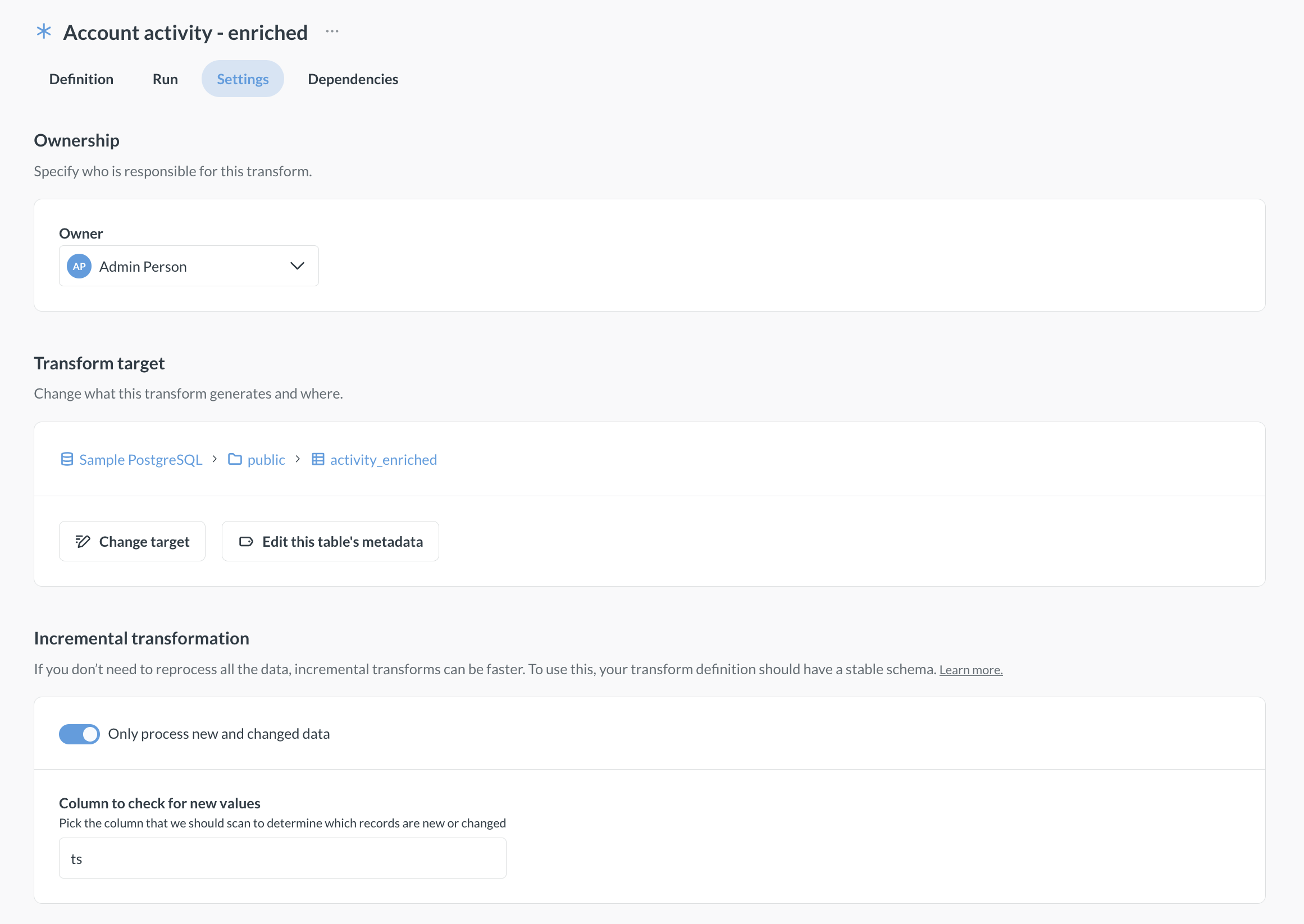
You can edit the transform’s name and description, query/script, target table, and incremental settings. You can edit the transform even if it already ran or is scheduled to run.
If you’re using remote sync, you won’t be able to edit transforms if your instance is in “read-only” sync mode.
Edit transform’s query or script
Data Studio > Transforms > Definition
See permissions to edit transforms.
To edit the transform’s query or script:
- Go to Data Studio > Transforms.
- Find the transform you’d like to edit and click on Edit definition above the transform definition.
-
Edit the query or script.
See query-based transforms and Python transforms for more information. You can use Metabot to help edit your transform.
Once you change the transform’s query or script, the next transform run (manual or scheduled) will use the updated query and write the results into the target table. If you’ve changed the table’s columns, and you have questions that query the table, they might break. For example, if your new transform query no longer includes a column that a downstream question was relying on, that question will break.
Edit transform’s target
Data Studio > Transforms > Settings
To edit transform’s target table, i.e., the table where the query results are written, go the transforms Settings tab and click on Change target. You’ll need to select whether you want to keep the old target table, or delete it. Deletion can’t be undone.
Questions built on the old target will not be transferred to the new target table. If you delete the old target table, any questions using the old transform target table will break. If you keep the old target around, the questions built on it won’t break but they will not use the new target table, and so will become outdated.
Run a transform
You can run a transform manually or schedule the transform using tags and jobs.
-
To run a transform manually, visit the transform in Data Studio > Transforms > Runs and click Run.
-
To schedule a transform, you’ll need to assign one or more tags to it, then create a scheduled job that picks up those tags.
Running a transform for the first time will create and sync the table created by the transform, and you’ll be able to edit the table’s metadata and permissions. Subsequent runs will drop and recreate the table, unless you use Incremental transforms.
You can see the time and status of the latest transform run on the transform’s page, or in the Runs view. The time of the run is given in the system’s timezone.
For Python transforms, you’ll also see the transform’s execution logs.
Inspect a transform
Data Studio > Transforms > [transform name] > Inspect
Transform inspector requires the Advanced transforms add-on
The transform inspector lets you poke at the input and outputs of your transform.
Transform dependencies
Transform dependencies are only available on Pro and Enterprise plans (both self-hosted and on Metabase Cloud).
Data Studio > Transforms > Dependencies
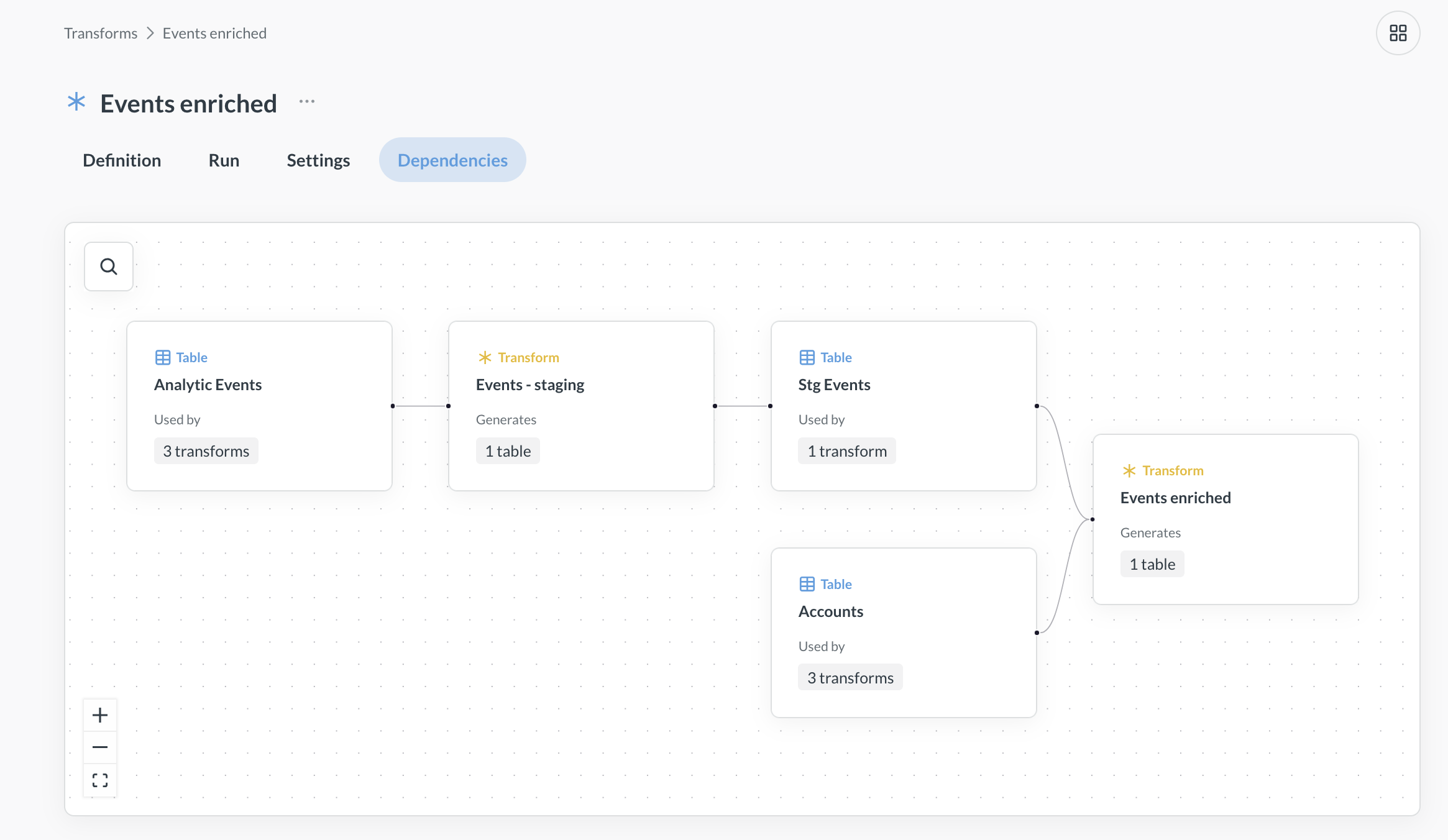
Transform queries can use the data from other transforms, and query-based transforms can also reference Metabase questions and models. For example, you can have a transform that uses data from a raw_events table and writes to a stg_events table, and then create another transform that uses data from the stg_events table and writes to an events table.
Metabase will track transform dependencies and execute transforms in a reasonable order. So for example, if transform B relies on a table created by transform A, Metabase will run transform A first, then run transform B.
On Metabase Pro or Enterprise plans, you can see the transform dependencies graph by going to Data Studio > Transforms and go to the Dependencies tab.
If a job includes a transform that depends on a table created by another transform, then the job will run all the tagged transforms and their dependencies, even if they lack tags, see Jobs and runs for more information.
Incremental transforms
Data Studio > Transforms > Settings
Incremental transforms only append new data since the previous transform run. For example, you might have new transaction data coming in every day, and run the transform nightly. With each run, the incremental transform would only write the rows added after the previous run the night before.
Prerequisites for incremental transforms
- There is a column in your data that Metabase can check for new values to determine which data is new. We’ll refer to this as a “Checkpoint” column.
- The checkpoint column has to have increasing values, like a sequential ID or timestamp column. Metabase will determine what “new” data is by looking for values that are greater than already-written checkpoint values.
- Your schema is stable, meaning that the structure of the tables is not going to change from run to run.
Make a transform incremental
Incremental transforms work differently for query-based transforms and Python transforms, so see incremental query transforms and incremental Python transforms for more information.
Versioning transforms
Admin > General > Remote sync
Versioning transforms is only available on Pro and Enterprise plans (both self-hosted and on Metabase Cloud).
You can check your transforms into git with Remote Sync. If you enable transform sync, Metabase will serialize transforms as YAML files and push them to your specified GitHub repo branch.
To enable git sync of transforms:
- Go to Admin settings by clicking the grid icon in top right and select Admin.
- On the General tab, pick Remote sync in the left sidebar.
- Follow the steps to Set up Remote Sync, and toggle “Transforms” sync on.
Keep in mind that this setting only controls whether transforms are checked into the git repo. The transform sync setting does not affect how the instance behaves in read-only mode. If your instance is in read-only mode, you will not be able to create or edit transforms.
Transforms vs models
Transforms are similar to models with model persistence turned on, but there are a few crucial differences:
- Transforms can only be created by analysts with transform permissions. Models can be created by anyone with permissions to create queries on the data source (but only admins can enable model persistence on an instance).
- You can choose the target schema and tables for transforms. Model persistence will create its own schema and tables.
- Transforms support more databases than model persistence.
- You can use Python to create transforms.
Use models to enable non-admins to create their own datasets within Metabase, and to add context like field descriptions and semantic types. Use transforms to create persisted datasets in your database and reuse them across Metabase. In future versions of Metabase, model persistence will be deprecated in favor of transforms.
On Metabase Pro/Enterprise plans, you can convert Metabase models to transforms in bulk, see Convert models to transforms
Read docs for other versions of Metabase.