


Metabase Cloud Storage
If you have data stored in spreadsheets and don’t have a data warehouse, Metabase Cloud Storage has you covered.
How Metabase Cloud Storage works
Metabase Cloud Storage is a feature you can add to your Metabase Cloud plan (and it’s only available for plans on Metabase Cloud).
Once added, you’ll see an Add data button in the left navigation bar. Click it and select Upload CSV.
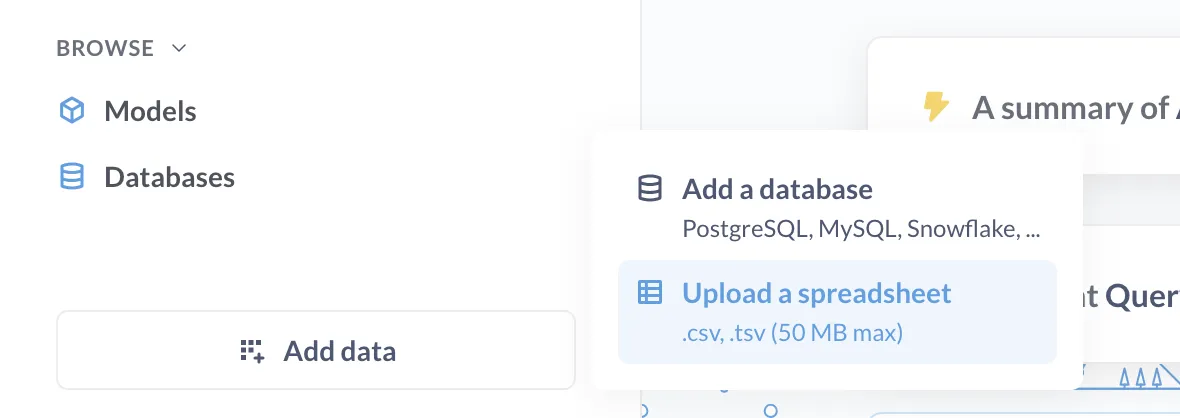
You can upload a .csv or .tsv file.
Learn more about uploads.
Metabase Cloud Storage uses ClickHouse
Under the hood, Metabase Cloud Storage uses ClickHouse to store your data.
Writing SQL queries on data stored in Metabase Cloud Storage
For the SQL dialect supported by ClickHouse, check out ClickHouse’s SQL reference.
How to get Metabase Cloud Storage
How you set up Metabase Cloud Storage depends on whether you already have a Metabase Cloud instance.
New cloud customers
New customers can sign up for a Metabase Cloud instance with storage.
Existing cloud customers
To add storage to an existing instance, use the following steps.
- Log in to your Metabase Store account.
- Navigate to Instances.
- In the instance you want to add storage to, click Manage plan.
- Find the Manage add-ons section.
- In the Storage field, click Enable.
- Use the slider to select the number of stored rows you want to add.
- Click Add storage.
Metabase Cloud Storage pricing
Pricing depends on how much data you need to store. See the Storage section on our pricing page.
Increase Metabase Cloud Storage
To increase the number of stored rows, use the following steps:
- Log in to your Metabase Store account.
- Navigate to Instances.
- In the instance you want to increase storage for, click Manage plan.
- Find the Manage add-ons section.
- In the Storage field, click Manage.
- Click Edit.
- Use the slider to increase the number of stored rows.
- Click Add storage.
Delete Metabase Cloud Storage
WARNING: This action permanently erases all data in your Metabase Cloud Storage.
To remove Metabase Cloud Storage, use the following steps:
- Log in to your Metabase Store account.
- Navigate to Instances.
- In the instance you want to delete storage from, click Manage plan.
- Find the Manage add-ons section.
- In the Storage field, click Manage.
- Click Edit.
- Click Disable storage.
- To confirm, click Erase all data.
Syncing Google Sheets with Metabase
If you set up Metabase Cloud Storage, you can sync Google Sheets with your Metabase.