


Dashboard heading and text cards
Add heading and text cards to your dashboards to label sections, link to other content, display images, and more.
Add a heading or text card
To add a heading or text card to a dashboard:
- Click the pencil icon to edit the dashboard.
- Click the text card button in the top right.
- Choose Heading or Text.
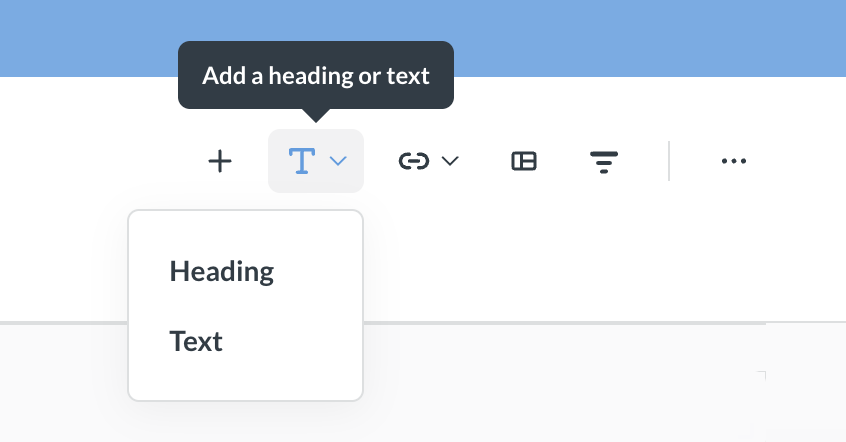
To move a card, click and drag it. To resize a card, click and drag the handle in its bottom right corner.
Click a card to edit the text. Click away from the card to preview the text.
Heading cards
A heading card holds a single line of text. Use a heading card to title a dashboard or label a section of charts.
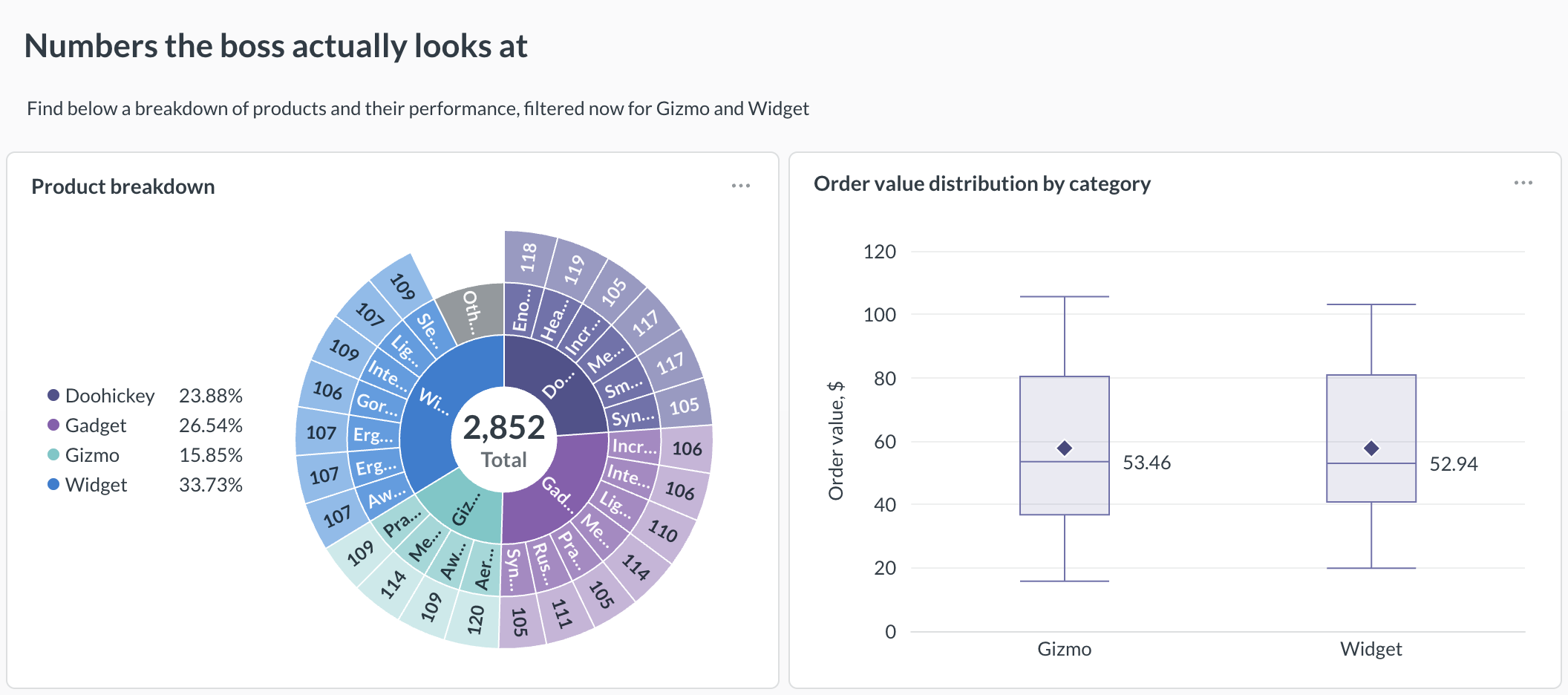
A few things to know about heading cards:
- The text is always left-aligned.
- The text stays the same size, regardless of how you resize the card.
- You can’t use Markdown in heading cards. Markdown syntax renders as plain text.
You can add a filter value to a heading card using a variable. See Add filter values to a card.
Text cards
A text card displays text you write in Markdown. Add formatting like bold text, lists, links, and images.

Change a text card’s alignment
You can set how text sits inside a text card. Open the card’s Visualization options to choose its alignment:
- Horizontal alignment: Left, Center, or Right.
- Vertical alignment: Top, Middle, or Bottom.

Remove a text card’s background
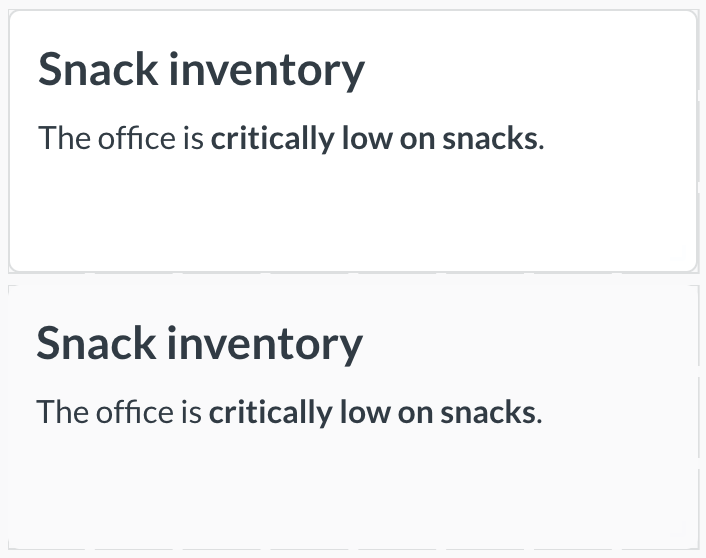
By default, a text card has a white background. To remove the background, open the card’s Visualization options and disable the Show background toggle.
Here’s the same card with its background on (top) and off (bottom):
Add filter values to a card
You can show the value of a dashboard filter inside a heading or text card. This lets you write text that updates when someone changes the filter.
For example, a card might contain:
Our revenue over {{Date}}:
Then, when someone selects “Previous 30 days” in the connected filter, the card displays:

To add a filter value to a card:
- Add a filter to your dashboard.
- Add a variable to your card by wrapping a name in double braces, like
{{Date}}. - Connect the filter to the card’s variable.
Add an image
You can add an image to a dashboard, as long as your admin hasn’t restricted the domain it’s hosted on. Add a text card and use Markdown image syntax:

You can’t upload an image to Metabase, only link to images hosted elsewhere.
Read docs for other versions of Metabase.