


Embed an AI chat
AI chat component is only available on Pro and Enterprise plans (both self-hosted and on Metabase Cloud).
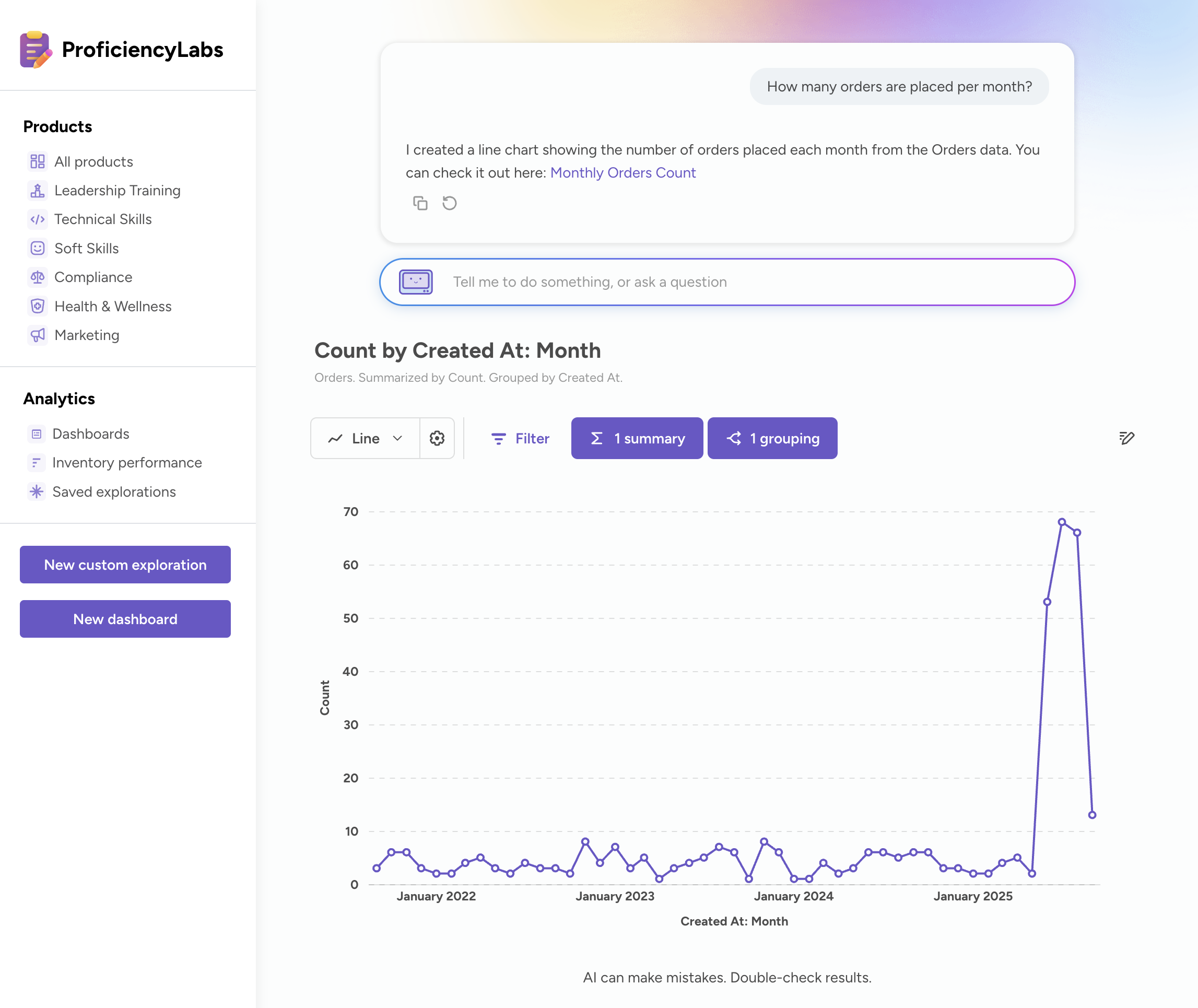
You can embed an AI chat in your app, so people can ask questions of their data in natural language. Embedded chat is a focused version of Metabot: it builds a question in the query builder and charts the answer.
To build that question, embedded chat first searches your Metabase for the best thing to build on: a metric, a model, a saved question, or a table (tables drop out once you scope the chat to a collection). Then it writes a query against whatever it picked. So embedded chat does look through your saved content, but as raw material for a new question, not as results to hand back. What people get back is always a new question they can drill into, and save if you turn saving on.
Embedded chat won’t write SQL, build or edit dashboards, or create metrics and models — it builds on the ones you already have. It also won’t work as a search box for finding existing content. For those, chat will suggest doing the work in Metabase itself.
AI chat requires the embed to use SSO authentication that signs people into your Metabase.
Try the AI chat demo
For what AI chat looks like in action, check out the AI chat component running on Shoppy, our modular embedding demo app. The demo’s chat uses the dedicated chart component.
Set up AI chat in Metabase
An admin sets up embedded Metabot in your Metabase:
- Click the grid icon in the upper right.
- Select Admin.
- Click the AI tab.
- In the left sidebar, click AI Settings.
- The first card on the page is your AI provider connection. If the card says Connect to an AI provider, set one up. If you’re self-hosting, that means connecting one with your own credentials. If the card says AI providers, you’re already connected.
- In the Metabot settings card, click the Embedded tab.
- Turn on Enable Embedded Metabot.
- Under Collection Embedded Metabot can use, click Pick a different collection and choose the collection that holds the metrics, models, and saved questions embedded Metabot should build on.
The collection you pick narrows what embedded chat finds when it searches for something to build on: that collection and everything under it. It doesn’t limit what embedded chat can query, since people can still get to any data they have permissions for. And once you set a collection, tables drop out of the chat’s search results, so pick a collection with the metrics and models you want people building on.
The Embedded tab configures Metabot in an embedded context, which is separate from the Metabot in your own Metabase (which lives on the Internal tab). Both tabs control what each Metabot can see, not what it runs on: your AI provider connections and the model each feature runs on are set once for the whole instance, above the Metabot settings card, and both Metabots use them.
With embedded Metabot set up, there are two ways to add the chat to your app:
- Web component: the whole chat interface, chart and all, from a single tag.
- React SDK: the same interface from the
MetabotQuestioncomponent, or theuseMetabothook if you’d rather build the interface yourself.
Both the web component and MetabotQuestion let you set where the chart appears and whether people can save questions.
Web component AI chat
You can use the in-app wizard to generate the code:
- Open the command palette with Ctrl/Cmd+K and type New embed.
- For the experience, select Metabot.
- Pick a layout and decide whether people can save questions.
- Click Get code and paste the snippet into your app.
The Metabot option only shows up once an admin has turned on embedded Metabot, and only for SSO authentication. For what the rest of the generated snippet does, see modular embedding.
To render the AI chat interface:
<metabase-metabot></metabase-metabot>
Web component metabase-metabot attributes
Depending on the framework you’re using, you may need to stringify attributes before passing them to the component. And if you surround an attribute’s value with double quotes, use single quotes inside it.
For all modular embeds, you can also set a locale in your page-level configuration to translate embedded content. But Metabot’s own text isn’t translated.
React SDK AI chat
Modular embedding SDK is only available on Pro and Enterprise plans (both self-hosted and on Metabase Cloud).
To embed an AI chat with the SDK, use the MetabotQuestion component. Wrap the component in the MetabaseProvider component with your auth config.
import React from "react";
import {
  MetabotQuestion,
  MetabaseProvider,
  defineMetabaseAuthConfig,
} from "@metabase/embedding-sdk-react";

const authConfig = defineMetabaseAuthConfig({
  metabaseInstanceUrl: "https://your-metabase.example.com",
});

export default function App() {
  return (
    <MetabaseProvider authConfig={authConfig}>
      <MetabotQuestion />
    </MetabaseProvider>
  );
}
React SDK MetabotQuestion props
| Property | Type | Description |
|---|---|---|
className? |
string |
A custom class name to be added to the root element. |
height? |
Height<string | number> |
A number or string specifying a CSS size value that specifies the height of the component |
isSaveEnabled? |
boolean |
Whether to show the save button. |
layout? |
"auto" | "sidebar" | "stacked" |
Layout for the MetabotQuestion component. - auto (default): Metabot uses the stacked layout on mobile screens, and a sidebar layout on larger screens. - stacked: the question visualization stacks on top of the chat interface. - sidebar: the question visualization appears to the left of the chat interface, which is on a sidebar on the right. |
style? |
CSSProperties |
A custom style object to be added to the root element. |
targetCollection? |
SdkCollectionId |
The collection to save the question to. This will hide the collection picker from the save modal. |
width? |
Width<string | number> |
A number or string specifying a CSS size value that specifies the width of the component |
Set where the chart appears
The layout setting positions the chart relative to the chat interface:
auto(default): Metabot uses thestackedlayout on mobile screens, and asidebarlayout on larger screens.stacked: the chart stacks on top of the chat interface.sidebar: the chart appears to the left of the chat interface, which sits in a sidebar on the right.
layout only applies to the built-in chat component. If you’re building your own interface with useMetabot, you position the chart yourself.
Web component chart layout
Set the layout attribute:
<metabase-metabot layout="stacked"></metabase-metabot>
React SDK chart layout
Set the layout prop on MetabotQuestion:
<MetabotQuestion layout="stacked" />
Let people save questions Metabot creates
Turning on the chat’s save button lets people keep a question Metabot built. Saving is off by default.
Setting a target collection is optional, but it’s worth doing: it picks the collection that new questions land in, so people’s work doesn’t scatter across your Metabase. It also hides the collection picker in the save modal, so nobody has to decide where their question goes.
Web component question saving
Turn saving on with is-save-enabled="true", and set the collection with target-collection:
<metabase-metabot
  is-save-enabled="true"
  target-collection="123"
></metabase-metabot>
React SDK question saving
The equivalent props on MetabotQuestion are isSaveEnabled and targetCollection:
<MetabotQuestion isSaveEnabled targetCollection={123} />
Build a custom AI chat UI with useMetabot (React SDK only)
If MetabotQuestion’s built-in layouts don’t fit your app, use the useMetabot hook to read Metabot’s conversation state directly and render your own UI. The hook gives you the messages, the chart the agent most recently produced, processing and error state, and actions to submit, cancel, retry, or reset the conversation.
AI chat with inline charts
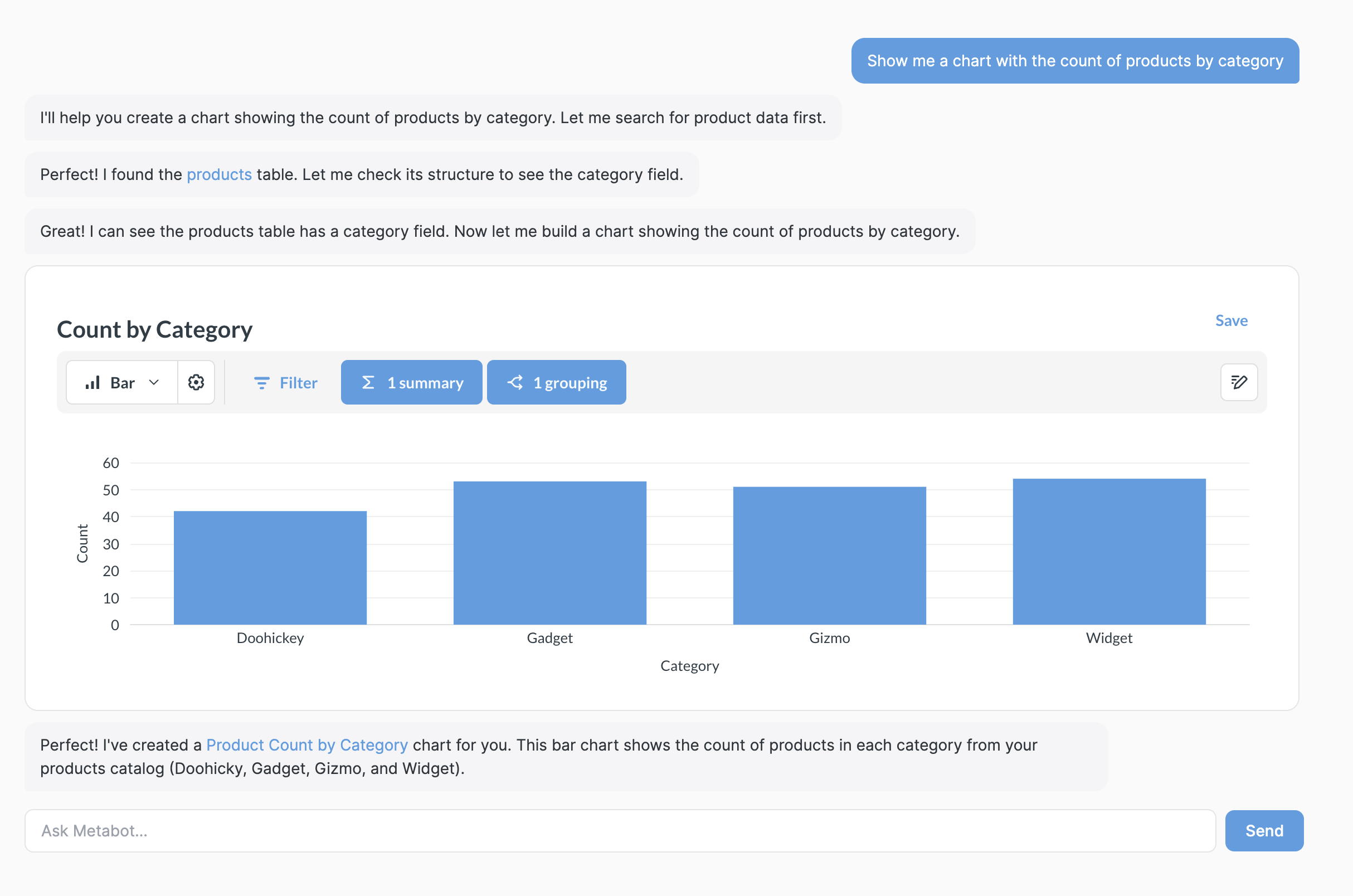
When an agent responds, the message can contain a Chart component. You can walk the agent’s messages and render charts inline alongside the chat transcript:
import React, { useState } from "react";
import {
  MetabaseProvider,
  defineMetabaseAuthConfig,
  useMetabot,
} from "@metabase/embedding-sdk-react";

const authConfig = defineMetabaseAuthConfig({
  metabaseInstanceUrl: "https://your-metabase.example.com",
});

function MetabotChat() {
  const metabot = useMetabot();
  const [prompt, setPrompt] = useState("");

  // useMetabot returns null until the SDK bundle has loaded
  // and <MetabaseProvider> has mounted. Always guard before use.
  if (!metabot) {
    return <div>Loading…</div>;
  }

  const handleSubmit = (event: React.FormEvent) => {
    event.preventDefault();
    if (!prompt.trim()) {
      return;
    }
    metabot.submitMessage(prompt);
    setPrompt("");
  };

  return (
    <div style={{ display: "flex", flexDirection: "column", gap: 12 }}>
      <div style={{ display: "flex", flexDirection: "column", gap: 8 }}>
        {metabot.messages.map((message) => {
          if (message.role === "user") {
            return (
              <div key={message.id} style={{ alignSelf: "flex-end" }}>
                {message.message}
              </div>
            );
          }
          if (message.type === "text") {
            // message.message is markdown: links, bold, lists, code.
            // Wrap in a markdown renderer (react-markdown, markdown-to-jsx,
            // etc.) for production use; rendered as plain text here for brevity.
            return <div key={message.id}>{message.message}</div>;
          }
          // Agent chart message — render its bound Chart inline.
          const { Chart } = message;
          return (
            <div key={message.id} style={{ height: 400 }}>
              <Chart drills height="100%" />
            </div>
          );
        })}
      </div>

      <form onSubmit={handleSubmit} style={{ display: "flex", gap: 8 }}>
        <input
          value={prompt}
          onChange={(event) => setPrompt(event.target.value)}
          placeholder="Ask Metabot…"
          disabled={metabot.isProcessing}
          style={{ flex: 1 }}
        />
        <button type="submit" disabled={metabot.isProcessing}>
          Send
        </button>
      </form>
    </div>
  );
}

export default function App() {
  return (
    <MetabaseProvider authConfig={authConfig}>
      <MetabotChat />
    </MetabaseProvider>
  );
}
AI chat with dedicated chart panel
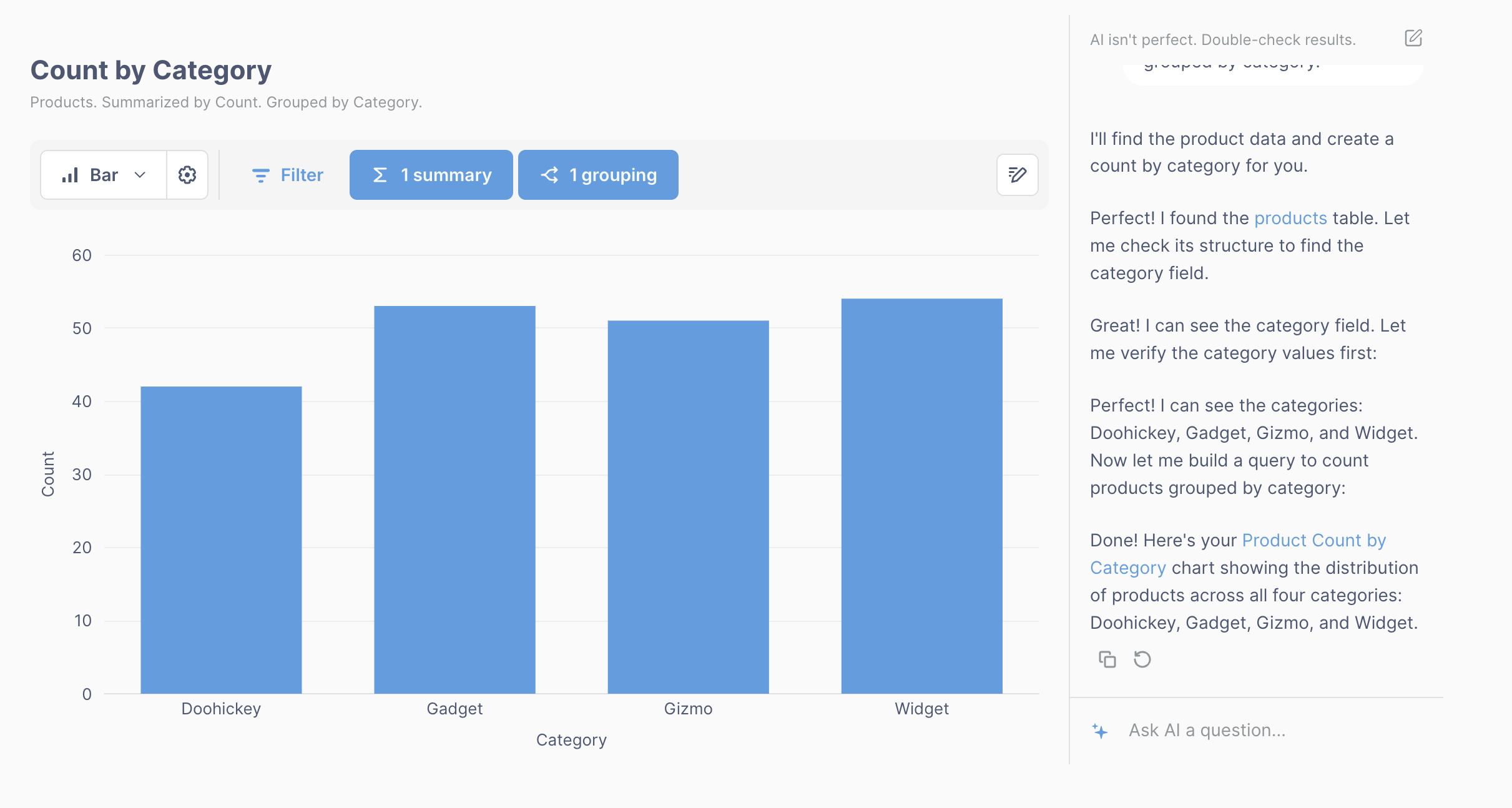
The CurrentChart component is bound to the latest chart the agent produced. Render CurrentChart once, and it will swap in new charts as the agent creates them. You’ll want to filter chart messages out of the transcript so they don’t render twice:
import React, { useState } from "react";
import {
  MetabaseProvider,
  defineMetabaseAuthConfig,
  useMetabot,
} from "@metabase/embedding-sdk-react";

const authConfig = defineMetabaseAuthConfig({
  metabaseInstanceUrl: "https://your-metabase.example.com",
});

function MetabotChat() {
  const metabot = useMetabot();
  const [prompt, setPrompt] = useState("");

  // useMetabot returns null until the SDK bundle has loaded
  // and <MetabaseProvider> has mounted. Always guard before use.
  if (!metabot) {
    return <div>Loading…</div>;
  }

  const handleSubmit = (event: React.FormEvent) => {
    event.preventDefault();
    if (!prompt.trim()) {
      return;
    }
    metabot.submitMessage(prompt);
    setPrompt("");
  };

  const { CurrentChart } = metabot;

  return (
    <div style={{ display: "flex", gap: 16, height: 600 }}>
      <div style={{ flex: 1 }}>
        {CurrentChart ? (
          <CurrentChart drills height="100%" />
        ) : (
          <div
            style={{ display: "grid", placeItems: "center", height: "100%" }}
          >
            Ask Metabot to generate a chart
          </div>
        )}
      </div>

      <div
        style={{
          width: 380,
          display: "flex",
          flexDirection: "column",
          gap: 12,
        }}
      >
        <div
          style={{
            flex: 1,
            overflowY: "auto",
            display: "flex",
            flexDirection: "column",
            gap: 4,
          }}
        >
          {metabot.messages.map((message) => {
            // Chart messages render in the dedicated panel on the left,
            // so you should filter them out in the chat transcript
            // so they don't render twice.
            if (message.role === "agent" && message.type === "chart") {
              return null;
            }
            // Agent text (message.role === "agent") is markdown: links,
            // bold, lists, code, etc. Wrap in a markdown renderer (react-markdown,
            // markdown-to-jsx, etc.). Rendered as plain
            // text here for brevity. User text (message.role === "user") is
            // raw, so no markdown rendering needed.
            return (
              <div
                key={message.id}
                style={{
                  alignSelf:
                    message.role === "user" ? "flex-end" : "flex-start",
                }}
              >
                {message.message}
              </div>
            );
          })}
        </div>

        <form onSubmit={handleSubmit} style={{ display: "flex", gap: 8 }}>
          <input
            value={prompt}
            onChange={(event) => setPrompt(event.target.value)}
            placeholder="Ask Metabot…"
            disabled={metabot.isProcessing}
            style={{ flex: 1 }}
          />
          <button type="submit" disabled={metabot.isProcessing}>
            Send
          </button>
        </form>
      </div>
    </div>
  );
}

export default function App() {
  return (
    <MetabaseProvider authConfig={authConfig}>
      <MetabotChat />
    </MetabaseProvider>
  );
}
React SDK useMetabot return values
| Property | Type | Description |
|---|---|---|
cancelRequest |
() => void |
Cancel the current in-flight request. |
contextWindowPercentUsage |
number |
How much of the model’s context window the conversation occupies, 0-100. |
CurrentChart |
| React_2.ComponentType<MetabotChartProps> | null |
A pre-wired component bound to the latest chart the agent produced. null until the agent sends a chart — lets consumers detect presence and render a placeholder or swap panel content only when set. Example {CurrentChart ? <CurrentChart /> : <Placeholder />} |
errorMessages |
MetabotErrorMessage[] |
Errors are conversation-level, not attached to individual messages. |
isContextWindowFull |
boolean |
Whether the conversation has consumed its entire context window. |
isProcessing |
boolean |
true from the moment a message is submitted until the response completes — including success, error, or cancellation. |
messages |
MetabotMessage[] |
All messages in the conversation. Chart messages include a Chart property. |
resetConversation |
() => void |
Clear all messages and start fresh. |
retryMessage |
(messageId: string) => Promise<void> |
Rewinds the conversation to the user message preceding messageId and re-submits that prompt. The agent message at messageId and anything after it is dropped. |
submitMessage |
(message: string) => Promise<void> |
Submit a new message to the conversation. |
Guard against null while the SDK bundle loads
useMetabot returns null until the SDK bundle has loaded and <MetabaseProvider> has mounted, so always guard before you use it. The SDK ships its Metabot internals in a code-split chunk that isn’t available synchronously, which means an unguarded first render throws Cannot read properties of null as soon as you reach for metabot.messages, metabot.submitMessage, or anything else on the hook.
Only one conversation per page
Each page gets a single AI chat conversation, and every MetabotQuestion and useMetabot call on the page reads and writes that same conversation. You can’t give each component its own conversation.
Bring your own markdown renderer
MetabotQuestion renders agent text messages for you, markdown formatting and all, along with transcript scrolling and input styling. The useMetabot hook hands you the raw conversation state instead, so you can handle the markdown rendering.
Agent text messages (the ones where message.type === 'text') contain markdown (like links, bold, lists, inline code). The snippets above render message.message as plain text to keep them short, but in production you’ll want to pass that text through a markdown renderer, like react-markdown or markdown-to-jsx, so links and formatting come out right.
Strip links back to Metabase
Agent text can include links pointing back to the Metabase it’s running against, like a link to a chart the agent just created. Opening one requires an authenticated Metabase session, so people viewing your app will hit a login screen. Strip those links out when you render the message, or swap them for a route in your own app.
Further reading
- Modular embedding components
- Metabot
- Metabot settings
- Embed a chart
- Embed a dashboard
- Appearance
- Authentication
- Modular embedding
- Modular embedding SDK
Read docs for other versions of Metabase.