


Embed a chart
There are two ways you can embed a chart (called a question, in Metabase parlance):
- View-only chart: people see the results, filter them, and that’s it.
- Interactive chart: people can drill through the chart and change the query behind it.
Embed a view-only chart
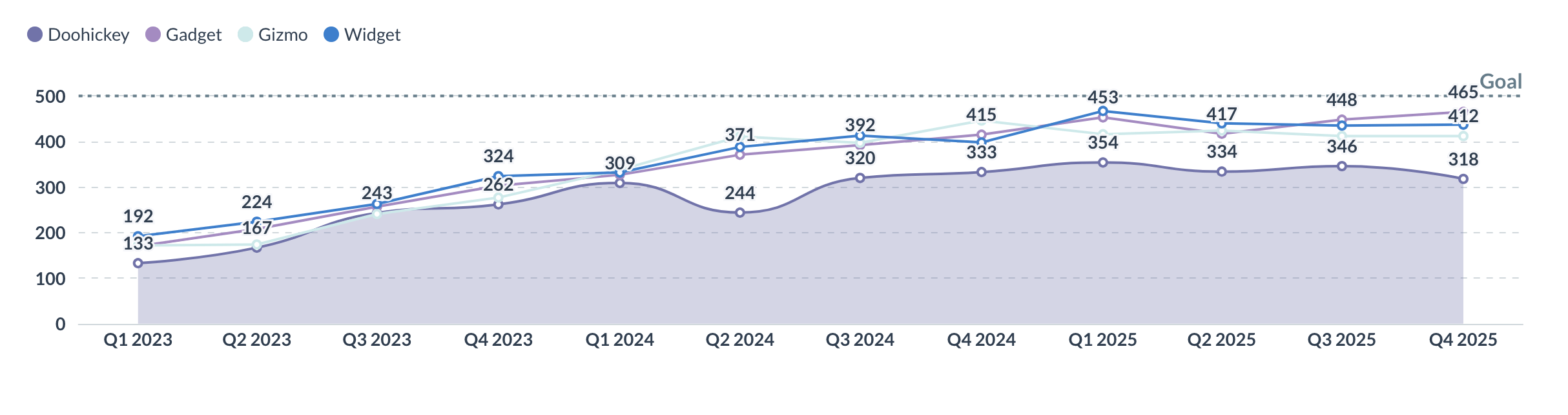
A view-only (a.k.a. “static”) chart displays results without letting people explore the data. Nobody can drill through it, change the query behind it, or run a new one. You can, however, add editable filters that people can change to update the query results.
View-only isn’t tied to one kind of embed. You can make a chart view-only in any embedding type:
- Guest embeds: always view-only. Nobody logs in to a guest embed, so Metabase has no account to check permissions against, and no way to tell whether a new query is one that person should be allowed to run. The published question is the only thing Metabase can safely run, which is why there’s no drill-through or ad-hoc querying to turn off.
- SSO embeds: interactive out of the box. To make one view-only, turn off drill-through with
drills="false"(web component) ordrills={false}(SDK), and turn off saving withis-save-enabled="false"orisSaveEnabled={false}. You can also manage what people can do through data permissions and collection permissions.
So pick your authentication based on what your app needs—plans, permissions, whether Metabase should know who’s viewing—not on whether you want a view-only chart. Check out SSO or guest embeds.
This section covers setting up a view-only chart with guest authentication.
View-only charts with guest authentication using a web component
You can use the in-app wizard to set up a view-only chart using web components.
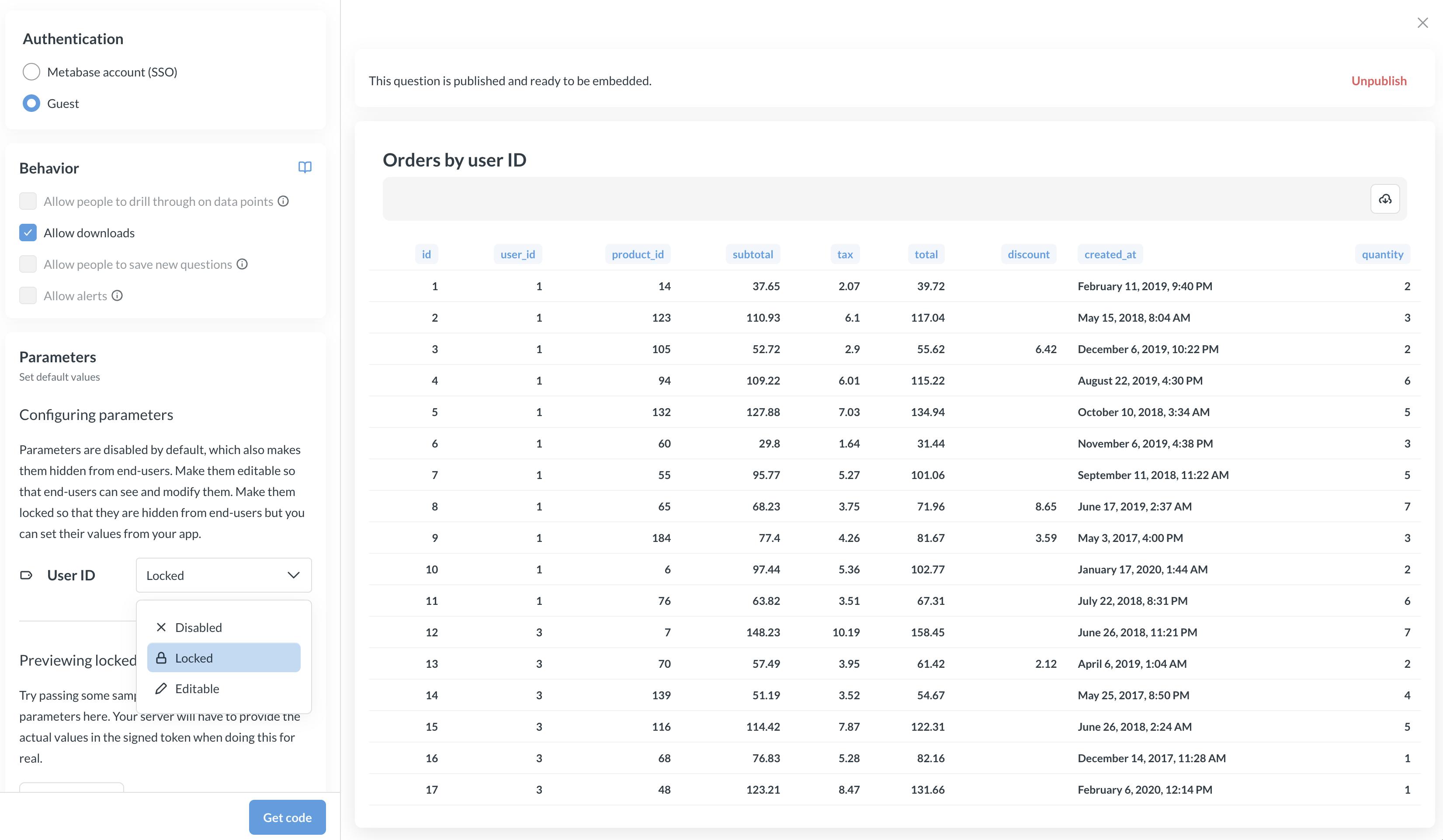
Three things need to happen: you publish the embed in Metabase, you paste the chart code into your app, and your server signs a JWT. The wizard writes most of the code for you, so the list below is longer than the work.
- Visit the question in your Metabase.
- Click the Share icon in the upper right.
- Select Embed to open the embedding wizard.
- For authentication, choose Guest, so your app won’t need to log anyone in to your Metabase. An admin needs to turn on guest embedding first.
- Click the Publish button. Publishing only applies to guest embeds.
- Under behavior, Metabase gives you several options for customizing how the embed works. See web component attributes for what each one does. If you’d picked SSO in step 4, this is where you’d make the embed view-only by turning off drill-through.
- If you’re embedding a SQL question with a variable, set the parameter to Editable or Locked. Parameters are Disabled by default, which hides them and prevents your server from setting them. See Parameters differ between guest and SSO embeds.
- Customize the appearance.
- Click the Get code button. You’ll get both the frontend and backend code based on the selections you made in the wizard.
- Copy the client code and paste it in your app.
- Replace the JWT the wizard pasted into your HTML. That token is a fixed string with an expiration baked into it, so an embed that ships with it will stop working. Either sign a fresh token on your server for each page load and render it into the
tokenattribute, or leave the attribute off and pointguestEmbedProviderUriat an endpoint in your app, which also keeps the embed alive past the expiration. The example below takes the first route; for the second, see Embed a dashboard.
View-only chart example with web components
Say you have a question written in SQL, with a field filter to filter orders by customer_id:
SELECT
  *
FROM
  orders
WHERE
  {{customer_id}}
Now say you want to embed this question on each customer’s account page in your app, showing only that customer’s orders. Here’s the frontend code.
<script defer src="https://your-metabase.example.com/app/embed.js"></script>
<script>
  function defineMetabaseConfig(config) {
    window.metabaseConfig = config;
  }
</script>

<script>
  defineMetabaseConfig({
    instanceUrl: "https://your-metabase.example.com",
    isGuest: true,
    theme: {
      colors: {
        brand: "#509EE3",
        "text-primary": "hsla(204, 66%, 8%, 0.84)",
      },
    },
  });
</script>

<!--
Your server signs this token for each page load and renders it here. Don't
paste a fixed JWT into your HTML: it'll stop working once it expires.
-->
<metabase-question
  token="PASS_SIGNED_TOKEN_FROM_SERVER"
  with-title="true"
  with-downloads="true"
>
</metabase-question>
The theme key sets the chart’s appearance. For the full theme object with all the options, check out Appearance.
On your app’s server, set the value for the locked parameter in the token. Whoever’s looking at the page can’t see or change that value, so an embed on customer 13’s account page returns only customer 13’s orders.
// you will need to install via 'npm install jsonwebtoken' or in your package.json

const jwt = require("jsonwebtoken");

// Get your key from your Metabase at
// Embedding hub > Security > Secret key for guest embeds
const METABASE_SECRET_KEY = "YOUR_SECRET_KEY";

// Here we lock a customer_id parameter to 13
const payload = {
  resource: { question: 40956 },
  params: {
    customer_id: [
      13, // set this programmatically, based on whose account page your app is rendering
    ],
  },
  exp: Math.round(Date.now() / 1000) + 10 * 60, // 10 minute expiration
};
const token = jwt.sign(payload, METABASE_SECRET_KEY);
To get this code from the in-app wizard, set the customer_id parameter to Locked and publish the question. See Locked parameters.
For all modular embeds, you can also set a locale in your page-level configuration to translate embedded content.
For the full list of attributes, see web component attributes.
View-only charts using the React SDK
Modular embedding SDK is only available on Pro and Enterprise plans (both self-hosted and on Metabase Cloud).
To embed a view-only chart with the SDK, use the StaticQuestion component. Wrap the component in the MetabaseProvider component with your auth config.
import React from "react";
import {
  MetabaseProvider,
  StaticQuestion,
  defineMetabaseAuthConfig,
} from "@metabase/embedding-sdk-react";

const authConfig = defineMetabaseAuthConfig({
  metabaseInstanceUrl: "https://your-metabase.example.com",
});

export default function App() {
  const questionId = 1; // This is the question ID you want to embed

  return (
    <MetabaseProvider authConfig={authConfig}>
      <StaticQuestion questionId={questionId} withChartTypeSelector={false} />
    </MetabaseProvider>
  );
}
The component has a default height, which you can change with the height prop. To inherit the height from the parent container, pass 100%.
For the full list of props, see StaticQuestion props.
Embed an interactive chart
Interactive charts are only available on Pro and Enterprise plans (both self-hosted and on Metabase Cloud).
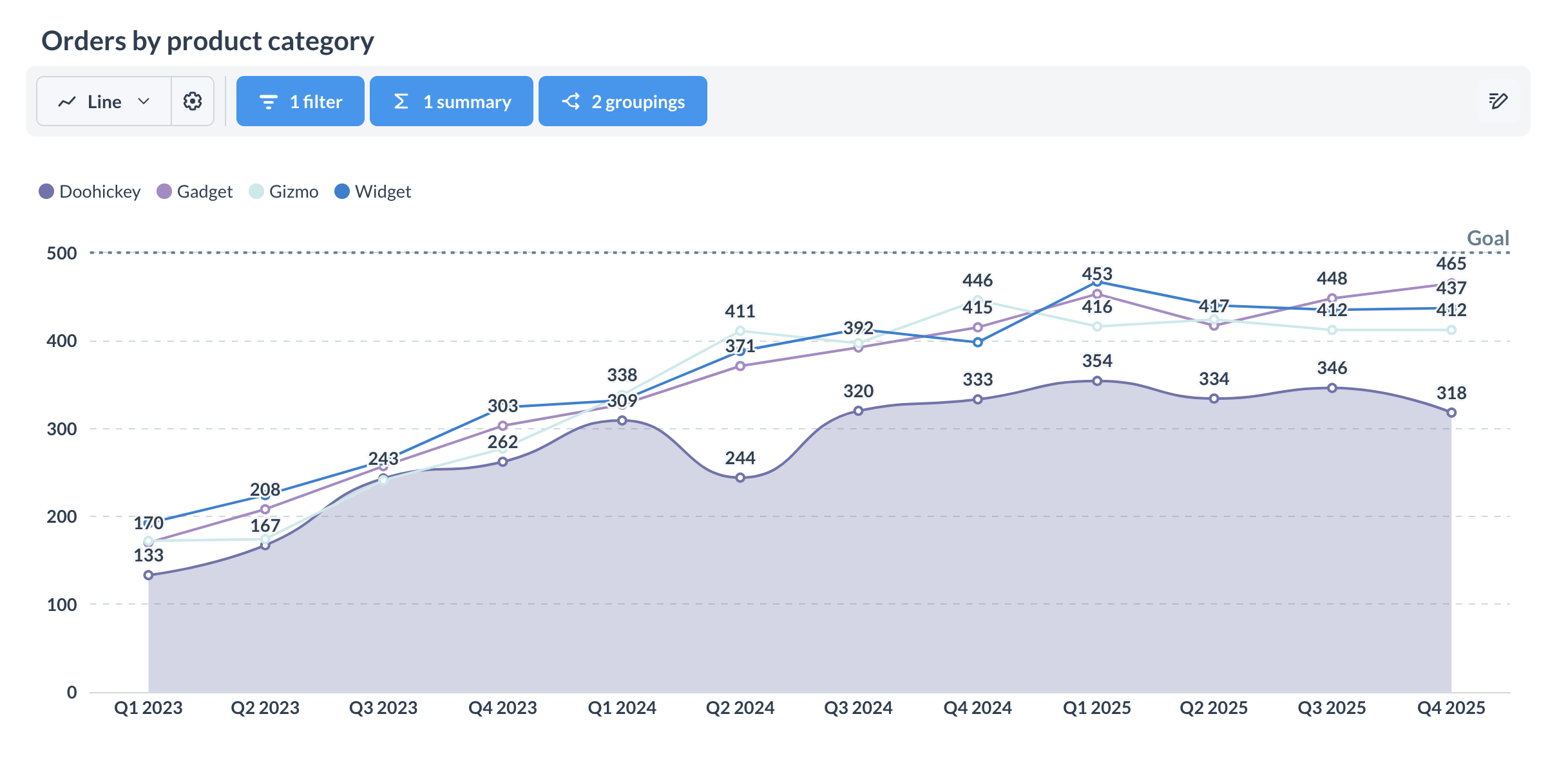
An interactive chart lets people explore their data: they can drill through the chart, filter results, summarize and group them, change visualization settings, and optionally save their changes.
Interactive charts require SSO, which you can set up with either web components or the React SDK.
Interactive charts using a web component
Reference an existing question by ID. Drill-through is on by default:
<metabase-question question-id="1"></metabase-question>
question-id takes the question’s sequential ID — the number in the question’s URL. On Pro and Enterprise plans, you can use the question’s entity ID instead; entity IDs stay the same when you serialize content from one Metabase to another, like from staging to production.
To control what people can do with the chart, check out web component attributes. For example, you can show or hide download buttons, the question’s title, or the chart type selector.
Interactive charts using the React SDK
Use InteractiveQuestion when you want people to explore their data and customize the layout.
import React from "react";
import {
  InteractiveQuestion,
  MetabaseProvider,
  defineMetabaseAuthConfig,
} from "@metabase/embedding-sdk-react";

const authConfig = defineMetabaseAuthConfig({
  metabaseInstanceUrl: "https://your-metabase.example.com",
});

export default function App() {
  const questionId = 1; // This is the question ID you want to embed

  return (
    <MetabaseProvider authConfig={authConfig}>
      <InteractiveQuestion questionId={questionId} />
    </MetabaseProvider>
  );
}
For the full list of props, see InteractiveQuestion props.
Customize the layout of an interactive chart
InteractiveQuestion comes with a default layout that lets people view the question, apply filters and aggregations, and use the query builder. You can also build your own layout out of namespaced components like <InteractiveQuestion.Filter />. For examples of both, see Customizing an interactive chart’s layout, and the full list of InteractiveQuestion components.
Let people save their changes
If you’re using embeds with SSO, you can let people save their work.
Saving with web components
With a web component, turn saving on with is-save-enabled="true", and set the collection that saved questions land in with target-collection:
<metabase-question
  question-id="1"
  is-save-enabled="true"
  target-collection="5"
></metabase-question>
Saving with the React SDK
With the SDK, you get four props to control saving questions:
isSaveEnabledshows or hides the save button.onBeforeSaveruns before a save (it can be async).onSaveruns after a successful save. It receives the updated question and a context object withisNewQuestion.targetCollectionpre-selects the collection to save to and hides the collection picker.
To prevent people from saving changes (or saving as a new question), set isSaveEnabled={false}:
import React from "react";
import {
  InteractiveQuestion,
  MetabaseProvider,
  defineMetabaseAuthConfig,
} from "@metabase/embedding-sdk-react";

const authConfig = defineMetabaseAuthConfig({
  metabaseInstanceUrl: "https://your-metabase.example.com",
});

export default function App() {
  return (
    <MetabaseProvider authConfig={authConfig}>
      <InteractiveQuestion questionId={1} isSaveEnabled={false} />
    </MetabaseProvider>
  );
}
In the embedding wizard, this corresponds to the Allow people to save new questions option.
Customize what happens when someone clicks on a chart
Customizing click behavior is only available in the Modular embedding SDK for now.
When people click a data point in an interactive chart, Metabase shows a menu of actions. The mapQuestionClickActions SDK plugin lets you customize this: add custom actions alongside the default ones, perform an immediate action without a menu, or prevent default actions from happening.
Use it globally on MetabaseProvider, or on individual InteractiveQuestion components:
  <MetabaseProvider
    authConfig={authConfig}
    pluginsConfig={{
      mapQuestionClickActions: (clickActions, clicked) => {
        if (clicked?.column?.display_name === "Last Name") {
          // This adds a custom action to the menu
          return [
            ...clickActions,
            {
              buttonType: "horizontal",
              name: "custom",
              title: "This is the Last Name column",
              onClick: () => alert("You clicked the Last Name column!"),
            },
          ];
        }

        if (clicked?.column?.display_name === "Plan") {
          // This performs an immediate action instead of opening the menu
          return {
            onClick: () => alert("You clicked the Plan column!"),
          };
        }
        // default behavior (open Metabase's default click menu)
        return clickActions;
      },
    }}
  >
    <InteractiveQuestion questionId={1} />
  </MetabaseProvider>
);
You can also customize how custom actions look in the menu:
// You can provide a custom action with your own `onClick` logic.
const createCustomAction = (clicked) => ({
  buttonType: "horizontal",
  name: "client-custom-action",
  section: "custom",
  type: "custom",
  icon: "chevronright",
  title: "Hello from the click app!!!",
  onClick: ({ closePopover }) => {
    alert(`Clicked ${clicked.column?.name}: ${clicked.value}`);
    closePopover();
  },
});

// Or customize the appearance of the custom action to suit your need.
const createCustomActionWithView = (clicked) => ({
  name: "client-custom-action-2",
  section: "custom",
  type: "custom",
  view: ({ closePopover }) => (
    <button
      className="tw-text-base tw-text-yellow-900 tw-bg-slate-400 tw-rounded-lg"
      onClick={() => {
        alert(`Clicked ${clicked.column?.name}: ${clicked.value}`);
        closePopover();
      }}
    >
      Custom element
    </button>
  ),
});

const plugins = {
  /**
   * You will have access to default `clickActions` that Metabase renders by default.
   * So you could decide if you want to add custom actions, remove certain actions, etc.
   */
  mapQuestionClickActions: (clickActions, clicked) => {
    return [
      ...clickActions,
      createCustomAction(clicked),
      createCustomActionWithView(clicked),
    ];
  },
};

const questionId = 1; // This is the question ID you want to embed

return (
  <MetabaseProvider authConfig={authConfig} pluginsConfig={plugins}>
    <InteractiveQuestion questionId={questionId} />
  </MetabaseProvider>
);
Embed the query builder or SQL editor
To let people build questions from scratch, check out Embed the query builder.
Show people only their own data
Say you want to show each customer only their own orders. How you restrict the rows depends on how you authenticate the embed.
Lock a parameter on a guest embed
Embeds with Guest authentication can lock a parameter. Your app sets the parameter’s value in the signed token on your server, so the filter is controlled by your app rather than by whoever’s clicking around the page. They can’t see the value, and they can’t change it. An embed on a customer’s account page returns that account’s rows, whether or not Metabase has any idea who’s looking at it.
Locked parameters need a question written in SQL, with a field filter or variable to lock onto. Query builder questions have no parameters to lock, so segregate their data with permissions instead.
const payload = {
  resource: { question: 5 },
  params: {
    category: ["Gadget"], // Locked. Set by your app, not by whoever's viewing.
  },
  exp: Math.round(Date.now() / 1000) + 10 * 60,
};

const token = jwt.sign(payload, METABASE_SECRET_KEY);
Use permissions on an SSO embed
Embeds with SSO don’t need to lock parameters. Since Metabase knows who’s viewing, you can apply data permissions and let Metabase filter the rows, instead of locking parameters by hand. This works for query builder questions and SQL questions alike.
Control question parameters from your app
To drive a question’s SQL parameters from your app’s own code, pass values keyed by variable name. You can set starting values that people can still change, hold the values in your app and get a callback whenever they change, and hide Metabase’s widgets when your app supplies its own filter UI. Check out Embedding parameters for all of it.
Your app sets these values in the browser, and people can change them, so they don’t restrict what anyone can query. To restrict the data itself, see Show people only their own data.
Let people set up alerts on a question
You can let people set up alerts on a saved question with the with-alerts attribute on the web component:
<metabase-question question-id="42" with-alerts="true"></metabase-question>
Or by passing withAlerts to StaticQuestion or InteractiveQuestion in the SDK:
<MetabaseProvider authConfig={authConfig}>
  <InteractiveQuestion questionId={42} withAlerts />
</MetabaseProvider>
Metabase only shows the alerts button when all of these are true:
- Your Metabase has email set up.
- The embed is an authenticated (SSO) embed.
- The person viewing the embed is in a group with the Subscriptions and alerts application permission. Metabase grants this permission to the All Users group by default, so admins have to set it to No to take it away.
- The person viewing the embed has collection permissions for the collection that holds the question.
Alerts created in an embedded context only send to whoever’s logged in, and they exclude links to Metabase items.
Customize chart appearance
You can theme an embedded question and toggle parts of its UI. For the full set of theming options, see Appearance. For every attribute and prop, see the Question component reference.
- Title: show or hide the question title with
with-title(web component) ortitle(SDK). - Downloads: show or hide download buttons with
with-downloads/withDownloads. Defaults tofalseon Pro and Enterprise, so set it totrueif you want people to be able to download results. On OSS and Starter, downloads are always on; turning them off requires a Pro or Enterprise plan. - Chart type selector: show or hide it with
withChartTypeSelector(SDK). - Theme: set a light or dark preset, or (on Pro/Enterprise) customize colors and fonts. The
questioncomponent in the theme has its own overrides:
{
  components: {
    question: {
      // Background color for all questions
      backgroundColor: "#2E353B",

      // Toolbar of the default interactive question layout
      toolbar: {
        backgroundColor: "#F3F5F7",
      },
    },
  },
}
Colors set in a question’s visualization settings override theme colors.
On the OSS and Starter plans, Metabase adds a “Powered by Metabase” banner to guest embeds. See Removing the “Powered by Metabase” banner.
Further reading
- Question component reference
- Embed a dashboard
- Embed the query builder
- Appearance
- Embedding parameters
- Parameters reference
- Translating embeds
- Guest embeds
- Authentication
- Modular embedding SDK
- Modular embedding components
- Embed an AI chat
Read docs for other versions of Metabase.