


Research
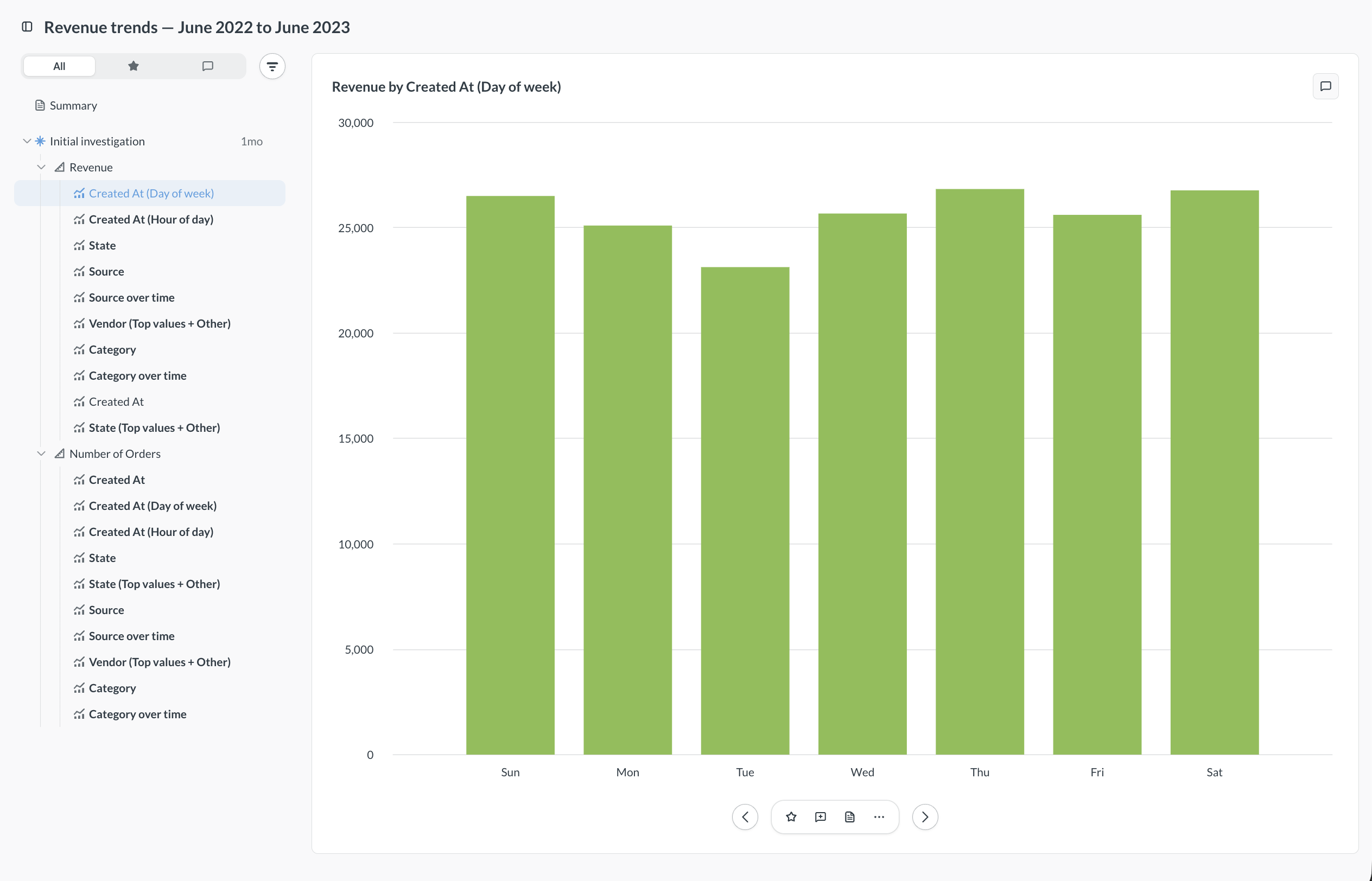
Use Research to ask broad questions about your data without building charts one at a time. Research is available from the AI exploration page. Describe what you want to investigate, and Metabase creates a bunch of charts, scores them for interestingness, and presents them in a single grouped view. Metabase saves each Research as its own entity, like a question or dashboard, so you can move the Research to a collection and share it.
Research requires an AI provider. It also requires at least one metric, because Research builds its charts by breaking out your metrics by their dimensions. More metrics give Research more to work with. If an admin turns on Disable all AI features, Research isn’t available.
Research works best for open-ended questions, like “what drove revenue last quarter?” If you already know the chart you want, create a question instead. To ask one question at a time, use AI exploration.
Create and run a Research plan
To open Research, click + New > AI exploration, then click Research. Or press Cmd+K to open the command palette and select New research.
You can use a prompt or manually build the plan.
Start from a prompt
-
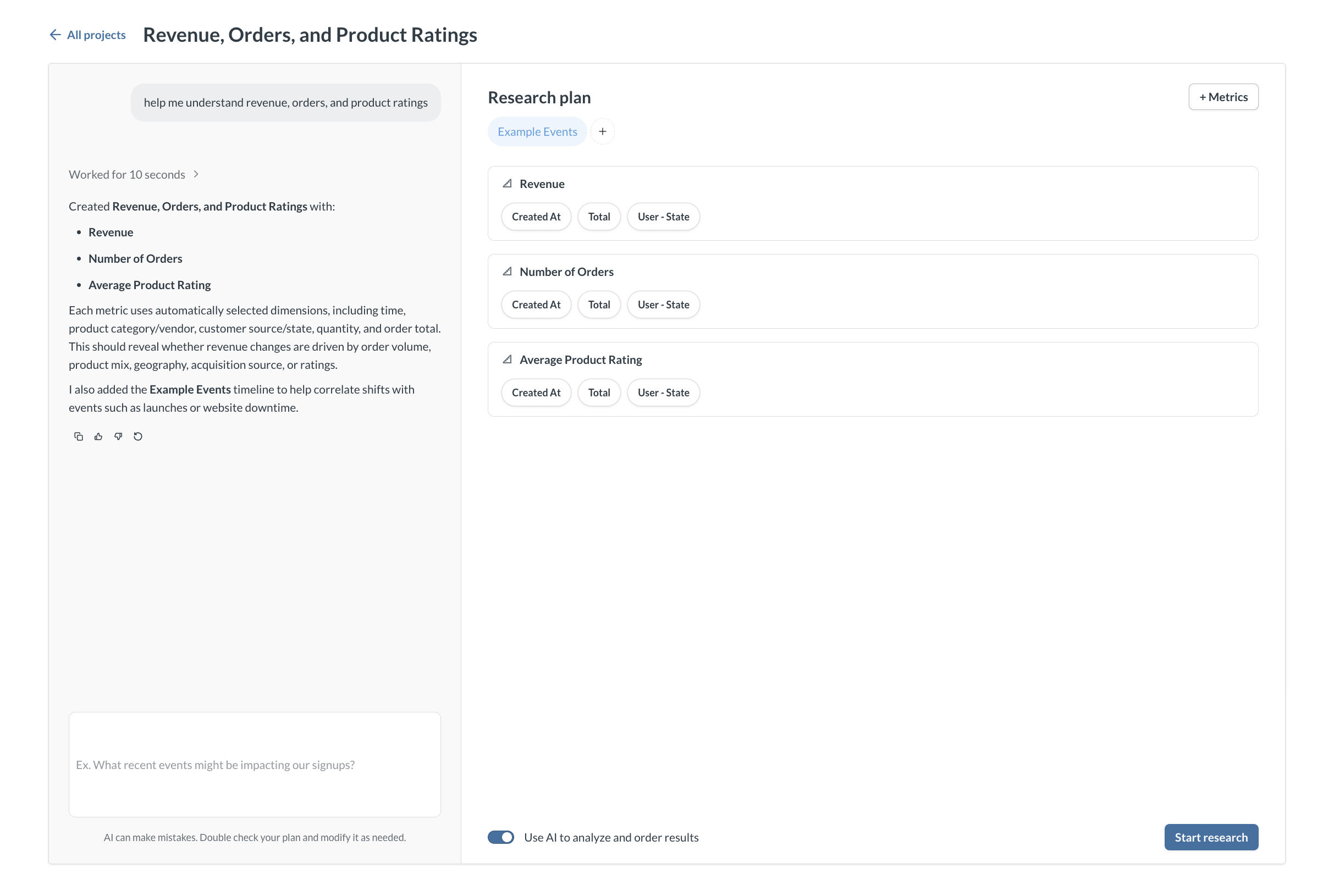
Write a prompt, like “help me understand revenue, orders, and product ratings.”
-
Click Create plan.
-
Review your Research plan. Metabase adds relevant metrics with their related dimensions and pulls in any relevant timelines. Metabase uses your prompt to name the Research.
-
To refine your plan, send another prompt. To edit the plan yourself, use + Metrics to add metrics, or + Events to add timelines. To change which dimensions a metric uses, click the dimensions under the metric.
-
To use AI to rank the charts, turn on Use AI to analyze and order results. AI ranking consumes tokens. Turn it off to use a deterministic score.
-
Click Start research. Metabase generates the charts in the background, so you can browse the ones that are ready while the rest generate. After you start a Research, you can’t add metrics, dimensions, or timelines, or change the prompt.
Build the plan yourself
-
Click Manual setup.
-
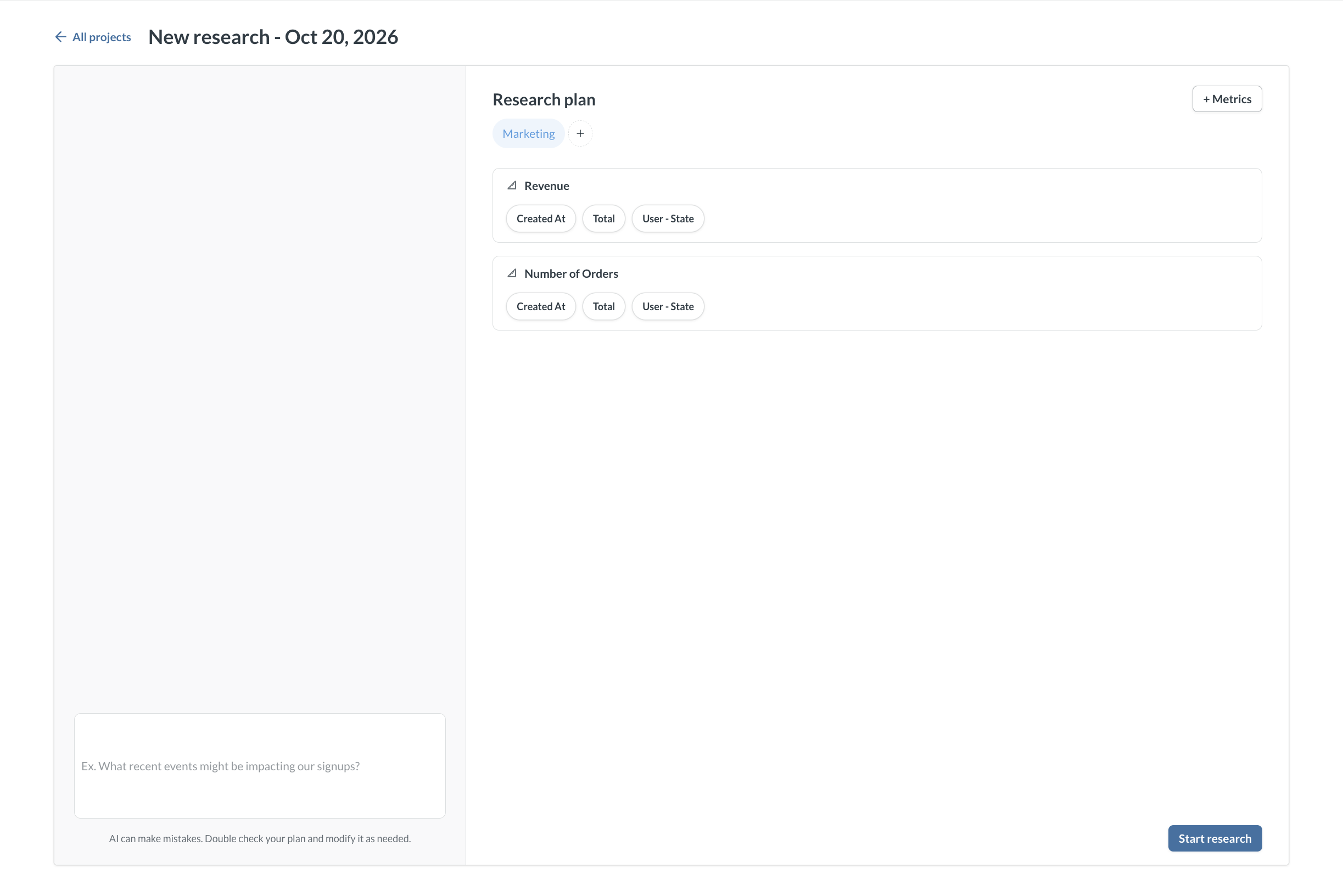
Click + Metrics to add metrics. To change which dimensions a metric uses, click the dimensions under the metric.
-
Click + Events to add timelines.
-
Click Start research. After you start, you can’t add more metrics, dimensions, or timelines.
Explore the results
Metabase generates charts for each metric in your plan, broken out by its dimensions. The sidebar lists charts grouped by metric. Charts appear as they finish, with the most interesting ones first.
To view a chart, click it in the sidebar, or use the left and right arrows to move between charts.
In the sidebar, the All tab lists every chart. The star tab lists charts you’ve starred, and the comment tab lists charts with comments.
To sort the list, click the filter icon and choose Interestingness or Alphabetical. Interestingness is the AI’s ranking, or a deterministic score if you turned off AI ranking.
Mark up charts
Use the toolbar under the selected chart, or the keyboard shortcut, to:
- Star (
S) a chart to find it later in the star tab. - Comment (
C) on a chart. - Hide (
H) a chart you don’t need, from the … menu. To bring it back, choose Show hidden items from the sort menu, select the chart, and click Show from the … menu. You can’t delete charts from a Research. - Copy link to a chart, from the … menu.
Add charts to the Summary
You can add notes and charts to the Summary at the top of the sidebar. Click a chart and click Add to Summary in the toolbar. The chart added to the Summary keeps any selected timelines and comments. Click Save to save your changes to the Summary.
Explore a data point
Select a data point on a chart to open its menu:
- Click Explore further to investigate the value. Metabase creates a chart filtered to that value and adds it to your Research.
- Click Add comment to comment on the data point.
Save and share your Research
Metabase saves each Research to your personal collection. To share a Research, move it to a collection that others can access:
- Open the collection that contains the Research.
- Click the … on the Research’s row.
- Click Move and select a collection.
You can also pin, bookmark, or move a Research to the trash from the same menu.
Permissions for Research results
Research stores the results of its charts, so a viewer sees stored results rather than running the queries themselves. Metabase still applies data permissions when someone views a Research. A viewer without access to the underlying data source can’t see those results, and a viewer with row-level security sees only the rows they’re allowed to.
You can’t use metrics from a database with database routing enabled, because Research stores results and routing can’t resolve them at read time.
Read docs for other versions of Metabase.