


Manage data apps
Data Studio > Data apps
Data apps are only available on Pro and Enterprise plans (both self-hosted and on Metabase Cloud).
Only admins can manage data apps.
- Click the grid icon in the upper right and select Data studio.
- In the left sidebar, under Library, click Data apps.
The list shows each app’s Name, Address, Status, and Last synced time. The address is where people open the app, /apps/<slug>. Last synced is the last time the app itself changed, like a new bundle or a status change. Edits to the app’s questions and actions don’t update it.
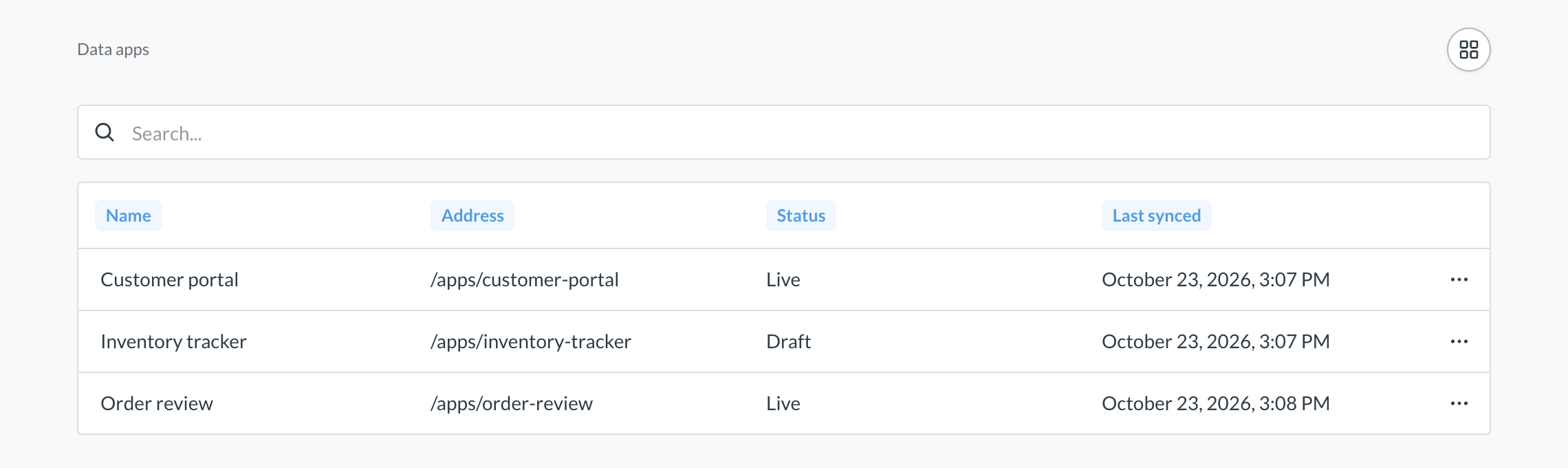
To open a live app, click the three dots on the app’s row and select Open app.
See what an app reads and writes
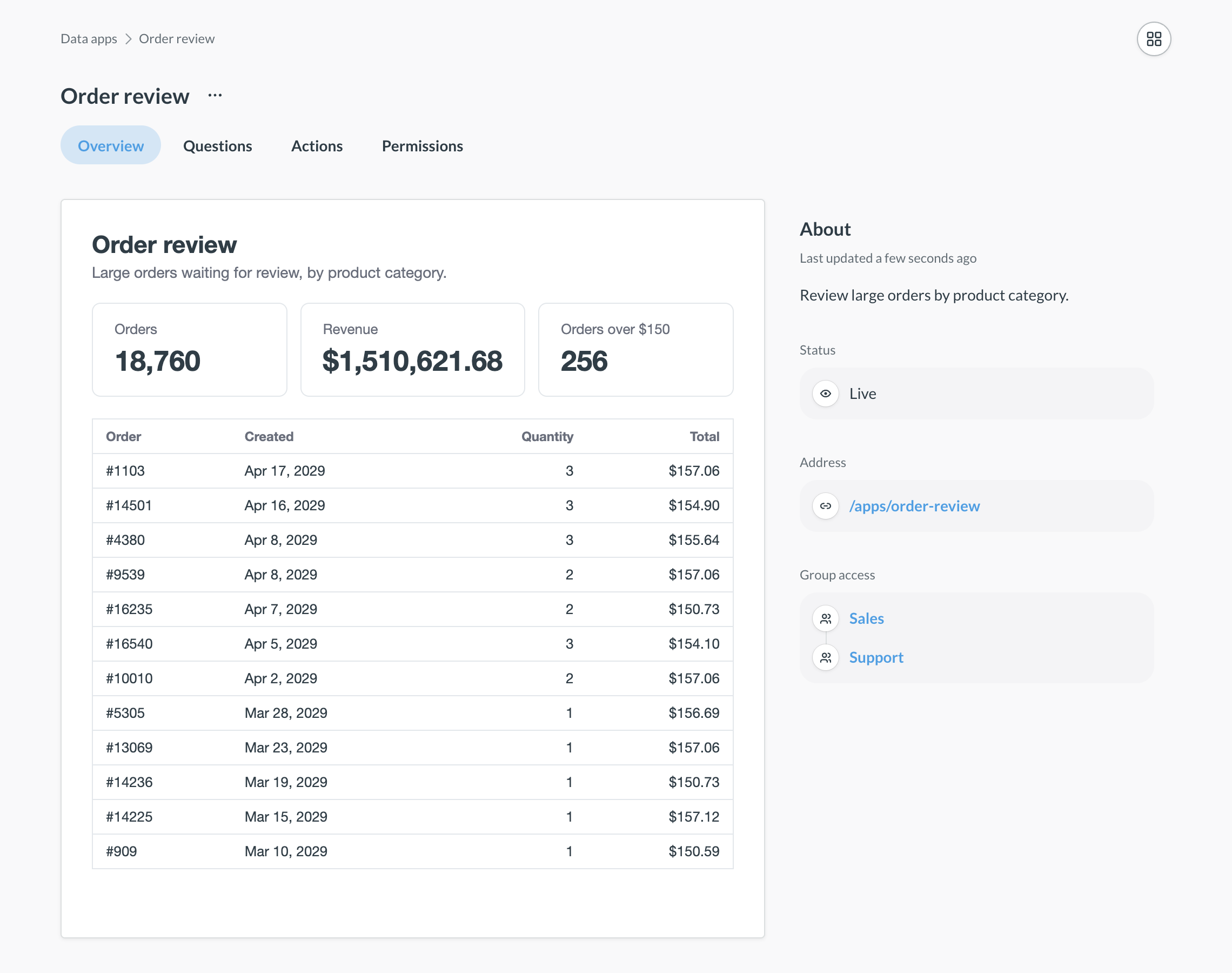
Before you let more people open an app, check which data the app reads and writes. In the list of data apps, click the app. The app’s Questions and Actions tabs list the questions and actions in the app’s collection, and the Permissions tab lists the groups that can open the app. The list of questions doesn’t include the app’s metrics. The app’s Overview tab has a preview of the app.
These tabs don’t show everything that the app can read. The app can also read your published tables, and the metrics and dashboards in your Library. See what a data app can read and write.
To see what a question or action depends on, open the question or action, and go to its Dependencies tab. To see the whole app, look up the app in the dependency graph.
To see the questions and actions that your apps run, who runs them, and what fails, check out Data app analytics in Monitor.
Make an app live or a draft
An app’s status controls whether the app opens at its address:
- Live: Admins, and people in the app’s groups, can open the app at its address.
- Draft: Nobody can open the app at its address, not even admins. Admins can only preview the app on its Overview tab in Data Studio.
New apps start live. Make an app a draft to take it offline, for example while you fix a problem. To change an app’s status:
- In the list of data apps, click the three dots on the app’s row.
- Select Make draft (or Make live), and confirm.
Choose who can open an app
On the app’s Permissions tab:
- Click Add groups.
- Search for one or more groups, and select them.
- Click Add.
Admins can always open live apps, so you can’t add the Administrators group. If an app has no groups, only admins can open it.
Tenant users can’t open data apps. You can’t add tenant groups or the All tenant users group to an app, and tenant users can’t be in the other groups.
Check that groups can see the app’s data
Adding a group to an app lets people in that group open the app, and gives the group read access to the app’s collection. Adding a group doesn’t change their data permissions. If the Data access column says Missing N tables, people in that group don’t have Can view access to some of the tables that the app’s questions and actions read. The check counts the group’s own access, and All Users access, but not access that people get from their other groups. The check also doesn’t look at row and column security: a group with row and column security can show All tables, but people in that group can’t run the app’s actions on that database.
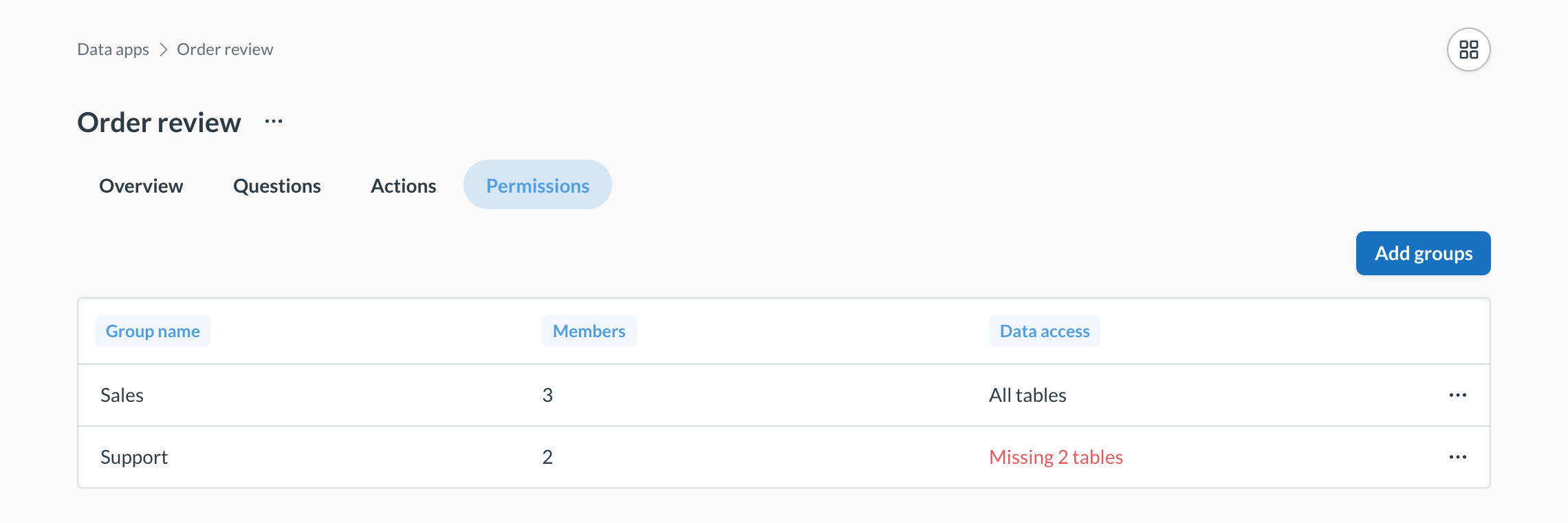
The check uses the dependency graph. Since the graph updates in the background, a warning can also lag behind your latest edits.
To fix the group’s access:
- Click the group’s row. A sidebar opens with the group’s Missing tables.
- Click a table, and select Change permissions to open that table’s data permissions.
Delete a data app
Data Studio doesn’t have an option to delete apps. To delete an app, ask your agent, or run:
mb data-app delete <slug>
Deleting an app also deletes its collection (with its questions and actions), its bundle, and its group access.
Read docs for other versions of Metabase.