


Data actions
Data Studio > Data actions
Data actions let people change the data in your database. For example, a data action can approve a request, or mark an order as refunded.
Each data action does one job: it inserts, updates, or deletes rows. An admin sets up the action once, and people can only make the changes that the action allows.
You can run data actions in two ways:
- In Data Studio, to test an action or make a one-off change. See Run a data action.
- As a public form, to collect data from people outside Metabase, like event sign-ups or feedback. See Share a data action as a public form.
Unlike model actions, data actions don’t belong to a model. You don’t need to create a model first, and data actions stay put when someone moves a model to the trash. But you can’t add data actions to dashboard buttons. For a dashboard button, use a model action.
If you sync the Library with Remote Sync, your data actions sync with it.
Create a data action
Only admins can create data actions. Data actions only work on PostgreSQL and MySQL databases. The New button only shows up if an admin has turned on data actions for at least one of these databases.
You can create a data action in two ways:
- Write SQL for changes that need your own logic, like updating every order for a customer.
- Pick a table for an action that adds, updates, or deletes one row.
Create a data action with SQL
- Go to Data Studio > Data actions.
- Click New > SQL query.
- Write your SQL. Each {{ variable }} in the SQL becomes a field on the action’s form. For examples, see Example custom actions.
- Click Save, enter a Name, pick a Folder, and click Save again.
Create a data action that changes one row
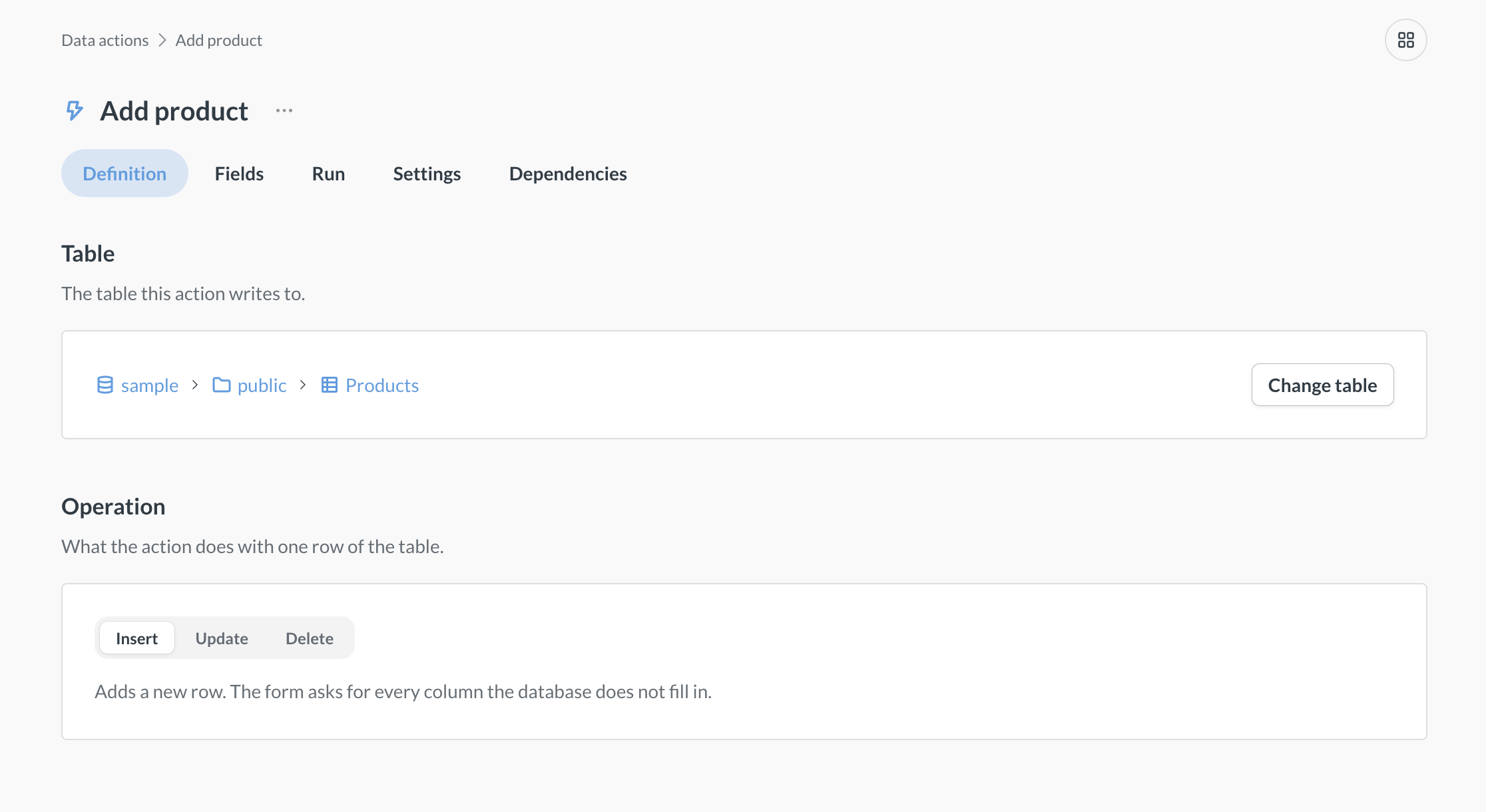
Pick a table and an operation, and Metabase builds the form from the table’s columns. The table must have exactly one primary key.
- Go to Data Studio > Data actions.
- Click New > Table, and pick a table. The picker only lists tables in databases with data actions turned on.
- Under Operation, pick Insert to add a row, Update to change a row, or Delete to remove a row. Update and Delete find the row by its primary key, and Update keeps the current value of any field you leave empty.
- Click Save, enter a Name (Metabase suggests one, like “Insert Orders”), pick a Folder, and click Save again.
Run a data action
- Go to Data Studio > Data actions and click the action.
- Go to the Run tab and click the Run button.
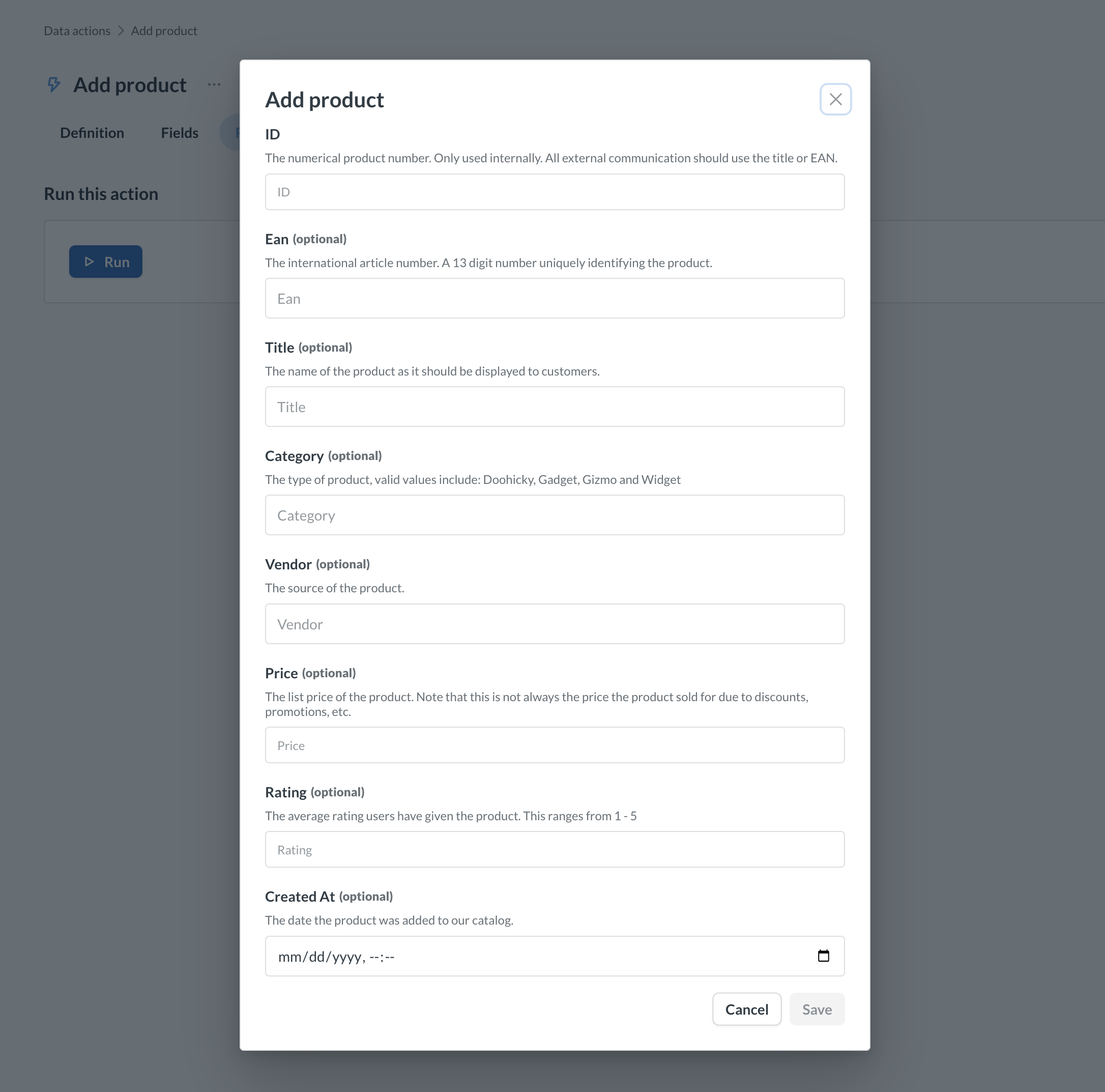
- Fill out the form and submit it. Metabase makes the change in your database.
If the Run button is grayed out, data actions are turned off for the action’s database, or you don’t have access to that database.
Edit a data action
Go to Data Studio > Data actions and click the action.
- To change what the action does, go to the Definition tab. For a SQL action, click Edit definition. For a table action, click Change table or pick another Operation.
- To change the action’s form, go to the Fields tab and click a field to change its type, input, default value, and more. A SQL action has one field for each {{ variable }} in the SQL. A table action has one field for each column that it writes (for Delete, only the primary key), and you can only show or hide these fields. If you turn off Show field, the action uses the field’s default value.
Share a data action as a public form
A public form lets anyone with the link run the action without signing in to Metabase.
- Open the action and go to the Settings tab.
- Turn on Make public, and copy the Public link.
- Optional: Enter a Success message that people see after they submit the form.
Only admins can make an action public, and public sharing must be on.
Public forms don’t check row and column security. Anyone with the link can run the action, even on a database where row and column security applies to some groups.
Check what uses a data action before you change it
Dependency graph is only available on Pro and Enterprise plans (both self-hosted and on Metabase Cloud).
Open the action and go to the Dependencies tab to see the action’s dependency graph.
Use folders to control who can run data actions
Anyone who can view a folder can run the actions in it. So use folders to give each group the actions it needs. For example, put the actions that your support team uses in a “Support” folder, and give only the Support group view access to that folder.
- Create a folder: Click New > Collection.
- Change who can run a folder’s actions: Click the three-dot menu next to the folder, and select Change permissions. For actions that aren’t in a folder, click the three-dot menu next to the New button, and select Change permissions.
- Move an action to another folder: Open the action, click the three-dot menu next to its name, and select Move.
Archive and unarchive data actions
- Archive an action: Open the action, click the three-dot menu next to its name, and select Archive. Public forms that use an archived action stop working until you unarchive the action.
- Archive a folder: Click the three-dot menu next to the folder, and select Archive. Metabase archives the folder’s actions with it.
- Unarchive an action or folder: Click the three-dot menu next to the New button, select View archived actions, and click the Unarchive action or Unarchive folder icon. Unarchiving a folder brings back the actions that Metabase archived with it, but not actions that someone archived on their own.
Data action permissions
Anyone who can view a data action’s folder can run the action. To run an action in Data Studio, people also need access to Data Studio. People without access to Data Studio can run an action through a public form.
Only admins can create, edit, move, archive, or unarchive data actions and their folders. You can’t give other groups Curate access to data actions folders.
Further reading
Read docs for other versions of Metabase.