





MCP server
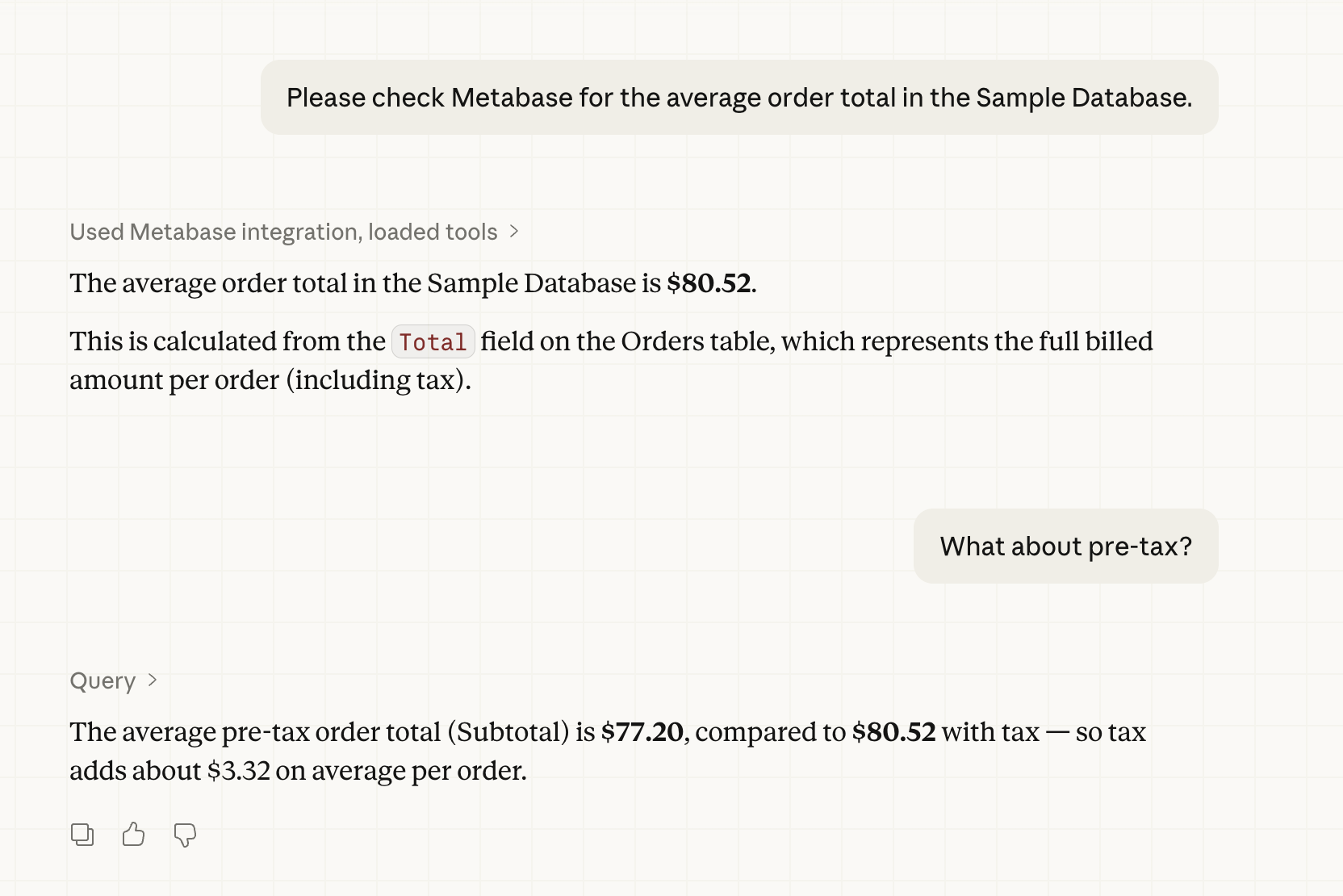
Metabase includes an MCP (Model Context Protocol) server (using Streamable HTTP transport) that lets AI clients connect directly to your Metabase, all scoped to the connecting person’s permissions.
Enable MCP server
Admin > AI > MCP
MCP server and Agent API settings live on their own subpage. From Admin > AI, open the MCP tab in the left sidebar.
Use the MCP server toggle to turn external access to the MCP server on or off.
Supported MCP clients
Under Supported MCP clients, switch on any clients you want to allow:
- Claude (Claude Desktop and Claude on the web)
- Cursor and VS Code
- ChatGPT, including Codex
Toggling on a client automatically adds that client’s sandbox domains to Metabase’s CORS allowlist, which is what lets browser-based MCP clients make cross-origin requests to your Metabase.
Some clients run outside the browser (like Claude Code on your own machine) and don’t need a CORS allowlist entry. You can connect those clients without toggling anything on (assuming you’ve turned on the main MCP server setting).
Custom MCP client domains
If you run a self-hosted MCP client, or a client that isn’t in the supported list, add the client’s domain to the Custom MCP client domains field. Separate values with a space, for example:
https://mcp.internal.example.com https://*.staging.example.com
The field accepts wildcards (*) for subdomains. Changes take effect in about a minute. Might be a good time to get up and pour yourself a glass of water.
Connect a client to your Metabase MCP server
If your admin has turned on your Metabase’s MCP server, all you need to do is point your MCP client at Metabase’s MCP endpoint, /api/metabase-mcp. For example:
https://{your-metabase.example.com}/api/metabase-mcp
You can find your instance’s MCP URL in Admin > AI > MCP.
For Claude Code, for example, you can run the following command.
claude mcp add --transport http metabase https://{your-metabase-url}/api/metabase-mcp
replacing {your-metabase-url} with your Metabase address.
Once you add the MCP server, your client will direct you to authentication page for your Metabase instance.
Authentication
MCP clients authenticate with Metabase using OAuth 2.0. Metabase runs its own embedded OAuth server, so you don’t need to set up an external OAuth provider.
Your MCP client should try to connect to your Metabase. You’ll see a Metabase-branded consent page asking you to approve the connection to your Metabase.
A first-time connection will go something like this:
- The client discovers Metabase’s OAuth endpoints.
- The client registers itself with Metabase.
- You’re redirected to Metabase to log in (if you aren’t already) and approve the connection.
- The client receives an access token scoped to the permissions you have in Metabase.
Results returned by the MCP server are sent to your MCP client, which may forward them to an AI provider depending on how the client is configured. See AI privacy.
Site URL must match the URL your client uses
For containerized setups, like when testing locally, you may need to set the MB_SITE_URL environment variable to the URL you point to. For example, if you’re playing around with a Metabase on localhost:
MB_SITE_URL: http://localhost:3000
Some explanation: OAuth discovery starts with Metabase returning a WWW-Authenticate header whose resource_metadata URL is built from your Site URL setting in Admin > Settings > General (or via the environment variable).
If the site URL doesn’t match an address your MCP client can reach, like if you’re running Metabase in Docker and the site URL got auto-detected from an internal hostname like metabase-dev:3000, the client will register but fail the handshake. Your MCP client will typically report a connection failure rather than prompting you to authenticate (for example, Claude Code shows ✗ Failed to connect rather than ! Needs authentication).
With the MCP server, your client provides the AI
MCP server requests are handled by whatever AI client you’re using (like a desktop AI app or editor plugin). The MCP server just provides tools (like searching for an entity or running the query) for your AI.
For example, if you ask your AI client to use your Metabase’s MCP server “what’s our q3 revenue,” your client will interact with the MCP server to figure out which tools it needs to field your request. Your AI can decide that it needs to use the tool construct_query and execute_query, and what those queries might be. Then your client will call those tools for Metabase to run.
You don’t need to have an AI provider configured in Metabase to use your Metabase’s MCP server. If you do have an AI provider configured in Metabase to power Metabot, that provider will not be used for MCP server requests. MCP calls by your local client have no effect on token usage for your Metabase’s AI connection.
Using the MCP server
The MCP server will return results as either text or an inline chart, depending on the question you asked.
If you want the MCP server to return an inline chart, ask it to “show” or “visualize” the data:
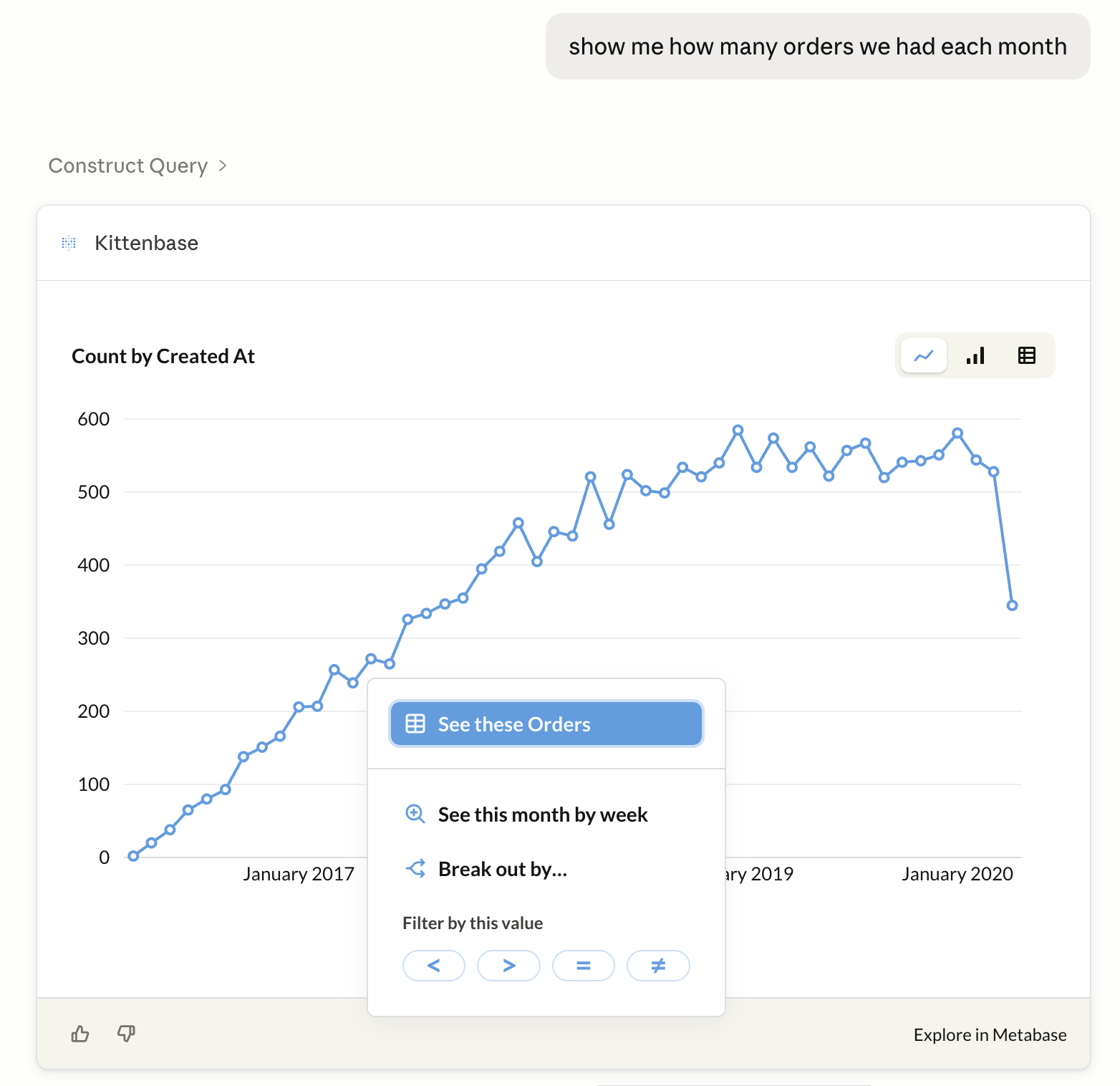
Currently, the Metabase MCP server supports bar and line charts. You can drill-through through the charts, change time granularity, or explore them in Metabase.
If your client is connected to other MCP servers, you can asks questions that combine data from multiple sources. For example, you can ask a question about your customers that combines data from Metabase, your CRM, and your support ticket platform (Though maybe you should put all that data into your Metabase).
See Available tools for the list of functionality supported by the MCP server.
Available tools
Some clients (like Claude Desktop) will ask you to approve each tool the first time it’s used. The MCP server builds on Metabase’s Agent API, and exposes the following tools. If you’re building a custom integration and need full control, use the Agent API directly instead.
Find and read content
- search: Find tables, metrics, cards, dashboards, and collections using keyword or natural language search.
- read_resource: Read one or more Metabase entities by
metabase://URI. Covers database / schema / table / collection / card / dashboard / metric / transform navigation in a single tool. Up to 5 URIs per call.
Query and visualize data
- construct_query: Construct a query against a table or metric. Returns an opaque query handle that can be passed to
execute_query. - query: Query a table or metric and return results.
- execute_query: Execute a previously constructed query and return the results with column metadata, row count, and execution time.
- execute_sql: Execute a raw SQL query against a database. Requires native-query permission on the target database. An admin can disable this tool instance-wide via the
mcp-execute-sql-enabledsetting. - visualize_query: render a chart inline in your AI client (bar or line chart only).
Create content
- create_question: Save a query as a named question (card).
- update_question: Update a saved question. Setting
collection_idmoves the card to another collection. - create_dashboard: Create a new dashboard, optionally populated with saved questions.
- update_dashboard: Update a dashboard’s metadata (name, description, collection, archived).
- create_collection: Create a new collection, optionally nested under a parent collection.
Use the MCP server with agent-driven development
You can use the MCP server to help you create Metabase content as serialized YAML files that you can import into your Metabase. Point your agent at the MCP server to give it access to your Metabase’s database metadata (table names, fields, and sample values) so it can write questions and dashboards that point at real columns.
Further reading
Read docs for other versions of Metabase.